> For the complete documentation index, see [llms.txt](https://docs.rampwin.com/llms.txt). Markdown versions of documentation pages are available by appending `.md` to page URLs; this page is available as [Markdown](https://docs.rampwin.com/automation-workflow/customer-interaction.md).
# Customer Interaction
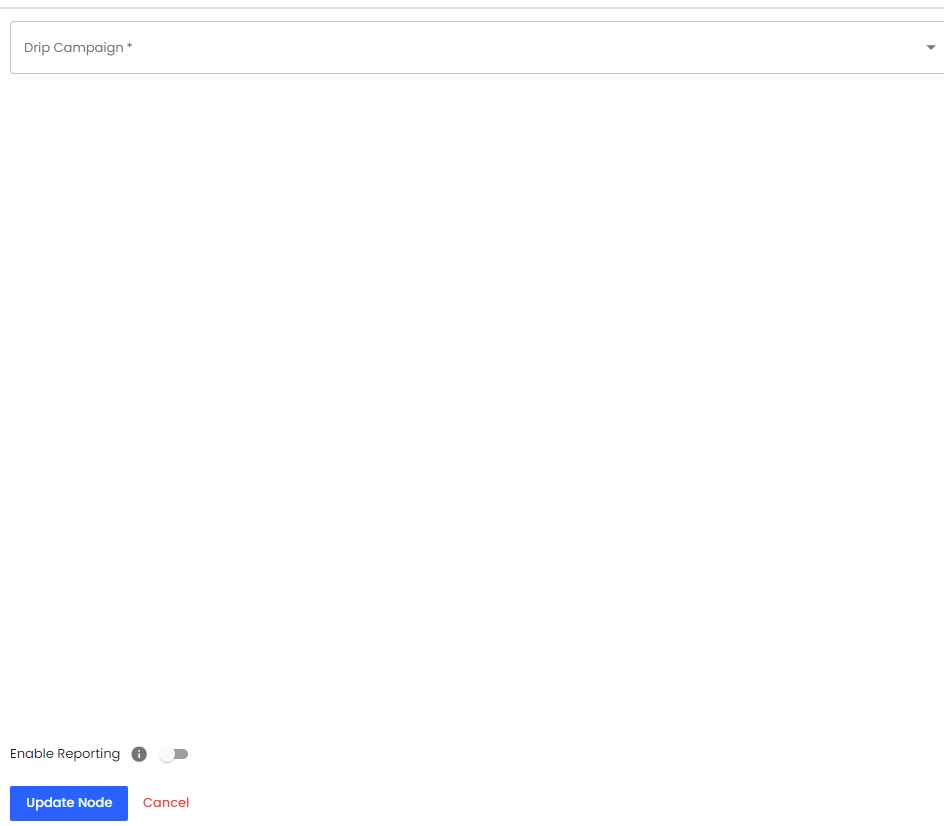
**Add To Drip Campaign**: Add users to a drip campaign for sequential automated messages.
**Remove From Drip Campaign**: If the contact is in a Drip Campaign, and if you want to remove it from that based on the Trigger Condition(s) fulfillment, you can use this particular Automation Workflow Step.
Simply select the Drip Campaign from the list and click **Add**.
**Add Contact List**: The automation Workflow can add the contact to a list under this Workflow Step when the automation trigger is activated.
* **Set Contact Attribute**:
If you like to save a message using the automation workflow, you can do that. The Action/Workflow Step provides you with the option to save a particular message to the Contact Attribute.
Update user attributes (e.g., set a tag, update a profile field).
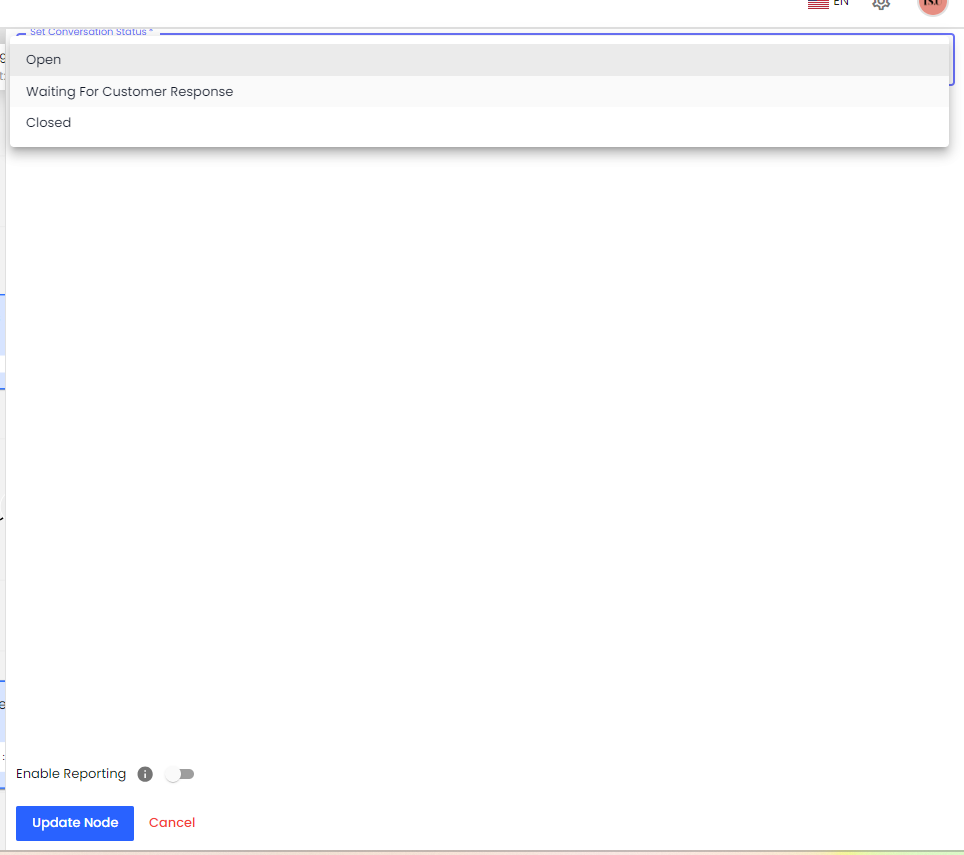
**et Conversation Status**: Change the status of a conversation (e.g., open, closed, pending).
**Mark Blacklisted**: Mark users as blacklisted to prevent further communication. If you want to avoid false Leads, Contact creation, or Incoming or Outgoing messages, you can put that on the blocklist using this particular Automation Workflow Step.
**Assign To Team Member**: Whether you receive a new incoming message or send an outgoing, or perhaps a lead is generated. Therefore, based on the Trigger and its condition, if you want it to be reviewed or taken into notice by a Team Member, you can use this Automation Workflow Step.