> For the complete documentation index, see [llms.txt](https://docs.rampwin.com/llms.txt). Markdown versions of documentation pages are available by appending `.md` to page URLs; this page is available as [Markdown](https://docs.rampwin.com/automation-workflow.md).
# Automation Workflow
Using Automation Workflows, you can run automated Actions based on **Trigger** and **Trigger Condition(s)**. For creating and running an automation workflow, it's necessary to select the Trigger (you can use only one trigger for a single automation) and based on that; you need to choose condition(s) and define its values.
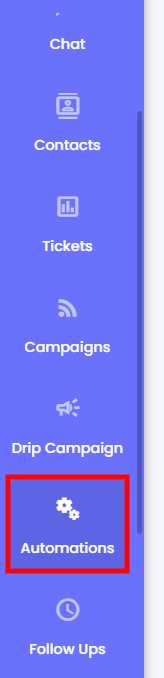
To access Automation Workflows, you can go to the **Automation** → **Automation** from your Dashboard.
Or, you can go to **→ Automation**.
### Creating an Automation
To create an automation workflow, you need to click the **Add New Automation** button.
This will open the Create Automation Workflow modal with the options -
* Automation Name
* Channel / Service Integration (trigger dependent)
* Trigger Event
In the Create Automation Workflow modal, first, you need to define the name of the Title for the automation. Then, select a Channel from the available options.
After selecting the Channel, you need to select Event Integration.
#### Select Event
Based on your selected Event, you get the Trigger Conditions. Simply select the required condition.
You can select any one then click on **Create** Button.
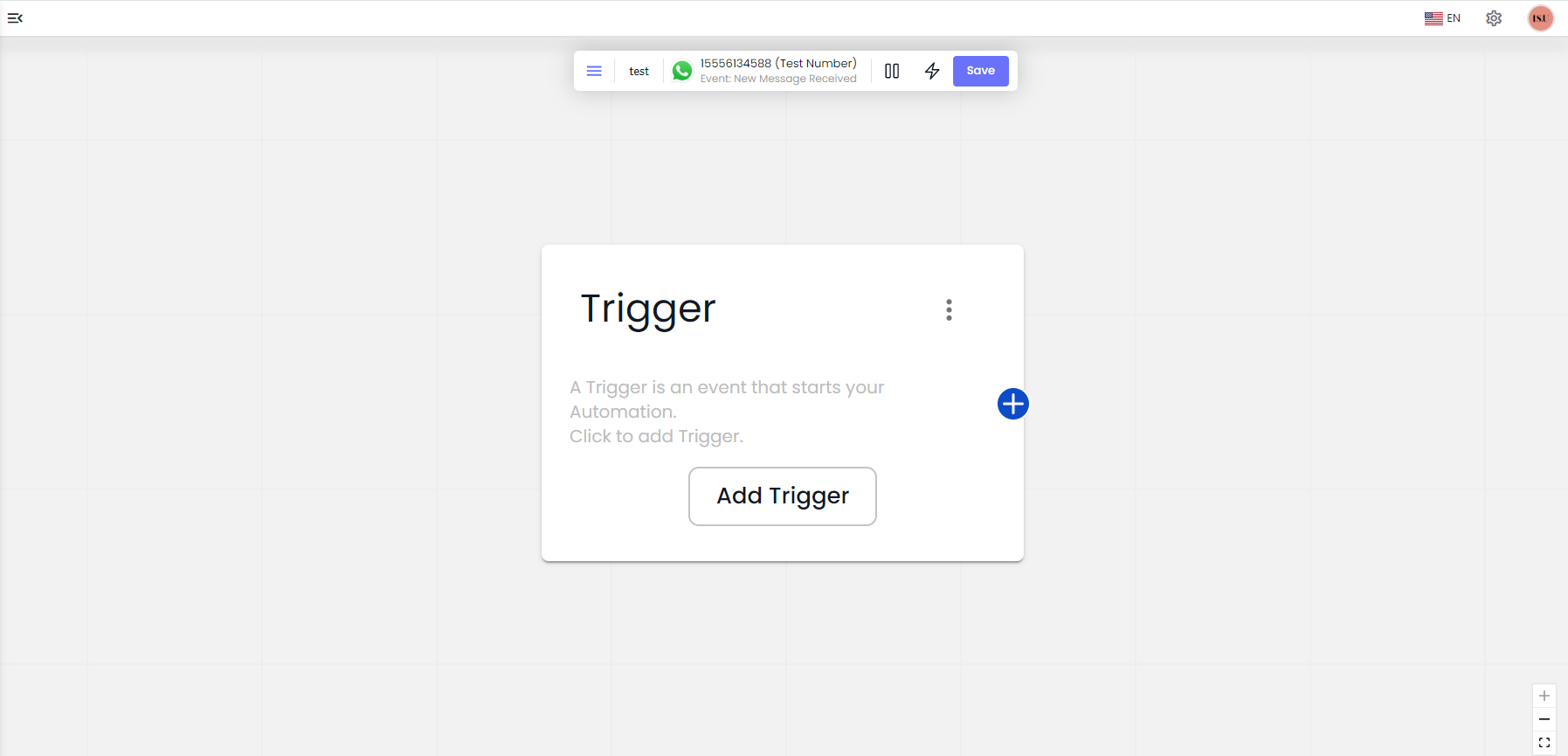
After clicking on the Create Button Page view like this.
Dubal Click on the Trigger node then click on Add Trigger Condition and Select the trigger condition **Update Node** Button.
You can add multiple trigger condition
Select the Condition
After clicking on the Update Node page view it like this and Click on **Save** Button.
All the time you can update the node, Please click on the **Save** Button.
(A **save** button click is required for all the changes to Update)
You have multiple Actions choose any for your use and click that.
Node Connection
After clicking any actions your node connection is ready.
## Type of Actions
1. Starting Point
2. Workflow
3. Messaging
4. Customer Interaction
5. Security
6. Technical
7. Tagging
8. Payment Processing
9. Whatsapp Chat Commerce
10. ChatGPT
Actions
There are a total of 24 Workflow Steps you can select to assign them to an automation trigger. Simply select your Steps from the given list and configure them accordingly. To learn how each step works and what's the best way to configure them.
For an automated action to run, you can set multiple conditions, and all those conditions need to be True or fulfilled. The Trigger Condition section has 4 elements that allow you to utilise it to the fullest. The elements are,
Once, you've saved the Step, it will appear in the Create Automation Workflow modal as the following.
* **Trigger Condition** - Here, you can select one condition from the 8 condition types.
* **Match String** / **Text keywords** - Here, you can define the Message(text) or Keyword(s) that should be found in the New Outgoing/Incoming Message to qualify the Condition(s) as True or Fulfilled. If not, the Action(s) won't run.
* **Is Case Sensitive** - The Match String/Text Keywords Is Case Sensitive. If you set APPLE, then it should be APPLE, not Apple. Or you've set Purple; then it should be Purple, not pUrple. The text should match the Letter Case exactly to qualify the Condition as True.
* **Add More Condition** - Simply add more condition(s) to be checked and fulfilled for the Action to run when the trigger activates.



.png?alt=media&token=d909ac1c-490e-4531-9de6-ef7db88dfc67)
.png?alt=media&token=890ee0a4-10c7-4382-8942-1dc02f5b3a09)
.png?alt=media&token=274fa289-cc92-4120-8c4a-c936ea72ddf0)

.png?alt=media&token=6ca7fa07-d784-4fba-8b0a-03498ba46cd3)


.png?alt=media&token=27e1f50d-7206-4cd7-ada7-cf637e80b4e2)