> For the complete documentation index, see [llms.txt](https://docs.rampwin.com/llms.txt). Markdown versions of documentation pages are available by appending `.md` to page URLs; this page is available as [Markdown](https://docs.rampwin.com/setting/account-setting/roles-and-permissions.md).
# Roles & Permissions
Through **Roles & Permissions** Setting, you can create different roles and allow specific permissions to them. Then, use Roles to create Team members and provide them control as per allowed permissions. This is useful to give team members limited control over the platform and its options.
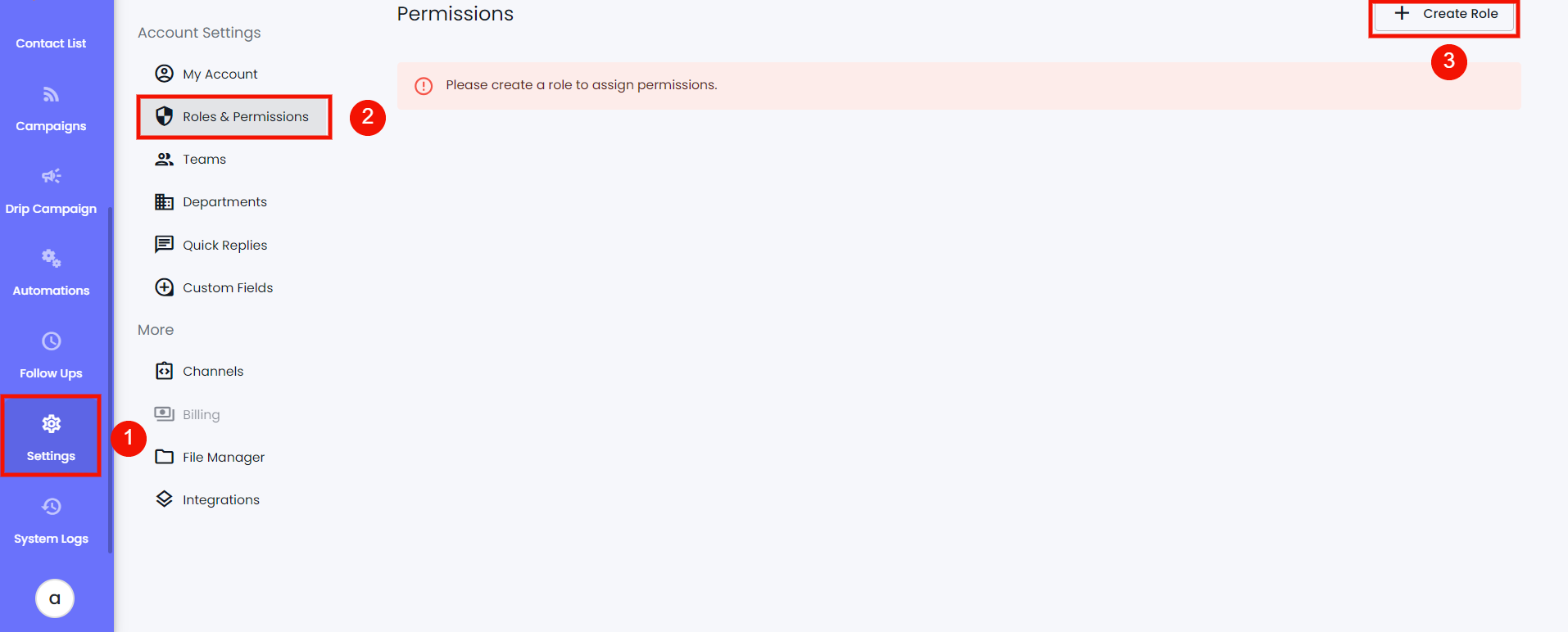
To access this particular setting, go to **Settings** and then click **Roles & Permissions**.
### Create a Role
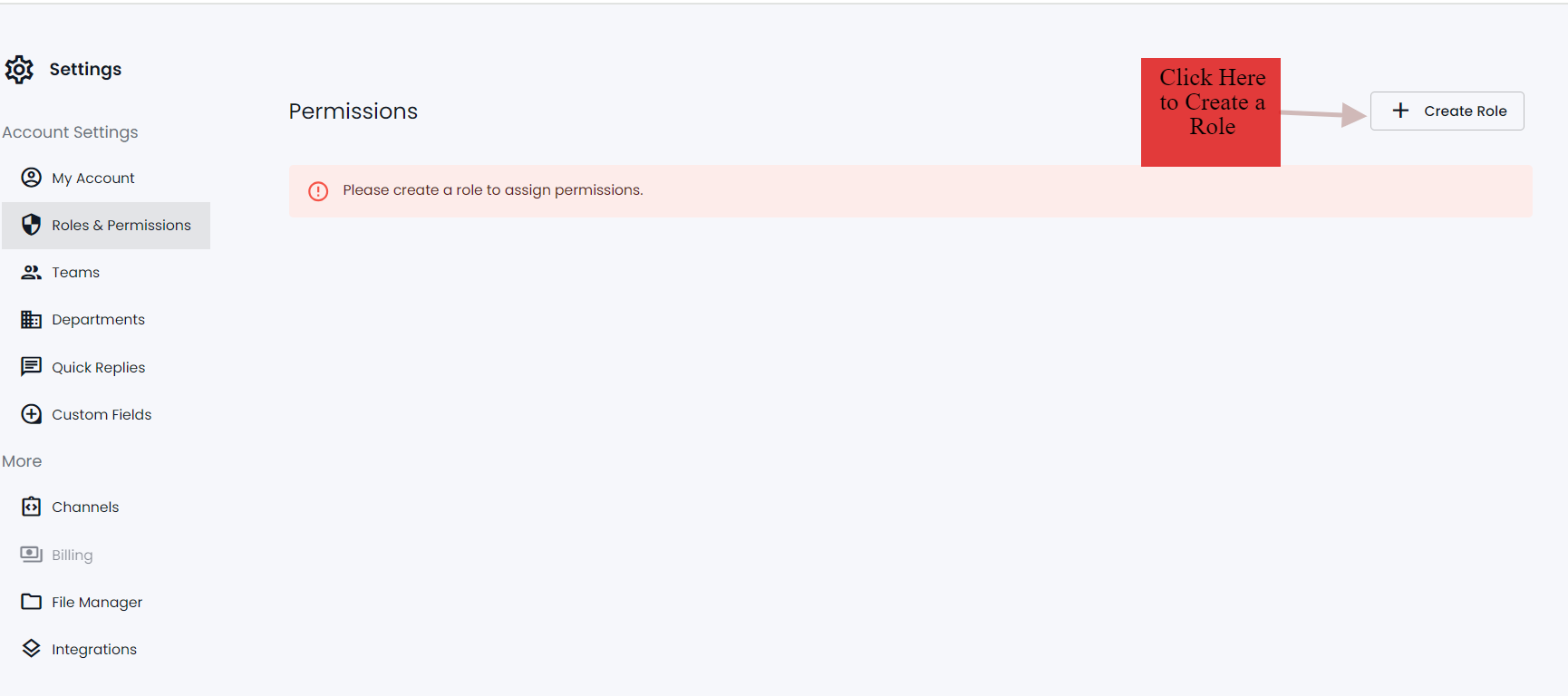
At Roles & Permissions, click the **Create Role** button.
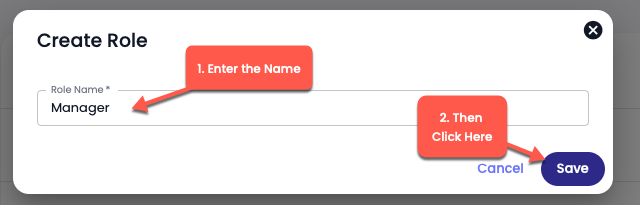
Then, define the name of the Role and click **Save**.
### Assign Permission
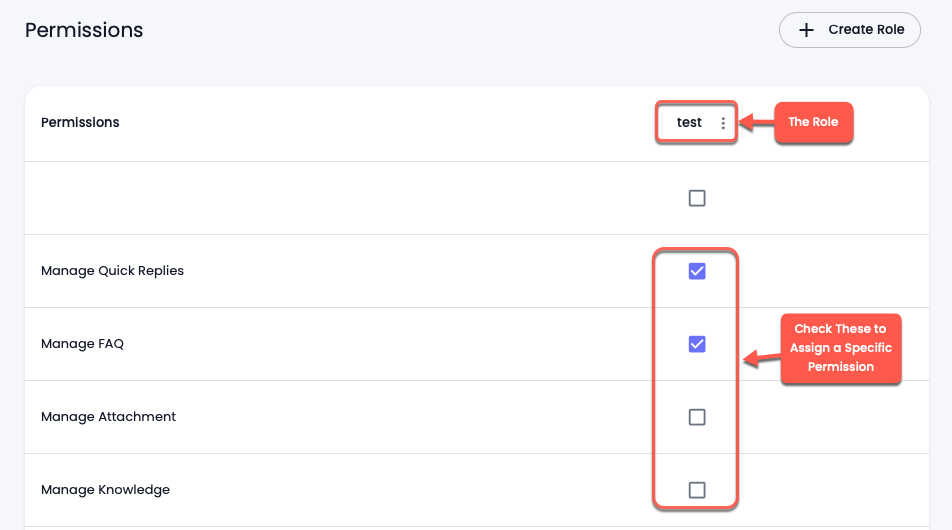
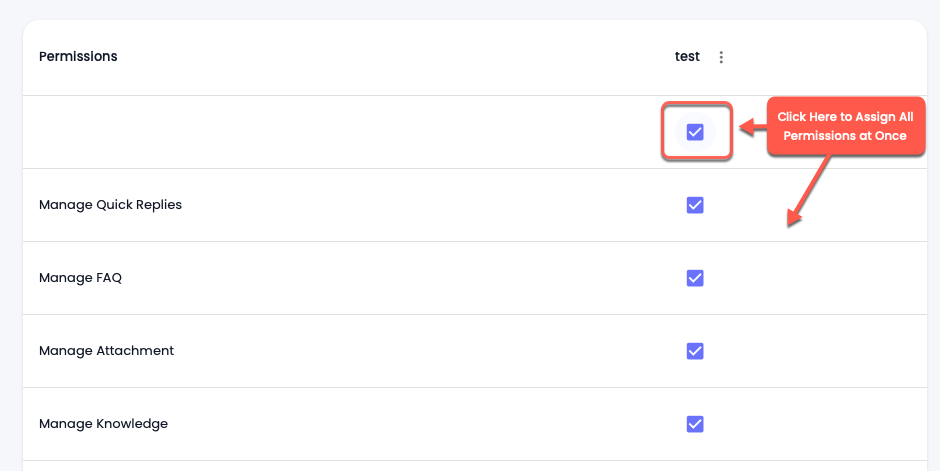
Once you've created a Role, you'll find it in the tab. Then, to assign permissions, simply click the checkbox next to permission.
| **1. Manage Quick Replies** |
| -------------------------------------- |
| **2. Manage Attachment** |
| **3. Manage Departments** |
| **4.** Manage Own Department Teams |
| **5.** Manage Own Department Chats |
| **6. Rest API** |
| **7. Manage Self Account** |
| **8. Manage Campaigns** |
| **9. Manage Channels** |
| **10. Manage Assigned Channels** |
| **11.** Can Send Template |
| **12.** Manage Custom Fields |
| **13.** Manage Service Integrations |
| **14. Chat Customers** |
| **15. Manage All Chats** |
| **16. Manage All Tickets** |
| **17. Manage Automation Rules** |
| **18. Manage Contacts** |
| **19. Manage Follow Ups** |
| **20. Manage All Follow Ups** |
| **21. Can See Contact Basic Profile** |
| **22. Manage User Roles** |
| **23. Manage Teams** |
| **24. Manage Message Template** |
| **25. Manage Drip Campaign** |
| **26. Create Manual Payment Link** |
| **27. Manage Chat Commerce Store** |
| **28.** Manage Additional Chat Members |
| **29.** Download Contacts |
| **30.** Download Messages |
### Editing a Role
To edit a Role, click the Menu (three vertical dots) icon, then select **Edit**.
It will allow you to change the name. Once edited, click **Save**.
### Delete a Role
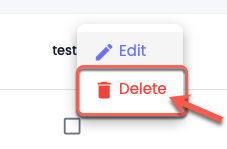
To delete a Role, click the Menu (three vertical dots) icon, then select Delete.
Then click the **Confirm** button to finalize deleting.