> For the complete documentation index, see [llms.txt](https://docs.rampwin.com/llms.txt). Markdown versions of documentation pages are available by appending `.md` to page URLs; this page is available as [Markdown](https://docs.rampwin.com/setting/more/integrations/shopify.md).
# Shopify
With the Shopify Marketplace App you can send order reminders, cart abandoned notifications, order fulfillment notification & many more things.
To setup your Shopify store in Rampwin first you need to create a private app in your Shopify store here are the steps to create privet app on Shopify store.
* Login on your Shopify Admin
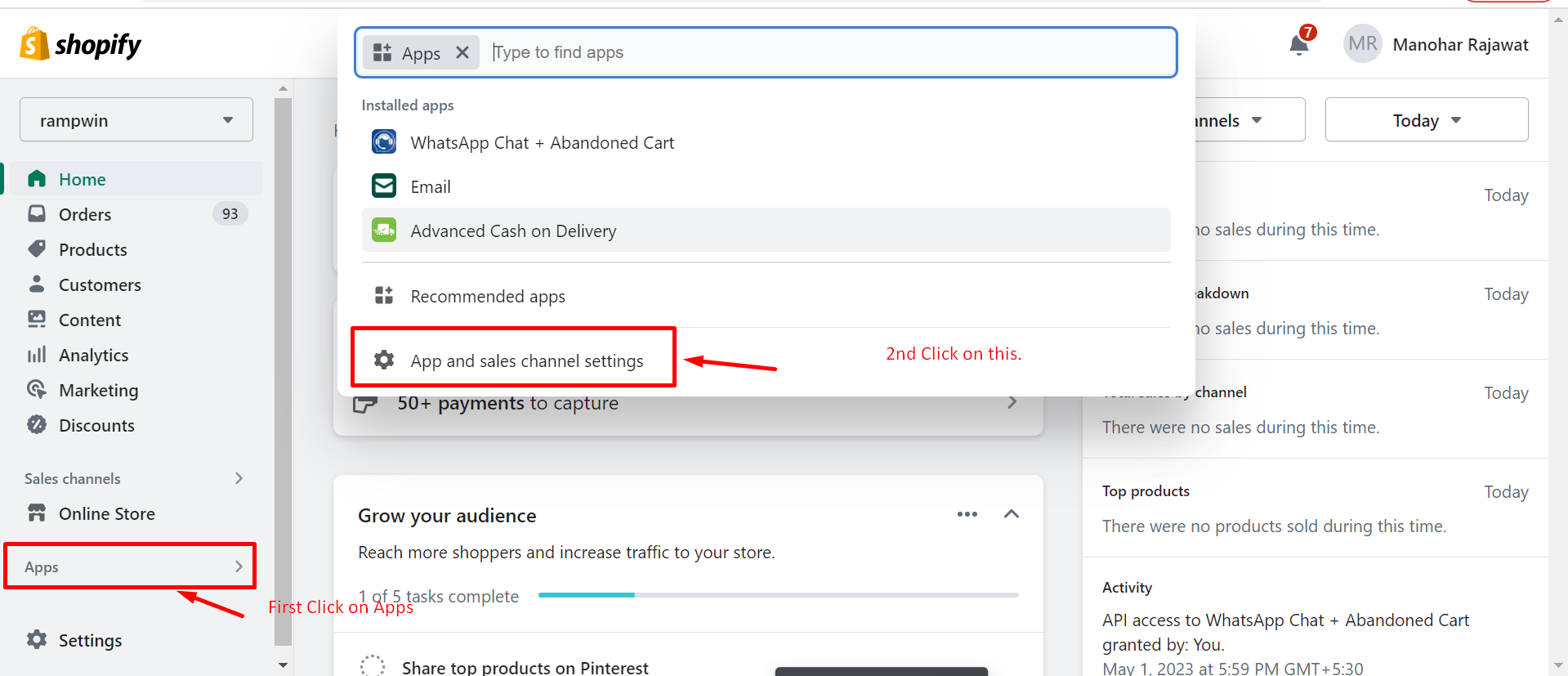
* Click on Apps
* Click on App and sales channel settings.
* Click on Develop App
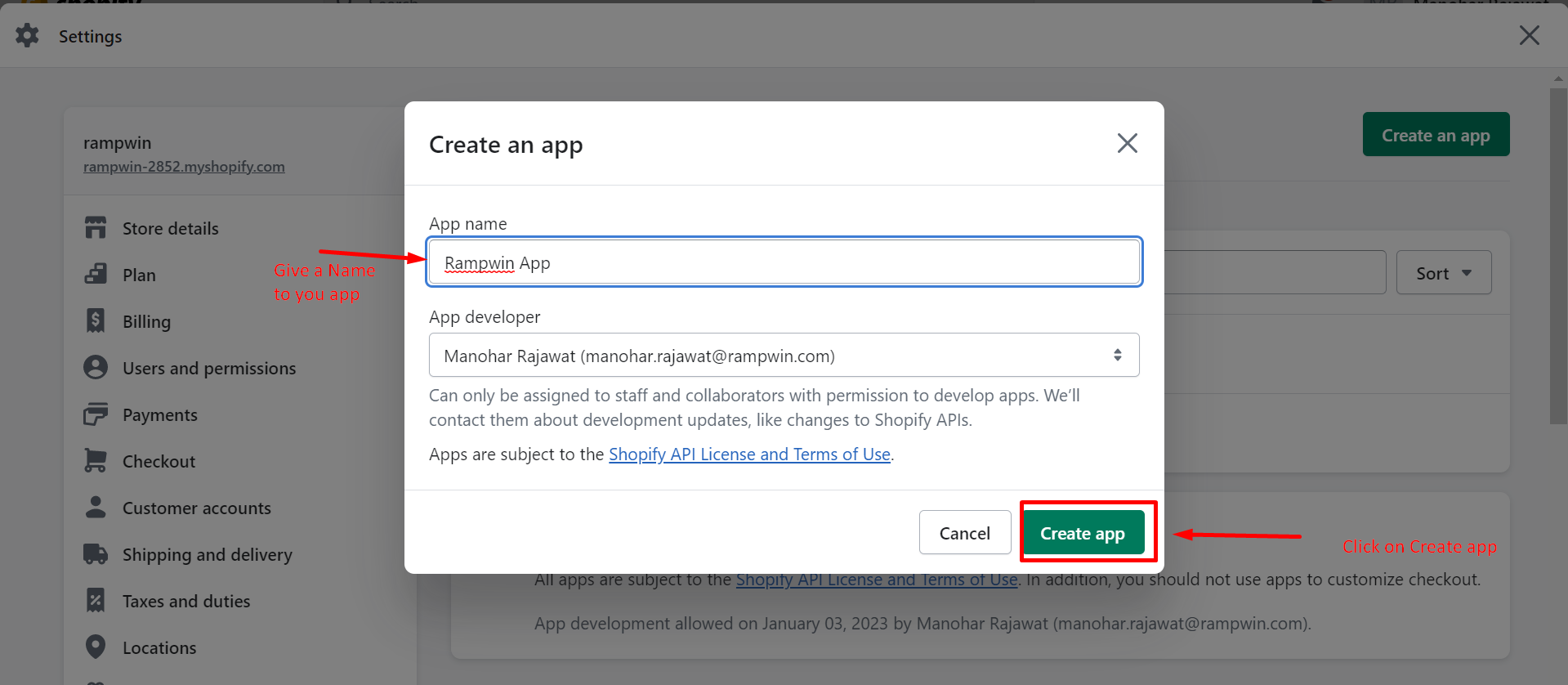
* Click on Create an App.
App Create Screen
Develop App
Create an App
Create App Screen
After create an app you have to setup storefront & admin scope permission to use Rampwin Whatsapp CRM.
Configuration Scopes
After Permission Install that APP.
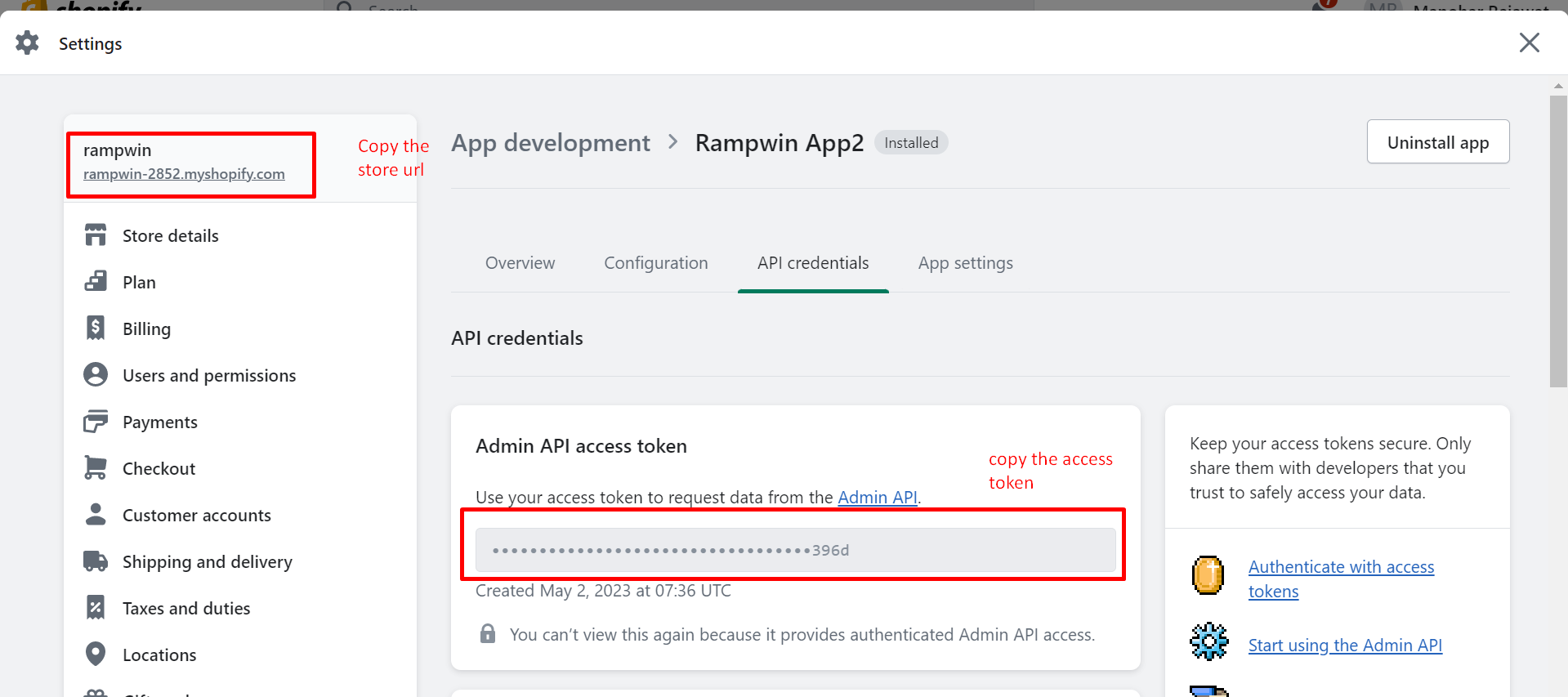
Click on API credentials and Copy Access token & Store URL & paste it on the Shopify App Configuration Screen Popup.
{% embed url="" %}
Complete Video Guide to Setup Privet App
{% endembed %}
### Steps to Add Private App
* Click on Integration from left hand side menu.
* Select Shopify from Marketplace Apps.
* Fill API key & store URL which you copy from Shopify App Credentials.
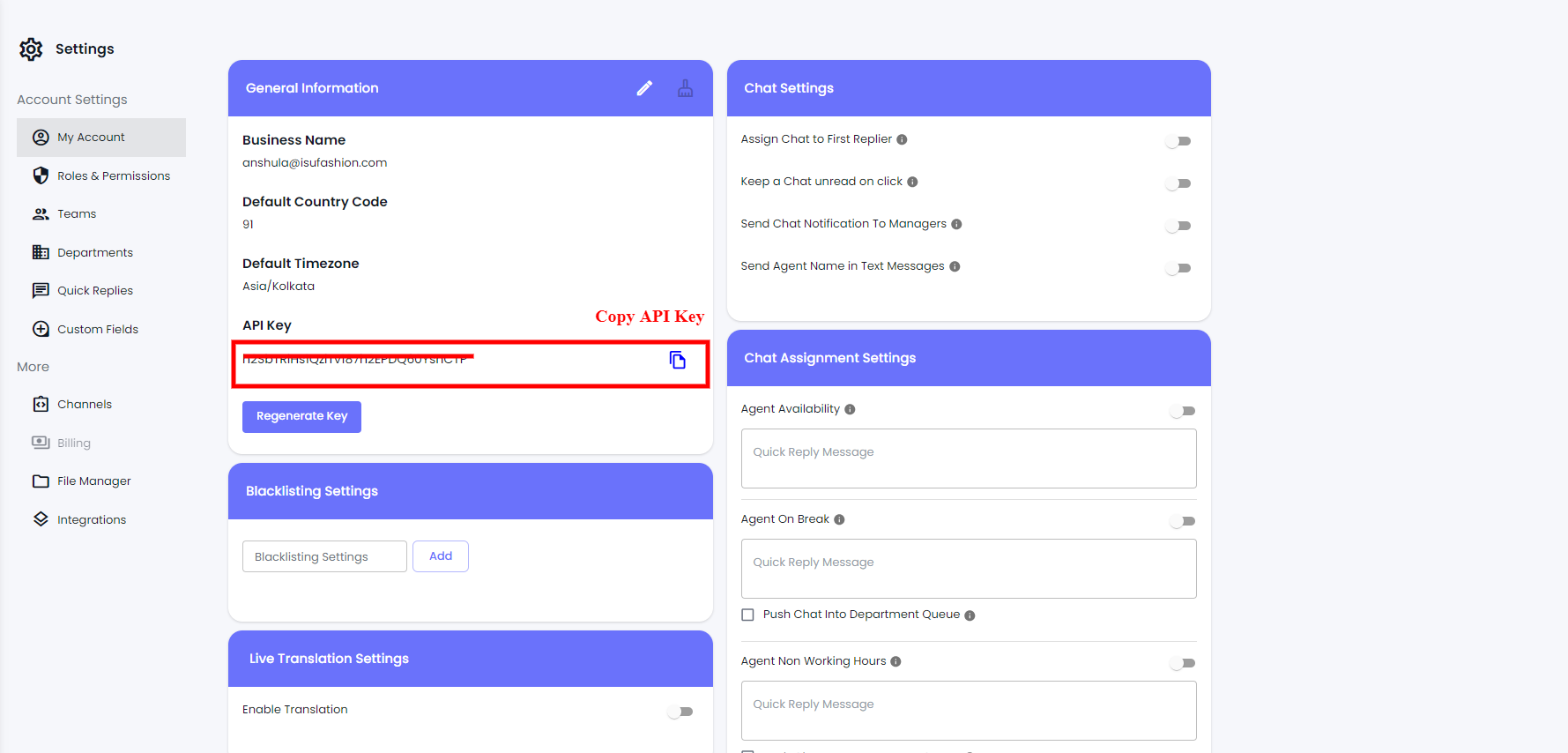
* Copy Rampwin API key from .
* Copy Channel ID From Channel .
How to Get API Key
Marketplace App Screen
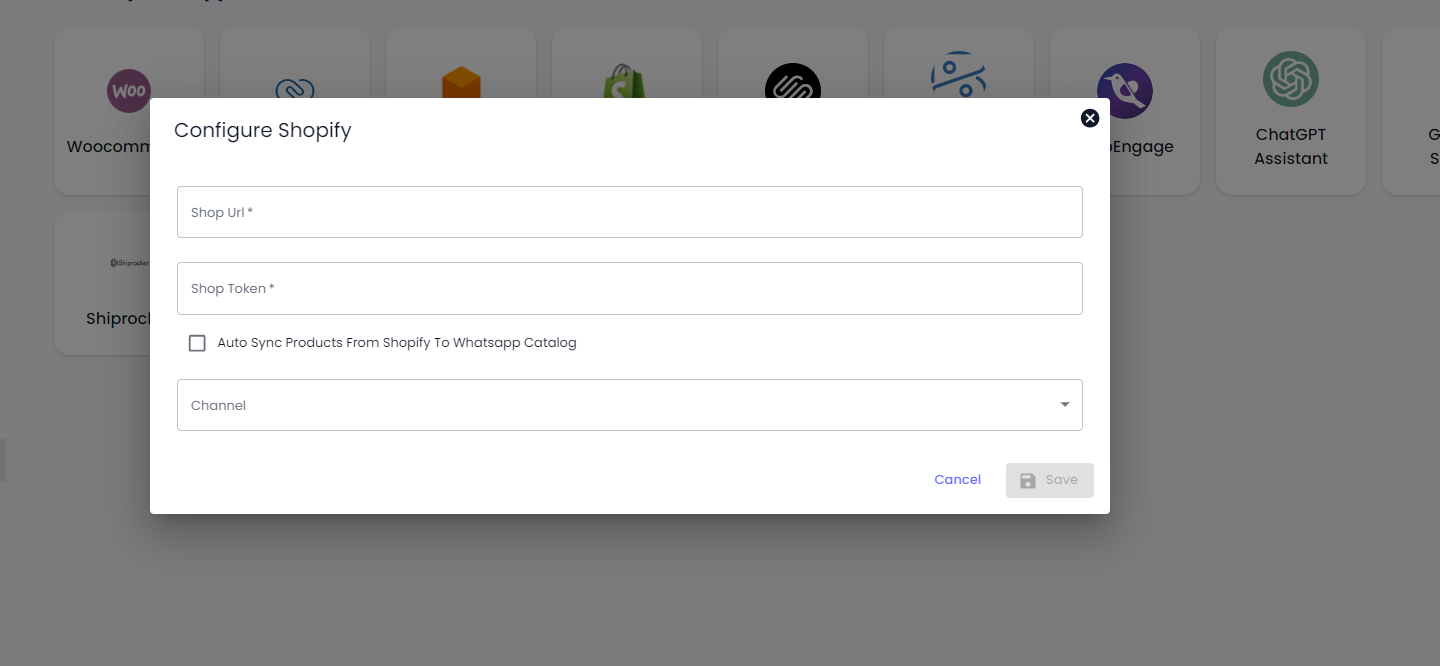
Configure Shopify Popup
File the Details and Click on **Save** Button.
Click on checkbox if you wanted to sync your Shopify product on Facebook on hourly basis.



.png?alt=media&token=3bbe1b88-eaca-4473-990a-a3c5e142d58e)
.png?alt=media&token=acc421ee-793f-484c-bc95-104f0c898bea)