> For the complete documentation index, see [llms.txt](https://docs.rampwin.com/llms.txt). Markdown versions of documentation pages are available by appending `.md` to page URLs; this page is available as [Markdown](https://docs.rampwin.com/setting/more/channels/cloud-api/manage-templates.md).
# Manage Templates
Templates manage
Message Templates are used to initiate business-side conversations after the 24-hour Customer Service Window. To learn more about message templates, refer to the following doc
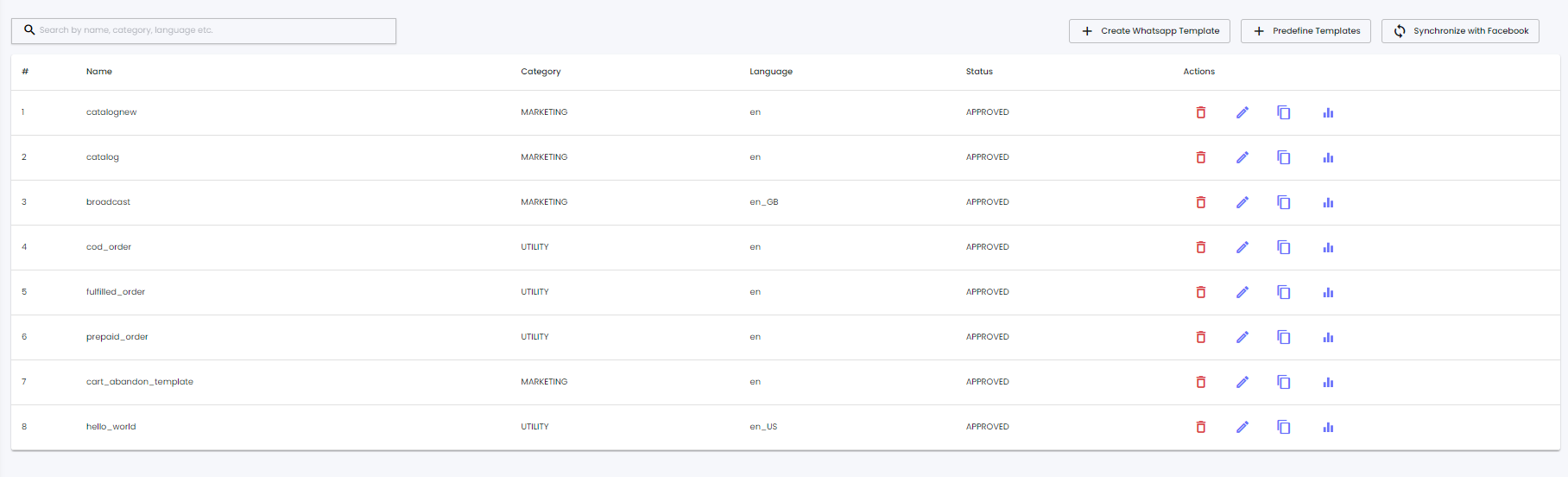
To create a Message Template for the Cloud API WhatsApp Channel, click **Manage Templates**.
This will open the Message Templates window with an ACCOUNT\_UPDATE template created by Facebook by default.
The options available are,
* **Create WhatsApp Template** - Using this, you can access the builder to create a WhatsApp Message Template.
* **Synchronize with Facebook** - Sync Rampwin Templates with Facebook.
* **Delete the Message Template**
* **Duplicate the Message Template**
#### Create Template.
Click on the Create Template Button.
Enter the Template Name.
Select the Category for the Message.
Select the Preferred Language.
Select the Header Type (Media).
You pass a message in dynamic value to Add Variable.
Enter the Footer Message.
Select the Button.
Enter the Button Value.
Then Click on the Submit For Approval Button.
After the Submit for Approval, the Template Message shows the Status (Approved, Pending, and Rejected)
Approved - You can use the message for marketing.
Pending - Wait for Approval.
Rejected - Your message is rejected please submit a Re-Approval.
.png?alt=media&token=cf510924-0b61-414d-ae71-7592f5535635)
 * **Duplicate the Message Template**
 #### Create Template.
.png?alt=media&token=e126438e-343b-4c7b-82d6-4d16a7360ce4)