# Trigger Conditions

### Overview

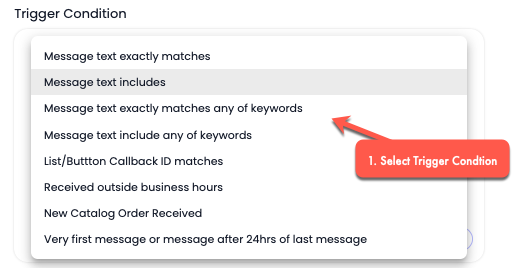
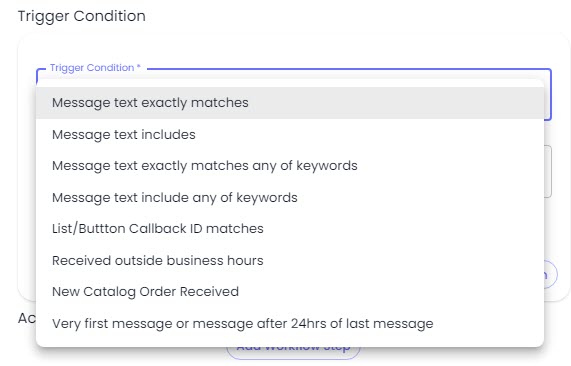
Trigger Condition(s) is the basis for an automated action(s) to run. When you select the *New Outgoing Message* and *New Incoming Message*, the Trigger Condition section appears. There are 8 types of Conditions, which, if fulfilled, the Action(s) will be executed.

<figure><img src="https://files.gitbook.com/v0/b/gitbook-x-prod.appspot.com/o/spaces%2FhElFPtMZjXYjDDMBT5q2%2Fuploads%2F9IbEXJPyT8vp8vFuxrR9%2FTrigger%20Condition%20Types.jpg?alt=media&#x26;token=b015f8b8-1fd9-4c69-899f-3cf16f3dd36f" alt=""><figcaption><p>Trigger Conditions</p></figcaption></figure>

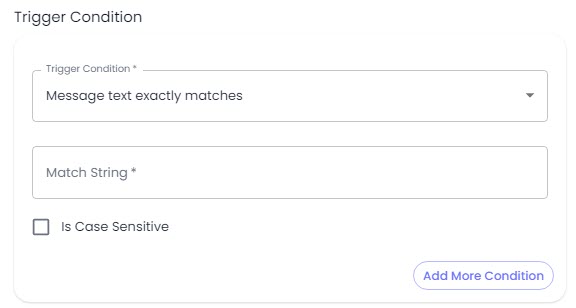
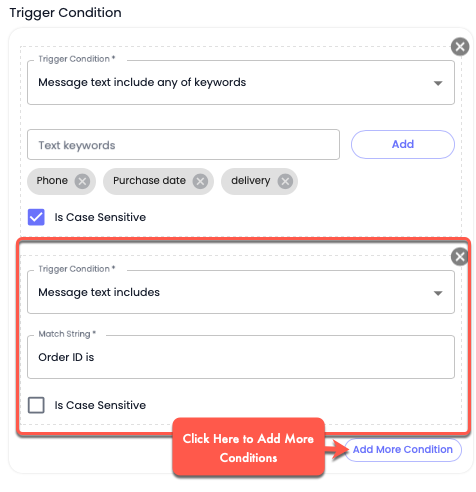
For an automated action to run, you can set multiple conditions, and all those conditions need to be True or fulfilled. The Trigger Condition section has 4 elements that allow you to utilise it to the fullest. The elements are,&#x20;

<figure><img src="https://files.gitbook.com/v0/b/gitbook-x-prod.appspot.com/o/spaces%2FhElFPtMZjXYjDDMBT5q2%2Fuploads%2F3z0vXzz4eu4lF8PvwPfr%2FTrigger%20Condition%20Field.jpg?alt=media&#x26;token=7504a261-2ed8-4ec4-997f-0bfc347ab732" alt=""><figcaption><p>Trigger Condition Section</p></figcaption></figure>

1. **Trigger Condition** - Here, you can select one condition from the 8 condition types.&#x20;
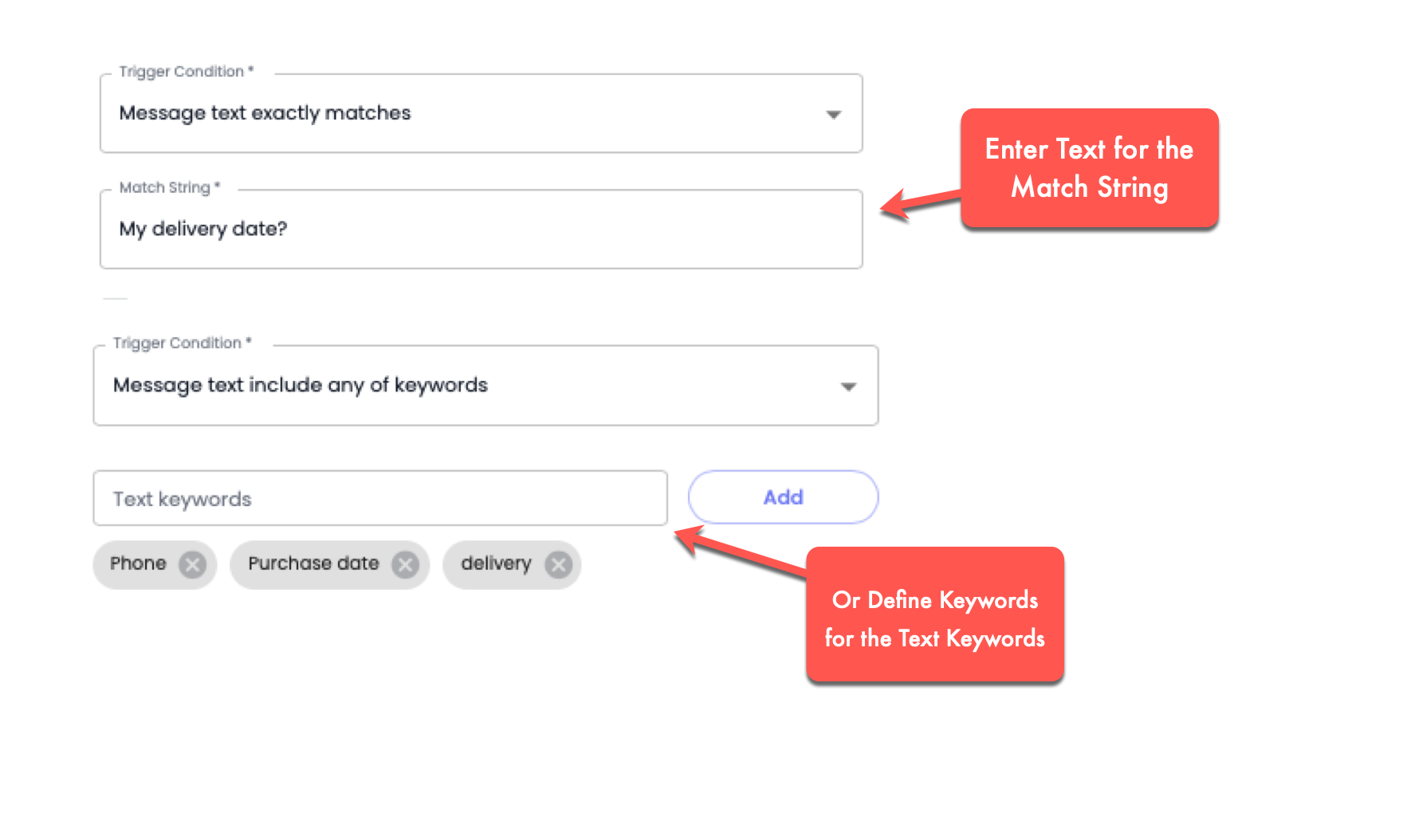
2. **Match String** / **Text keywords** - Here, you can define the Message(text) or Keyword(s) that should be found in the New Outgoing/Incoming Message to qualify the Condition(s) as True or Fulfilled. If not, the Action(s) won't run.&#x20;
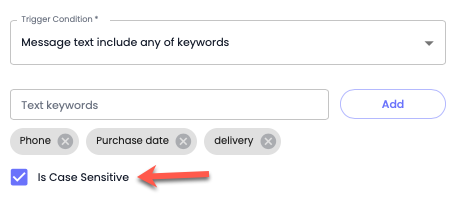
3. **Is Case Sensitive** - The Match String/Text Keywords Is Case Sensitive. If you set APPLE, then it should be APPLE, not Apple. Or you've set Purple; then it should be Purple, not pUrple. The text should match the Letter Case exactly to qualify the Condition as True.
4. **Add More Condition** - Simply add more condition(s) to be checked and fulfilled for the Action to run when the trigger activates.&#x20;

### Trigger Condition Types

The eight types of Trigger Conditions you can use for the Automation Workflow at Rampwin are,

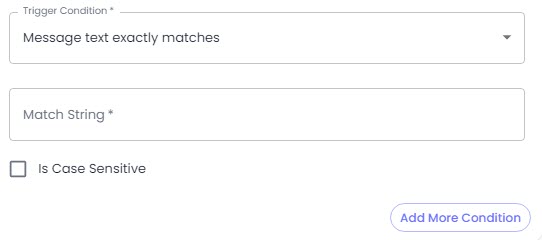
**1. Message text exactly matches**

<figure><img src="https://files.gitbook.com/v0/b/gitbook-x-prod.appspot.com/o/spaces%2FhElFPtMZjXYjDDMBT5q2%2Fuploads%2F3lCojV5ajvKyYaLeLL3Y%2FMessage%20text%20exactly%20matches.jpg?alt=media&#x26;token=ffce8fe1-6ae8-4afe-87ba-990466ce9ba8" alt=""><figcaption><p>Message text exactly matches trigger condition</p></figcaption></figure>

This trigger condition is available when you select the New Outgoing/Incoming Message Trigger. Under this condition, the message should exactly match the Match String to activate the trigger and run the action.

**2. Message text includes**

<figure><img src="https://files.gitbook.com/v0/b/gitbook-x-prod.appspot.com/o/spaces%2FhElFPtMZjXYjDDMBT5q2%2Fuploads%2FrGOiZicpz4x9Yn2NhVu5%2FMessage%20text%20includes.jpg?alt=media&#x26;token=d40957c1-94d8-4121-812c-f2e1b1d4ba05" alt=""><figcaption><p>Message text includes</p></figcaption></figure>

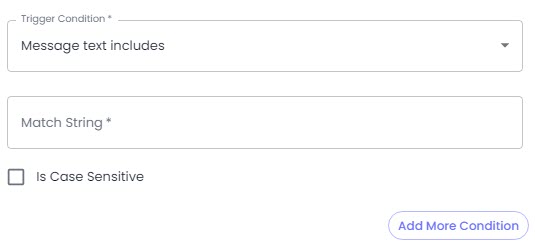
This trigger condition is available when you select the *New Outgoing/Incoming Message*. Under this condition, if the message includes the Match String, the trigger will be activated, and the action will run.&#x20;

\
The entire message doesn't need to be precisely the same as the Match String.

#### 3. Message text exactly matches any of keywords

<figure><img src="https://files.gitbook.com/v0/b/gitbook-x-prod.appspot.com/o/spaces%2FhElFPtMZjXYjDDMBT5q2%2Fuploads%2FmiBsnIPfBv3i3qLWEDLZ%2FMessage%20text%20exactly%20matches%20any%20of%20keywords.png?alt=media&#x26;token=3a2877ae-b155-4691-a0c5-8305ec1d48b5" alt=""><figcaption></figcaption></figure>

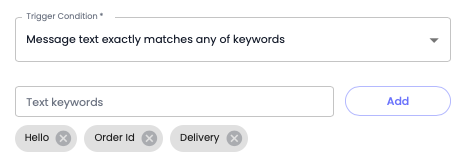
You can activate the trigger using this trigger condition and run the action when the *New Outgoing/Incoming Message* includes the same keyword mentioned in the *Text keywords* field.&#x20;

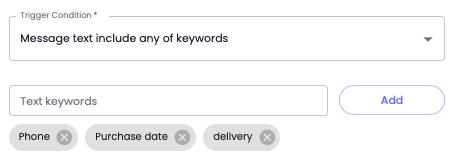
#### 4. Message include any of keywords

<figure><img src="https://files.gitbook.com/v0/b/gitbook-x-prod.appspot.com/o/spaces%2FhElFPtMZjXYjDDMBT5q2%2Fuploads%2FkPxrW7HabqkScQ9RXIln%2FMessage%20include%20any%20of%20keywords.png?alt=media&#x26;token=2e8a8575-c0f6-4e42-96ed-9b4e886d8412" alt=""><figcaption></figcaption></figure>

Under this trigger condition, the trigger will be activated, and the action will run when the *New Outgoing/Incoming Message* includes one/any of the mentioned Text keywords.

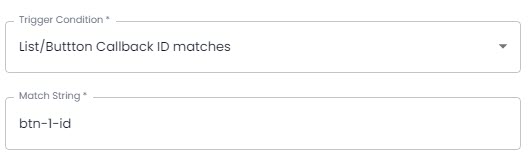
#### 5. List/Button Callback ID matches

<figure><img src="https://files.gitbook.com/v0/b/gitbook-x-prod.appspot.com/o/spaces%2FhElFPtMZjXYjDDMBT5q2%2Fuploads%2FEVA6TA3g8he12JLlvWiB%2FList%20or%20Button%20Callback%20ID%20matches.jpg?alt=media&#x26;token=7fd3462a-93c3-4f50-80e7-5a1377c022fa" alt=""><figcaption><p>List/Button Callback ID matches</p></figcaption></figure>

Under this trigger condition, the automation will execute the action if the *New Outgoing/Incoming Message* is an Interactive Message and its List ID/Button Callback ID matches the Match String.

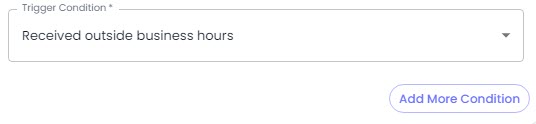
#### 6. Received outside business hours

<figure><img src="https://files.gitbook.com/v0/b/gitbook-x-prod.appspot.com/o/spaces%2FhElFPtMZjXYjDDMBT5q2%2Fuploads%2Fr3zj5sO21dqT8Ez5qxcY%2FReceived%20outside%20business%20hours.jpg?alt=media&#x26;token=6be19853-764a-44b3-83b9-607e08e2c7df" alt=""><figcaption><p>Received outside business hours</p></figcaption></figure>

Run an automation workflow action when the *New Incoming Message* is received outside the business hours.

{% hint style="info" %}
Set your business hours using the My Account settings.
{% endhint %}

#### 7. New Catalog Order Received

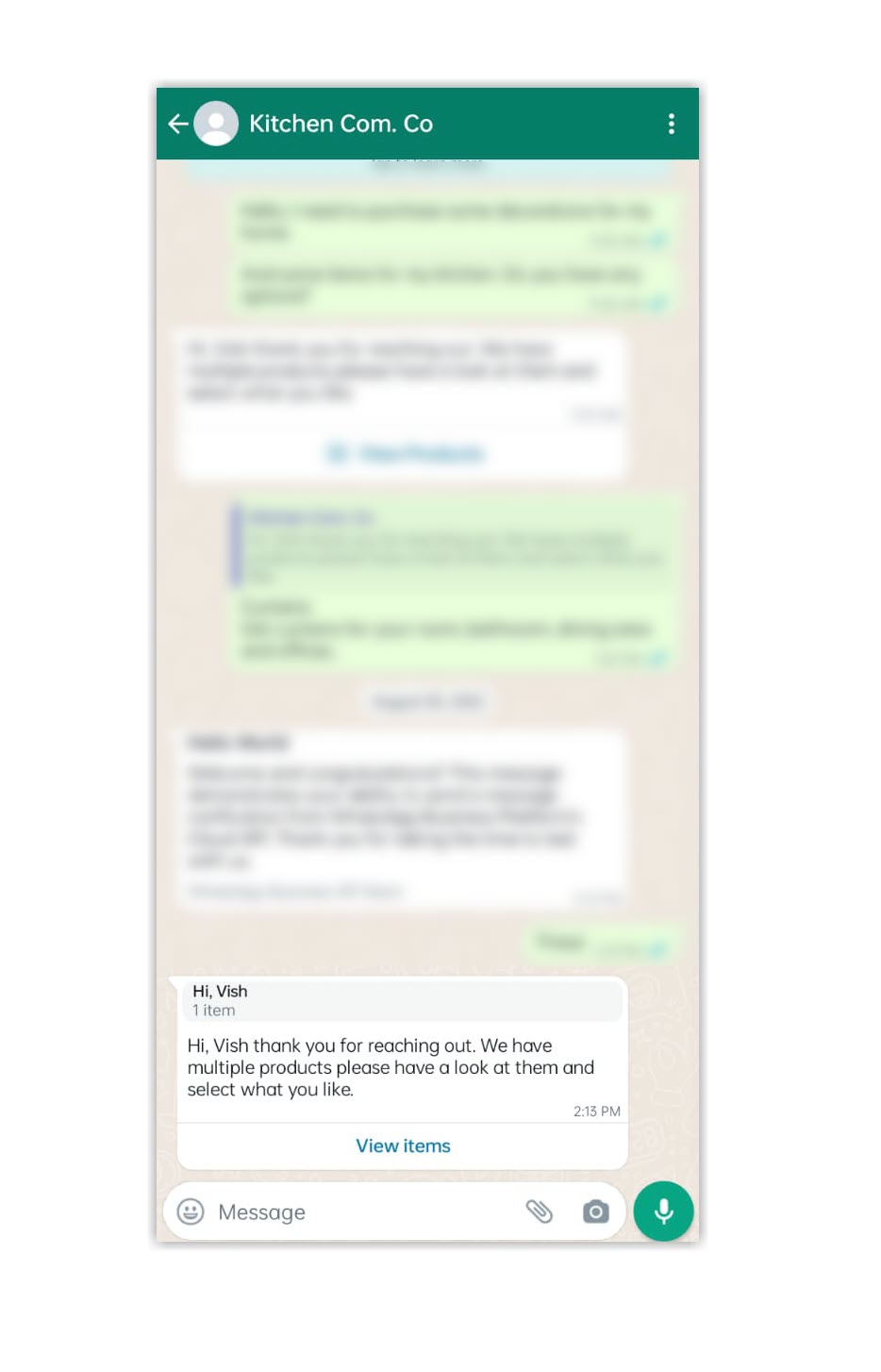
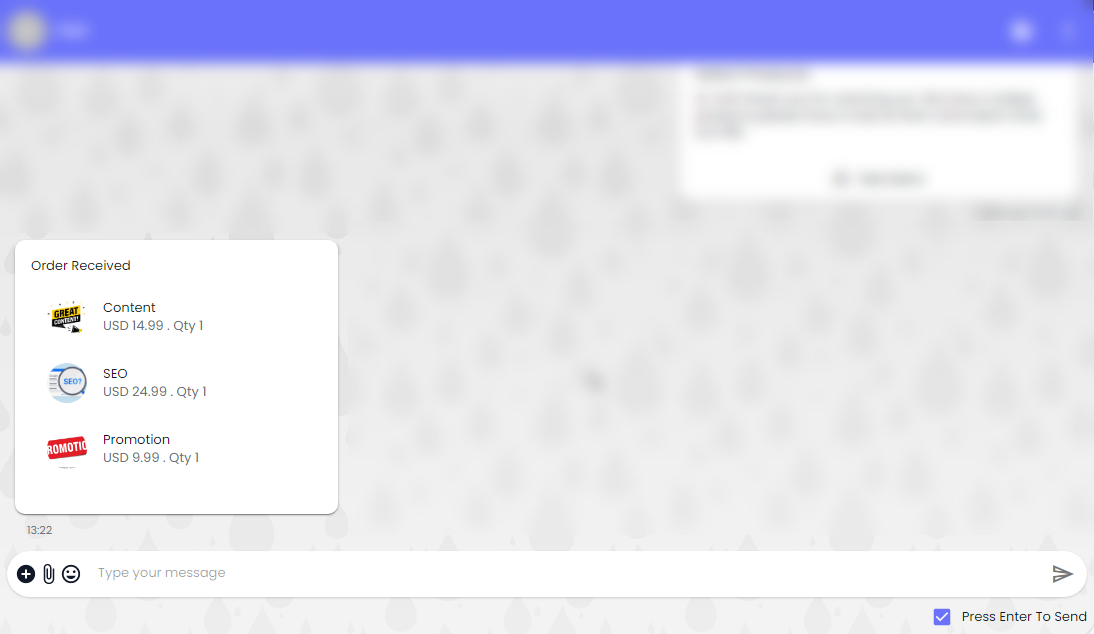
If you've created [Product Catalogs](broken://pages/covnnY2D2A8ZFfGZhxmp) in the WhatsApp Store Settings, you can create Automation based on that. It will run when your contacts send a Catalog request after you send them the option to select products using the [Interactive Message](broken://pages/2gcD3539AyaRgi9CliBI#buttons-options-product-messages).

<figure><img src="https://files.gitbook.com/v0/b/gitbook-x-prod.appspot.com/o/spaces%2FhElFPtMZjXYjDDMBT5q2%2Fuploads%2FwFsQ0vOdPoigcV4LM7nm%2FSelect%20Product.jpeg?alt=media&#x26;token=bd9812e7-2d3f-4639-a3bf-5b5b705fa228" alt=""><figcaption><p>Interactive Message sent by the Business Owner. </p></figcaption></figure>
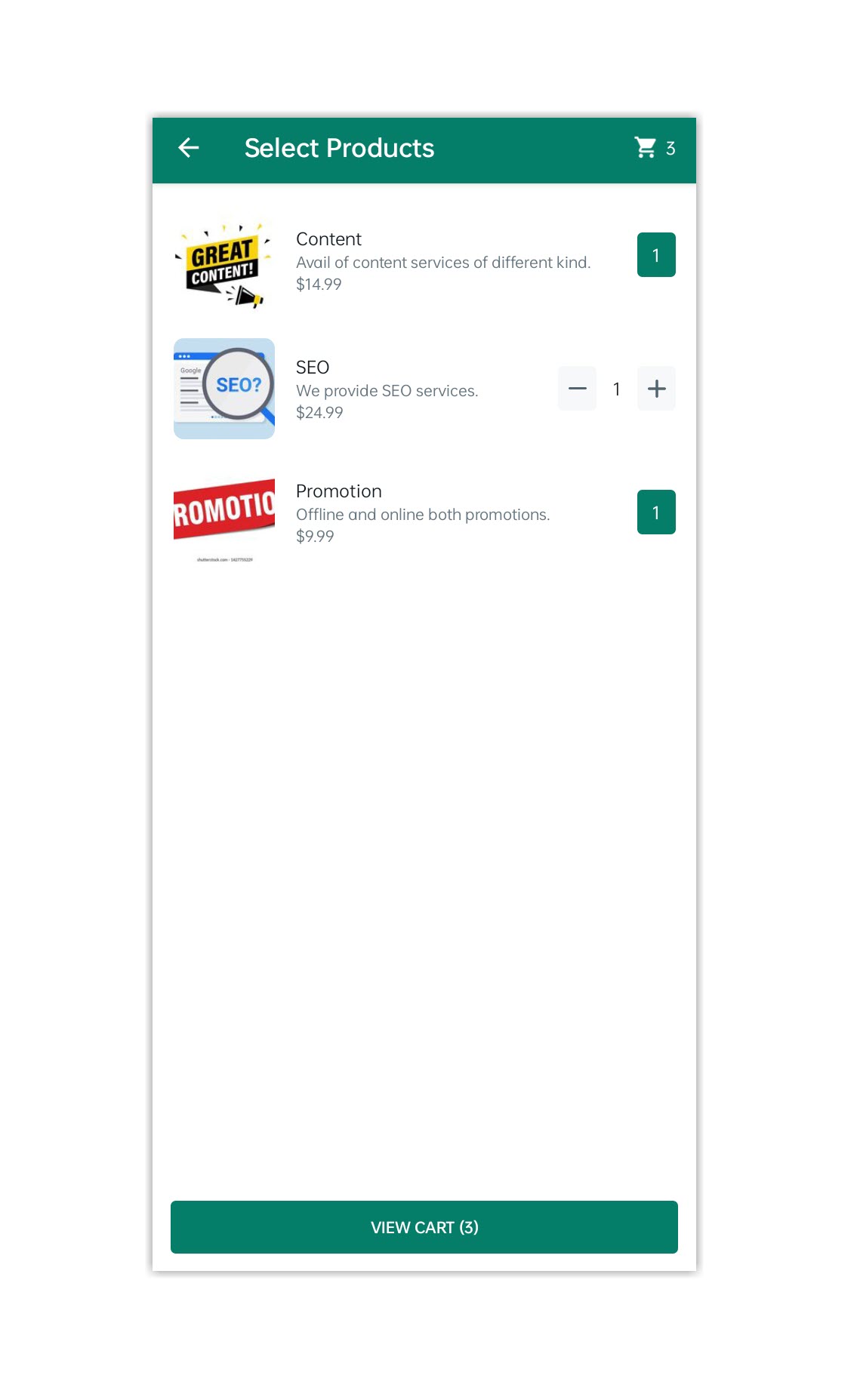
<figure><img src="https://files.gitbook.com/v0/b/gitbook-x-prod.appspot.com/o/spaces%2FhElFPtMZjXYjDDMBT5q2%2Fuploads%2FofNq9aNdgFMJTUEn2Tfr%2FSelect%20Products.jpeg?alt=media&#x26;token=7b8ad0f9-77c8-4dfd-bf5f-d18266aec841" alt=""><figcaption><p>Contact will select the product and then send it to the business. </p></figcaption></figure>
<figure><img src="https://files.gitbook.com/v0/b/gitbook-x-prod.appspot.com/o/spaces%2FhElFPtMZjXYjDDMBT5q2%2Fuploads%2FrDwbwUKWUadkXajm9ELL%2FOrder%20Received%20Message.png?alt=media&#x26;token=9858f1c1-5f38-4820-b9fa-3c64fe52cad6" alt=""><figcaption></figcaption></figure>

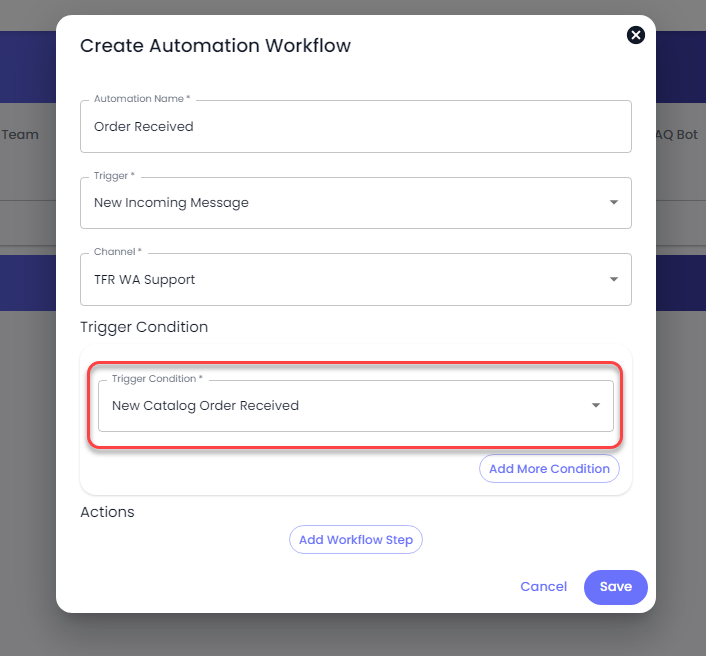
Based on the order received, you can run the automation. And to do that, select Trigger Condition as **New Catalog Order Received.**

<figure><img src="https://files.gitbook.com/v0/b/gitbook-x-prod.appspot.com/o/spaces%2FhElFPtMZjXYjDDMBT5q2%2Fuploads%2FBTib6pXykXzY9qIMaE8a%2FNew%20catalog%20order%20received%20trigger%20condition.png?alt=media&#x26;token=660075a4-1fe3-421f-9e4b-0b8527ecb593" alt=""><figcaption></figcaption></figure>

#### 8. Very first message or message after 24hrs of last message

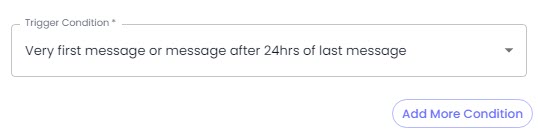
<figure><img src="https://files.gitbook.com/v0/b/gitbook-x-prod.appspot.com/o/spaces%2FhElFPtMZjXYjDDMBT5q2%2Fuploads%2FDlt4mN0kUNmZ7mE94Cos%2FVery%20first%20message%20or%20message%20after%2024hrs%20of%20the%20last%20message.jpg?alt=media&#x26;token=37796d62-5210-47dd-83a6-d17d4d5b1410" alt=""><figcaption><p>Very first message or message after 24hrs of the last message</p></figcaption></figure>

Set an action for the workflow that needs to be executed when the *New Incoming Message* received is the Very First Message or the Message after 24hrs of the last message in the selected channel.
### Working

Based on your selected [Trigger](broken://pages/QcnEm11A8RWGV2t3tcaZ), you get the Trigger Condition. Simply select the required condition.&#x20;

<figure><img src="https://files.gitbook.com/v0/b/gitbook-x-prod.appspot.com/o/spaces%2FhElFPtMZjXYjDDMBT5q2%2Fuploads%2FH8JvP8PloCZPagsYpwBS%2FSelect%20Trigger%20Condition.png?alt=media&#x26;token=a00f6292-0b61-4436-8eb4-002be3446f25" alt=""><figcaption></figcaption></figure>

Then, provide the text or keywords for the Match String or Text keywords field - except in the case of Received outside business hours, New Catalog Order Received, and Very first message or message after 24hrs of the last message.

<figure><img src="https://files.gitbook.com/v0/b/gitbook-x-prod.appspot.com/o/spaces%2FhElFPtMZjXYjDDMBT5q2%2Fuploads%2FWMjBvDT1paM3vkTo1w0F%2FMatch%20string%20or%20text%20keywords.png?alt=media&#x26;token=39081b5b-270c-4fcc-8a49-940401c274e1" alt=""><figcaption></figcaption></figure>

Then check **Is Case Sensitive** if you want the Text or Keywords to exactly match.

<figure><img src="https://files.gitbook.com/v0/b/gitbook-x-prod.appspot.com/o/spaces%2FhElFPtMZjXYjDDMBT5q2%2Fuploads%2FpR880X4lmtHv7WKVNVQz%2FIs%20Case%20Sensitive.png?alt=media&#x26;token=0db44791-bef3-4a21-aa8f-e6ec35e642aa" alt=""><figcaption></figcaption></figure>

And if you want to use multiple conditions, click **Add More Condition**.

<figure><img src="https://files.gitbook.com/v0/b/gitbook-x-prod.appspot.com/o/spaces%2FhElFPtMZjXYjDDMBT5q2%2Fuploads%2F5LzY2HljEarh0zycvDTo%2FAdding%20More%20Conditions.png?alt=media&#x26;token=6fee2f24-05c5-4d16-80ce-347d100254d6" alt=""><figcaption></figcaption></figure>

Once you've added the Trigger Condition(s), you can add your actions by clicking the ***Add Workflow Step***.


---

# Agent Instructions: Querying This Documentation

If you need additional information that is not directly available in this page, you can query the documentation dynamically by asking a question.

Perform an HTTP GET request on the current page URL with the `ask` query parameter:

```
GET https://docs.rampwin.com/english/trigger-conditions.md?ask=<question>
```

The question should be specific, self-contained, and written in natural language.
The response will contain a direct answer to the question and relevant excerpts and sources from the documentation.

Use this mechanism when the answer is not explicitly present in the current page, you need clarification or additional context, or you want to retrieve related documentation sections.