# Catalog Settings

### Authorisation

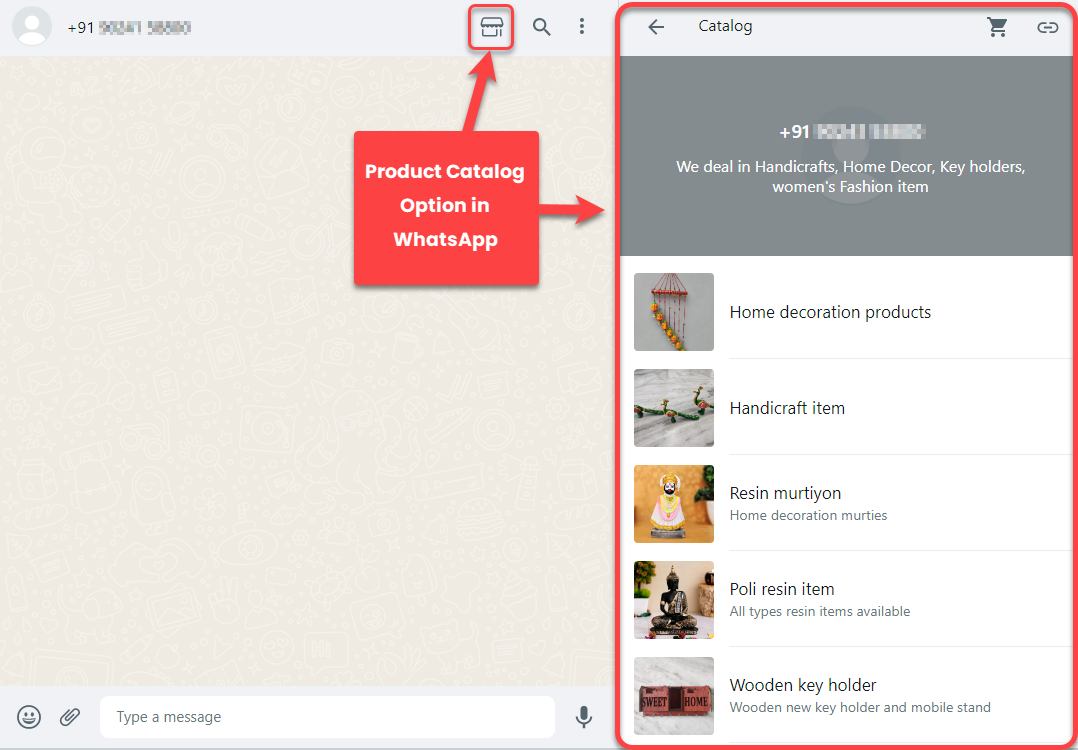
Using the Catalog Settings of a WhatsApp Channel, you can provide users or customers with product list available on the Facebook Store and enable them to purchase the products directly from WhatsApp chat.&#x20;

<figure><img src="https://files.gitbook.com/v0/b/gitbook-x-prod.appspot.com/o/spaces%2FhElFPtMZjXYjDDMBT5q2%2Fuploads%2F7Qxf8piLUgl81Gwh7RNs%2FProduct%20Catalog%20Option%20in%20WhatsApp.png?alt=media&#x26;token=815b0827-978a-4c2e-ac74-0e86685ef749" alt=""><figcaption><p>Product Catalog Option in WhatsApp</p></figcaption></figure>

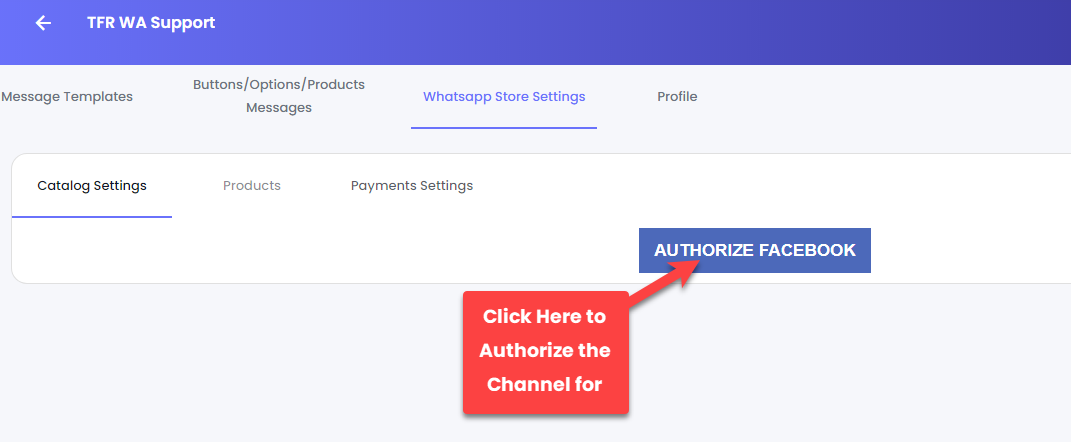
In order to do so, you have to access the Catalog List, and the first step to do that is by authorising the Channel from Facebook. So, for that, click the **AUTHORIZE FACEBOOK** button.&#x20;

<figure><img src="https://files.gitbook.com/v0/b/gitbook-x-prod.appspot.com/o/spaces%2FhElFPtMZjXYjDDMBT5q2%2Fuploads%2FUNZzzhVNYokF8I1hay4Q%2FAuthorise%20the%20Channel%20for%20Catalog%20List.png?alt=media&#x26;token=0a84ab87-3d1b-4223-adff-8921a61d9f7b" alt=""><figcaption></figcaption></figure>

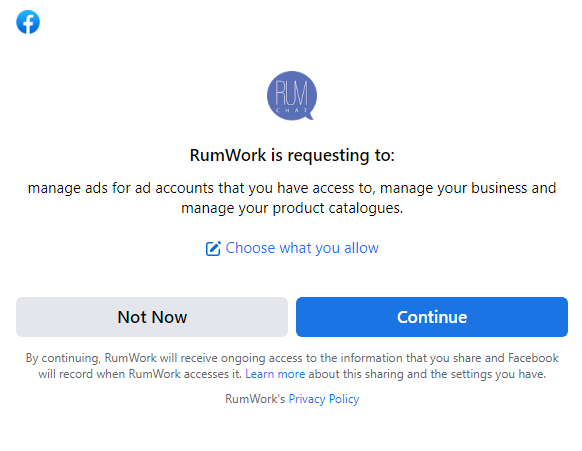
A new mini tab will open; there, you've to log in to your Facebook Account.

<figure><img src="https://files.gitbook.com/v0/b/gitbook-x-prod.appspot.com/o/spaces%2FhElFPtMZjXYjDDMBT5q2%2Fuploads%2Fd2G7xrctYrSQmiwu2kQ5%2FRUM%20Access%20for%20Catalog%20List.png?alt=media&#x26;token=dd82f894-eff5-4b92-9222-10ea766e7cce" alt=""><figcaption></figcaption></figure>

Then, click **Continue** for the permission the RUM Work platform requires.&#x20;

### Select Business

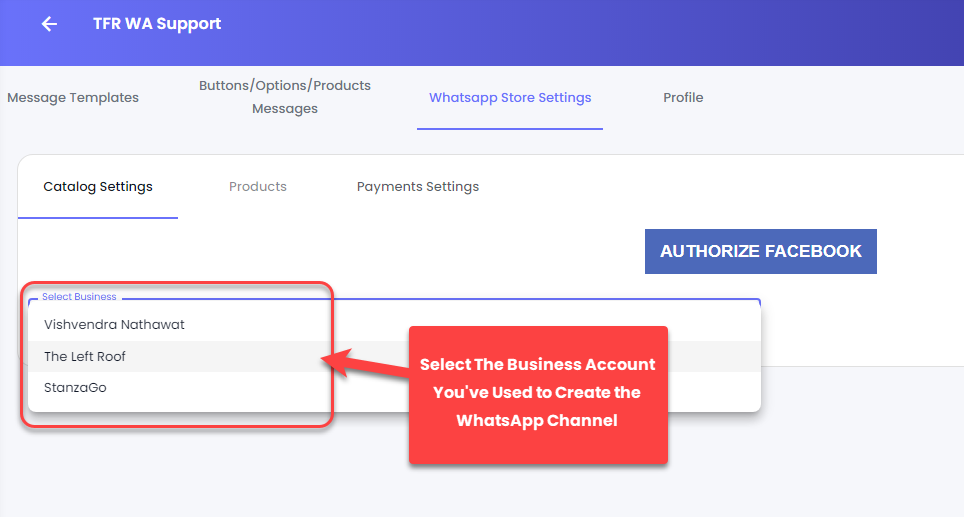
As soon as you allow the permission, you'd see a new option in the Catalog Settings to Select a Business.&#x20;

<figure><img src="https://files.gitbook.com/v0/b/gitbook-x-prod.appspot.com/o/spaces%2FhElFPtMZjXYjDDMBT5q2%2Fuploads%2FY82xZGXvGpYCyIpdENae%2FSelecting%20Meta%20Business%20Account%20for%20Catalog%20Access.png?alt=media&#x26;token=bef9760b-22f9-4416-986a-6b6d1aaf2459" alt=""><figcaption></figcaption></figure>

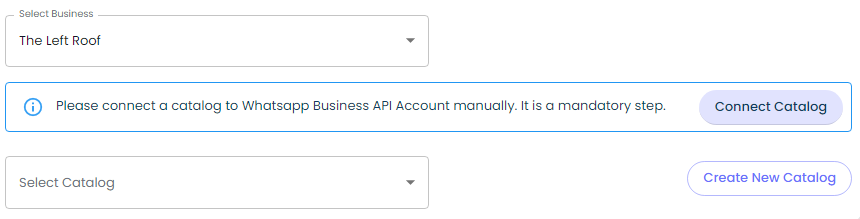
Here, select the Meta Business Account you've used to create the Channel and link it with RUM Work. Once you select the business, a few more options appear:

<figure><img src="https://files.gitbook.com/v0/b/gitbook-x-prod.appspot.com/o/spaces%2FhElFPtMZjXYjDDMBT5q2%2Fuploads%2F4ti0BXs1aUdA8JUYutWf%2FMore%20Options%20in%20the%20Catalog%20Settings.png?alt=media&#x26;token=841423f1-e8a6-4946-aae7-b7657c5c8e2b" alt=""><figcaption></figcaption></figure>

* **Connect Catalog**
* **Create New Catalog**
* And the **Select Catalog**

### Connect Catalog

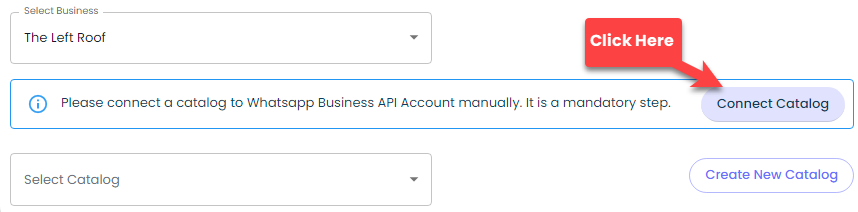
To access the Catalog on Facebook Store, it's necessary you connect it with the WhatsApp Channel. Therefore, click on the **Connect Catalog** button.

<figure><img src="https://files.gitbook.com/v0/b/gitbook-x-prod.appspot.com/o/spaces%2FhElFPtMZjXYjDDMBT5q2%2Fuploads%2FHHNwi1KeEmHonSslmfNV%2FConnect%20Catalog%20Button.png?alt=media&#x26;token=abc77567-73b4-434f-9ef2-52466d7c469e" alt=""><figcaption></figcaption></figure>

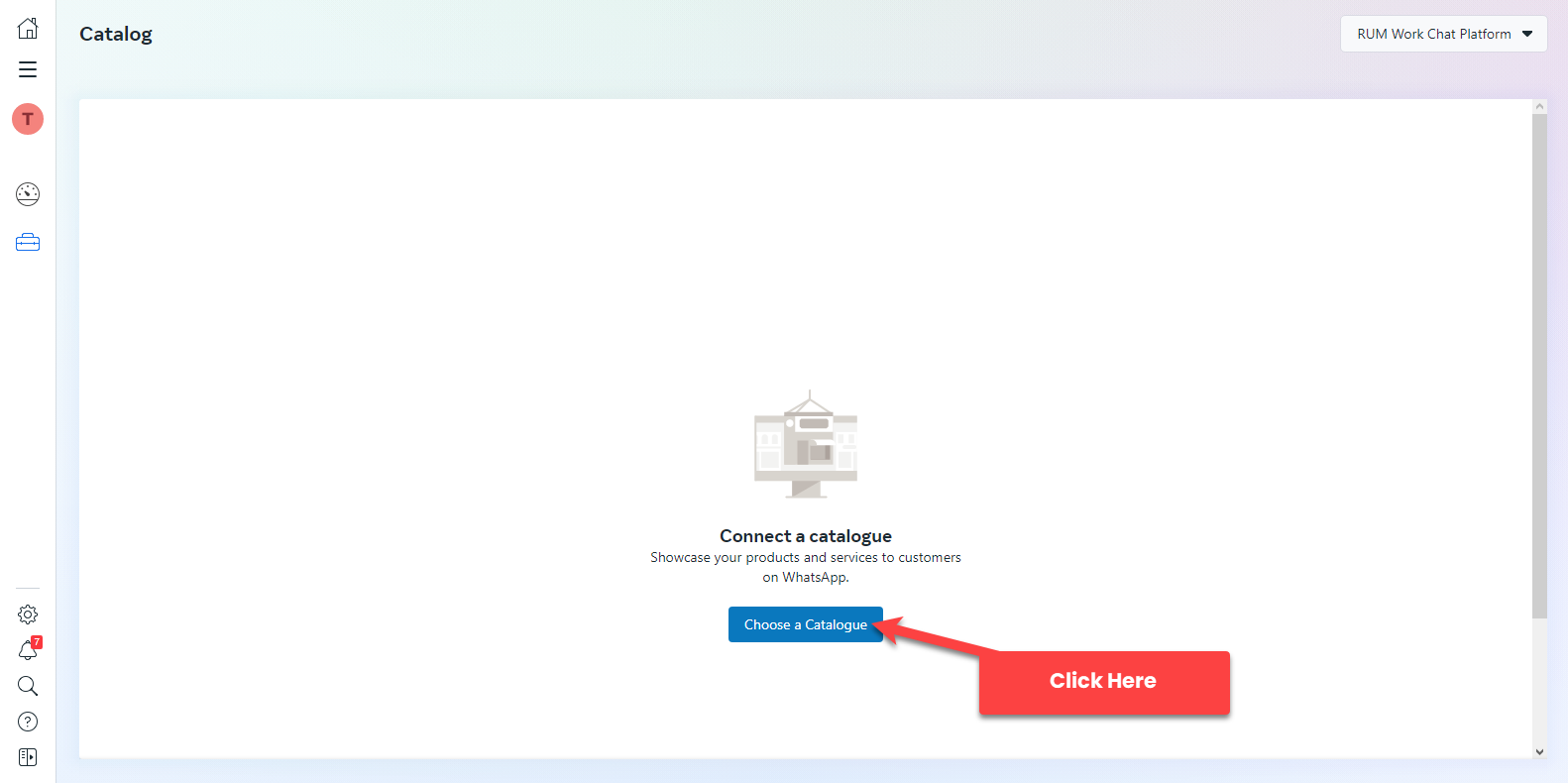
This will lead you to the [Facebook Catalog Linking](https://business.facebook.com/wa/manage/catalog-linking/) page. To connect the channel and access Catalog, click **Choose a Catalogue**.

<figure><img src="https://files.gitbook.com/v0/b/gitbook-x-prod.appspot.com/o/spaces%2FhElFPtMZjXYjDDMBT5q2%2Fuploads%2FqzrfD4ck4xBVAavYOjiK%2FChoose%20a%20Catalogue.png?alt=media&#x26;token=e43dbdfe-1607-4a15-bc7a-220b0f3a70a3" alt=""><figcaption></figcaption></figure>

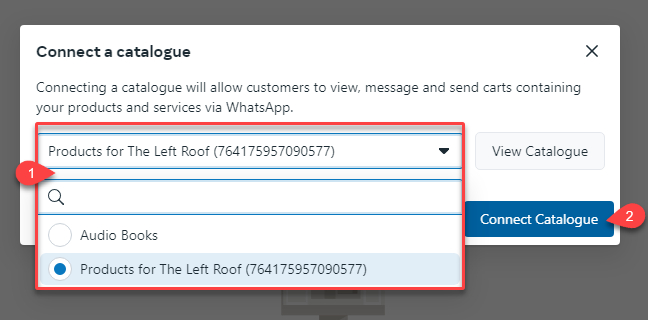
Then, select a Catalog from the available list, and click **Connect Catalogue**.

<figure><img src="https://files.gitbook.com/v0/b/gitbook-x-prod.appspot.com/o/spaces%2FhElFPtMZjXYjDDMBT5q2%2Fuploads%2FRHFz8kUzp5c4RvtAkC4t%2FSelecting%20a%20Catalog.png?alt=media&#x26;token=da9db88d-7a97-43d4-8caa-55b927e1f9e7" alt=""><figcaption></figcaption></figure>

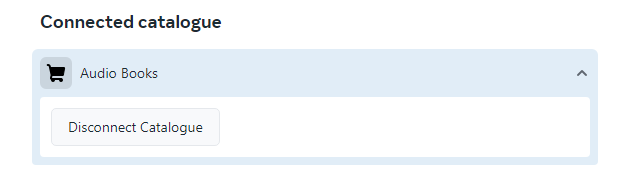
Once you'll do that, you'd find the connected catalogue as the following.&#x20;

<figure><img src="https://files.gitbook.com/v0/b/gitbook-x-prod.appspot.com/o/spaces%2FhElFPtMZjXYjDDMBT5q2%2Fuploads%2Fv35cX8sSkXfHHa1Di3rg%2FConnected%20catalogue.png?alt=media&#x26;token=b043d85f-4596-4832-9058-3c45df0a5107" alt=""><figcaption></figcaption></figure>

### Select a Catalog

After connecting the catalog, what next you need to do is select the catalog in the Catalog Settings of RUM Work. You can also create a new catalog by clicking **Create New Catalog** button. And once you've created the catalog, you need to follow the [previous step](#connect-catalog) to connect it with the RUM Work Channel.&#x20;

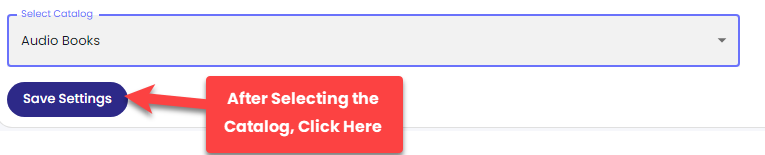
Then, you have to select it. And to do that, go **Select Catalog** → and select the catalog you've connected.

<figure><img src="https://files.gitbook.com/v0/b/gitbook-x-prod.appspot.com/o/spaces%2FhElFPtMZjXYjDDMBT5q2%2Fuploads%2FvC9v04QI6byDSrY1gBEg%2FSelecting%20the%20Connected%20Catalog.png?alt=media&#x26;token=be61819c-fc5b-4f93-9a91-0b3bae6c8634" alt=""><figcaption></figcaption></figure>

And after selecting the catalog, click **Save Settings**.

<figure><img src="https://files.gitbook.com/v0/b/gitbook-x-prod.appspot.com/o/spaces%2FhElFPtMZjXYjDDMBT5q2%2Fuploads%2F2ryPTQnRNRvLTxVGv8wa%2FSaving%20Settings%20for%20Catalog.png?alt=media&#x26;token=5fb57f48-24a6-475a-b791-9ca7567114af" alt=""><figcaption></figcaption></figure>

Once you save the settings, you can view your products in the [Products](broken://pages/BzRMYV2ayHsFjl982LxA) tab.
---

# Agent Instructions: Querying This Documentation

If you need additional information that is not directly available in this page, you can query the documentation dynamically by asking a question.

Perform an HTTP GET request on the current page URL with the `ask` query parameter:

```
GET https://docs.rampwin.com/english/store-settings-1/catalog-settings.md?ask=<question>
```

The question should be specific, self-contained, and written in natural language.
The response will contain a direct answer to the question and relevant excerpts and sources from the documentation.

Use this mechanism when the answer is not explicitly present in the current page, you need clarification or additional context, or you want to retrieve related documentation sections.