# Store Settings

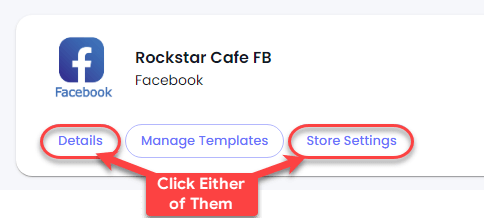
Through Facebook chat, if you want to process orders and payments, you can utilize the Facebook Store Settings. You can either click on **Store Settings** or **Details** to access the controls.

<figure><img src="https://files.gitbook.com/v0/b/gitbook-x-prod.appspot.com/o/spaces%2FhElFPtMZjXYjDDMBT5q2%2Fuploads%2FCCmBzcxn8vhqLaTYDR7X%2FOpening%20Facebook%20Store%20Settings.png?alt=media&#x26;token=959657de-0e3d-410f-a23d-d55c0bff7382" alt=""><figcaption></figcaption></figure>

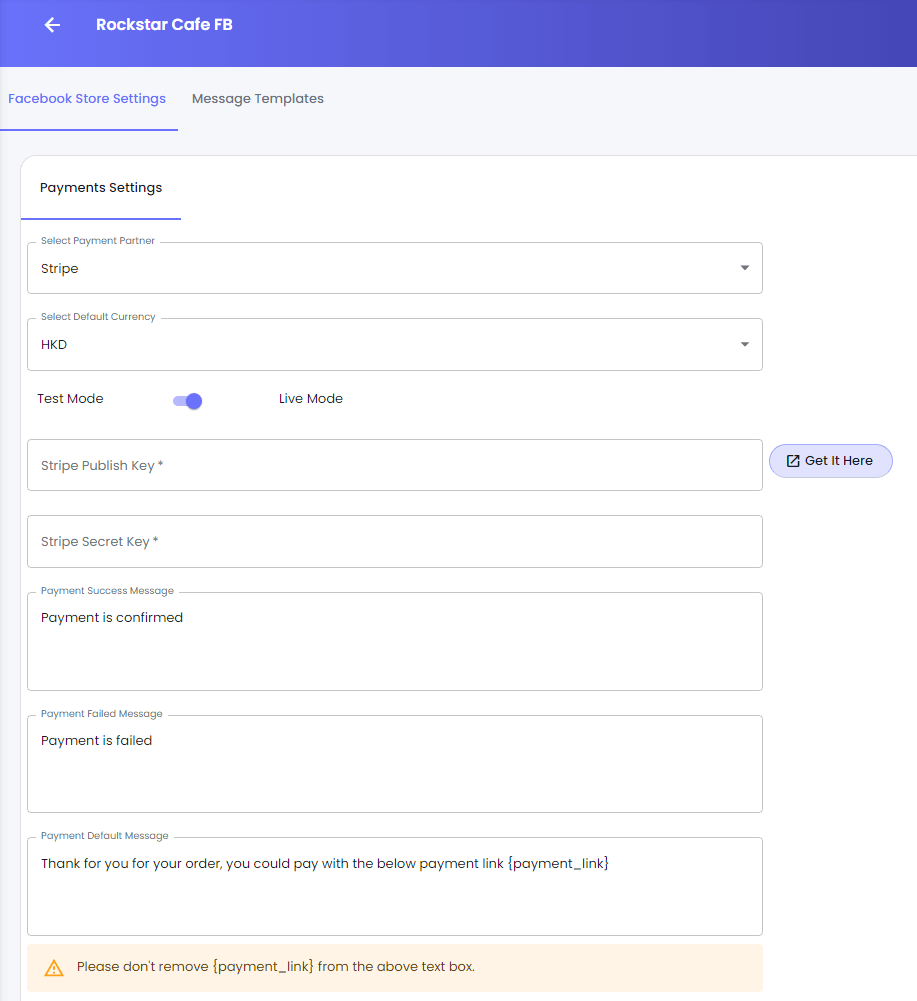
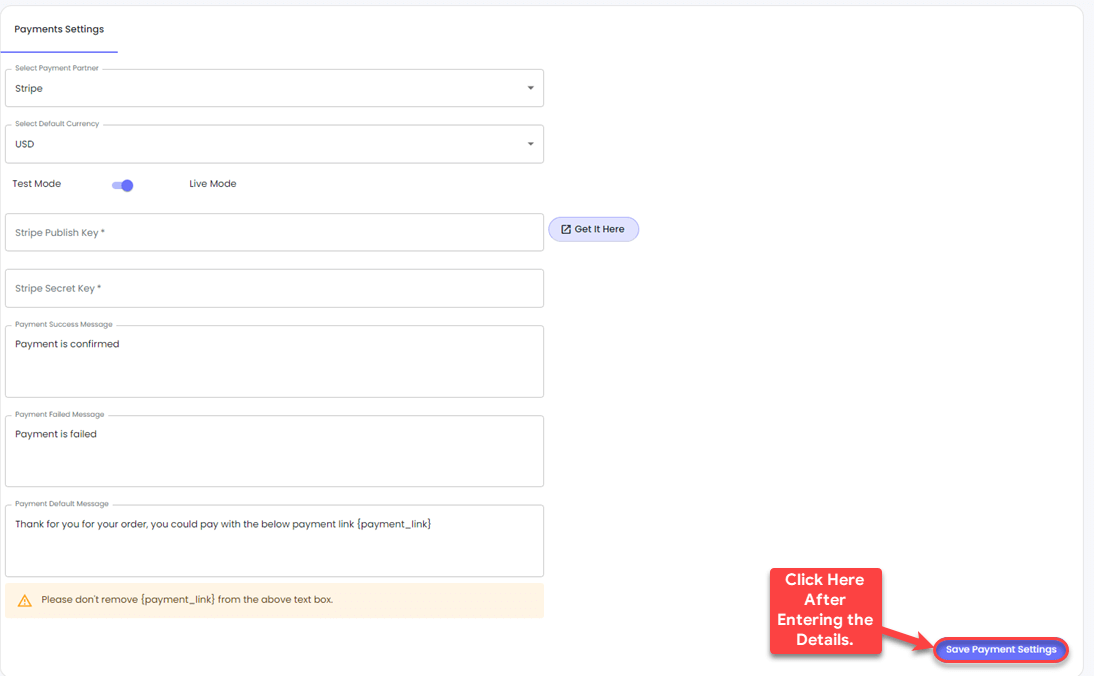
This will open the following window with several fields and options.

<figure><img src="https://files.gitbook.com/v0/b/gitbook-x-prod.appspot.com/o/spaces%2FhElFPtMZjXYjDDMBT5q2%2Fuploads%2Fz3qEZ0eeKrmXSZO752cm%2FStore%20Settings%20Page%20of%20Facebook%20Channel.png?alt=media&#x26;token=463b891e-92d3-4485-b493-a6fb12339d28" alt=""><figcaption></figcaption></figure>

The options available are,

<figure><img src="https://files.gitbook.com/v0/b/gitbook-x-prod.appspot.com/o/spaces%2FhElFPtMZjXYjDDMBT5q2%2Fuploads%2F9TJex4WsPPa21Mix4SZM%2FSelect%20Payment%20Partner%20Field%20in%20Facebook%20Channel.png?alt=media&#x26;token=e9a9f4b0-5131-4d4b-ae3b-76156291072a" alt=""><figcaption></figcaption></figure>

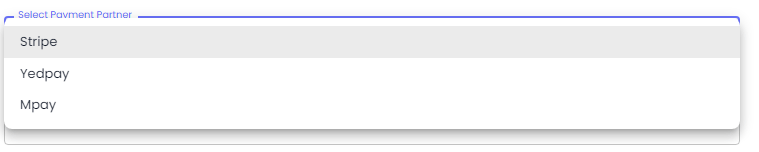
* **Select Payment Partner** - This allows you to choose the payment processor.&#x20;

<figure><img src="https://files.gitbook.com/v0/b/gitbook-x-prod.appspot.com/o/spaces%2FhElFPtMZjXYjDDMBT5q2%2Fuploads%2FvpWoomFCpVMQfoHXAPCE%2FSelect%20Default%20Currency%20in%20Facebook%20Channel.png?alt=media&#x26;token=f2e05395-82b4-4b48-869b-693d0e967264" alt=""><figcaption></figcaption></figure>

* **Select Default Currency** - What currency do you want to charge your customers: *USD or HKD, INR*.

<figure><img src="https://files.gitbook.com/v0/b/gitbook-x-prod.appspot.com/o/spaces%2FhElFPtMZjXYjDDMBT5q2%2Fuploads%2FQrlCQQpgmx1cP76Vk58g%2FTest%20Mode%20and%20Live%20Mode%20for%20the%20Facebook%20Channel.png?alt=media&#x26;token=daafaa1a-7797-4395-b183-dd82a2cb19a4" alt=""><figcaption></figcaption></figure>

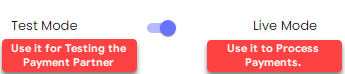
* **Test Mode or Live Mode** - The payment processor offers Live and Test Mode keys. Using this option, you can put the store on either Live or Test mode. If you're testing the payment processor, use the Test mode and its keys. Otherwise, choose the Live Mode

<figure><img src="https://files.gitbook.com/v0/b/gitbook-x-prod.appspot.com/o/spaces%2FhElFPtMZjXYjDDMBT5q2%2Fuploads%2FTG7GjClR6EE9NS0P3CPm%2FStripe%20Publish%20and%20Secrect%20Key%20Fields.png?alt=media&#x26;token=9fc821bd-115e-42e9-9424-f00c1577ec87" alt=""><figcaption></figcaption></figure>

* **Stripe Publish Key** - Use it to enter your Stripe Publish Key based on the mode. Get it [here](https://dashboard.stripe.com/apikeys).
* **Stripe Secret Key** - Use it to enter Stripe Secret Key based on the mode. Get it [here](https://dashboard.stripe.com/apikeys).

<figure><img src="https://files.gitbook.com/v0/b/gitbook-x-prod.appspot.com/o/spaces%2FhElFPtMZjXYjDDMBT5q2%2Fuploads%2FYXj0WNsLyzeHtW7e6Uv9%2FYedpay%20Store%20and%20Access%20Token%20Fields.png?alt=media&#x26;token=d1fd1da6-13a3-4feb-b6c7-0326015701eb" alt=""><figcaption></figcaption></figure>

If you've selected Yedpay as your Payment Partner, you'll get the following fields:

* **Yedpay Store ID** - Use it to enter your Yedpay Store ID based on the mode. Get your Yedpay Store ID [here](https://merchant.yedpay.com/admin/stores).
* **Yedpay Access Token** - Use it to enter your Yedpay Access Token based on the mode. Get your Yedpay Access Token [here](https://merchant.yedpay.com/user/my-personal-token).

<figure><img src="https://files.gitbook.com/v0/b/gitbook-x-prod.appspot.com/o/spaces%2FhElFPtMZjXYjDDMBT5q2%2Fuploads%2FwSXN7NXTS1DHq5rx0hTF%2FMpay%20Fields%20for%20Facebook%20Channel.png?alt=media&#x26;token=ce4d47dc-5db8-4ed1-952b-a08001cbec8f" alt=""><figcaption></figcaption></figure>

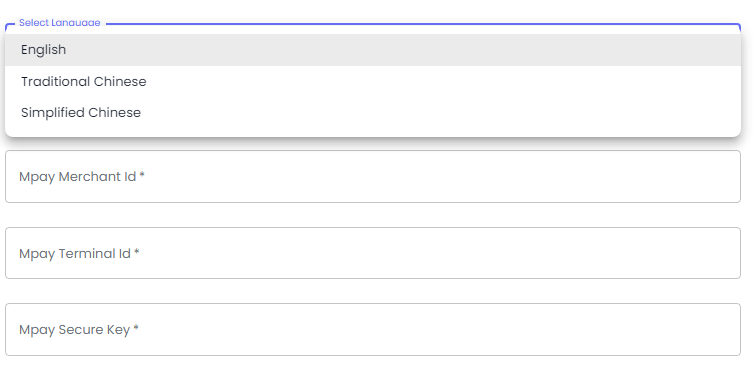
If you've selected Mpay as your Payment Partner, you'll get the following fields:

* **Select Language** - In what language do you want to enter Mpay details: English/Traditional Chinese/Simplified Chinese.
* **Mpay Merchant ID** - Based on the mode, enter your Merchant ID.&#x20;
* **Mpay Terminal ID** - Based on the mode, enter your Terminal ID.
* **Mpay Secure ID** - Based on the mode, enter your Secure ID.

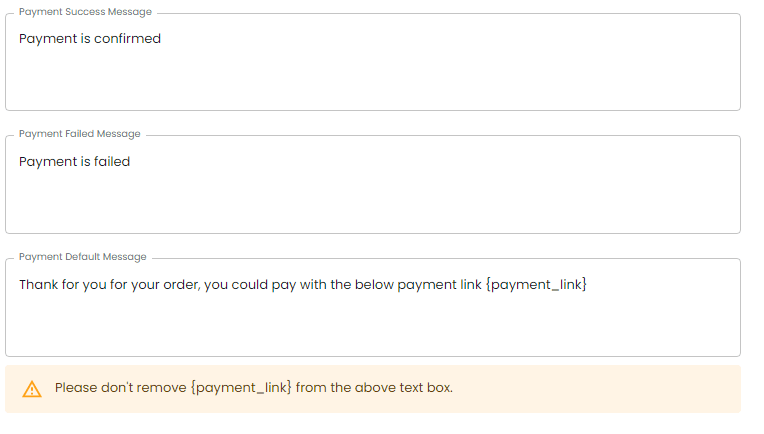
<figure><img src="https://files.gitbook.com/v0/b/gitbook-x-prod.appspot.com/o/spaces%2FhElFPtMZjXYjDDMBT5q2%2Fuploads%2FMUT5qW569kkF2OhRnBDl%2FPayment%20Status%20Message%20Fields%20for%20Facebook%20Channel.png?alt=media&#x26;token=4054ce7a-5426-46c0-904c-781eb9e87cad" alt=""><figcaption></figcaption></figure>

* **Payment Success Message**.
* **Payment Failed Message**.
* **Payment Default Message**.

Use the above fields to send customers pre-defined messages based on the payment status.

<figure><img src="https://files.gitbook.com/v0/b/gitbook-x-prod.appspot.com/o/spaces%2FhElFPtMZjXYjDDMBT5q2%2Fuploads%2FYtKWzzkwpMIB3sun9wv8%2FSaving%20Store%20Settings%20in%20Facebook%20Channel.png?alt=media&#x26;token=220fd0a8-5f03-4225-8b78-5082c0ae5acf" alt=""><figcaption></figcaption></figure>

Once you're done with the customization, click **Save Payment Settings**.

---

# Agent Instructions: Querying This Documentation

If you need additional information that is not directly available in this page, you can query the documentation dynamically by asking a question.

Perform an HTTP GET request on the current page URL with the `ask` query parameter:

```
GET https://docs.rampwin.com/english/store-settings.md?ask=<question>
```

The question should be specific, self-contained, and written in natural language.
The response will contain a direct answer to the question and relevant excerpts and sources from the documentation.

Use this mechanism when the answer is not explicitly present in the current page, you need clarification or additional context, or you want to retrieve related documentation sections.