> For the complete documentation index, see [llms.txt](https://docs.rampwin.com/llms.txt). Markdown versions of documentation pages are available by appending `.md` to page URLs; this page is available as [Markdown](https://docs.rampwin.com/english/reply-to-messages.md).
# Reply to Messages
Stay updated with user queries and respond to them promptly
### Overview
The Chat module at Rampwin allows viewing user/customer messages sent or received on different chat platforms. Plus, it enables you to communicate with your customers on different channels and provide top-notch customer service without opening too many platforms or inboxes.
Through Chat, you can respond to queries coming from [WhatsApp](/english/whatsapp-integration.md), [Facebook](/english/facebook-integration.md), [Instagram](/english/instagram-integration.md).
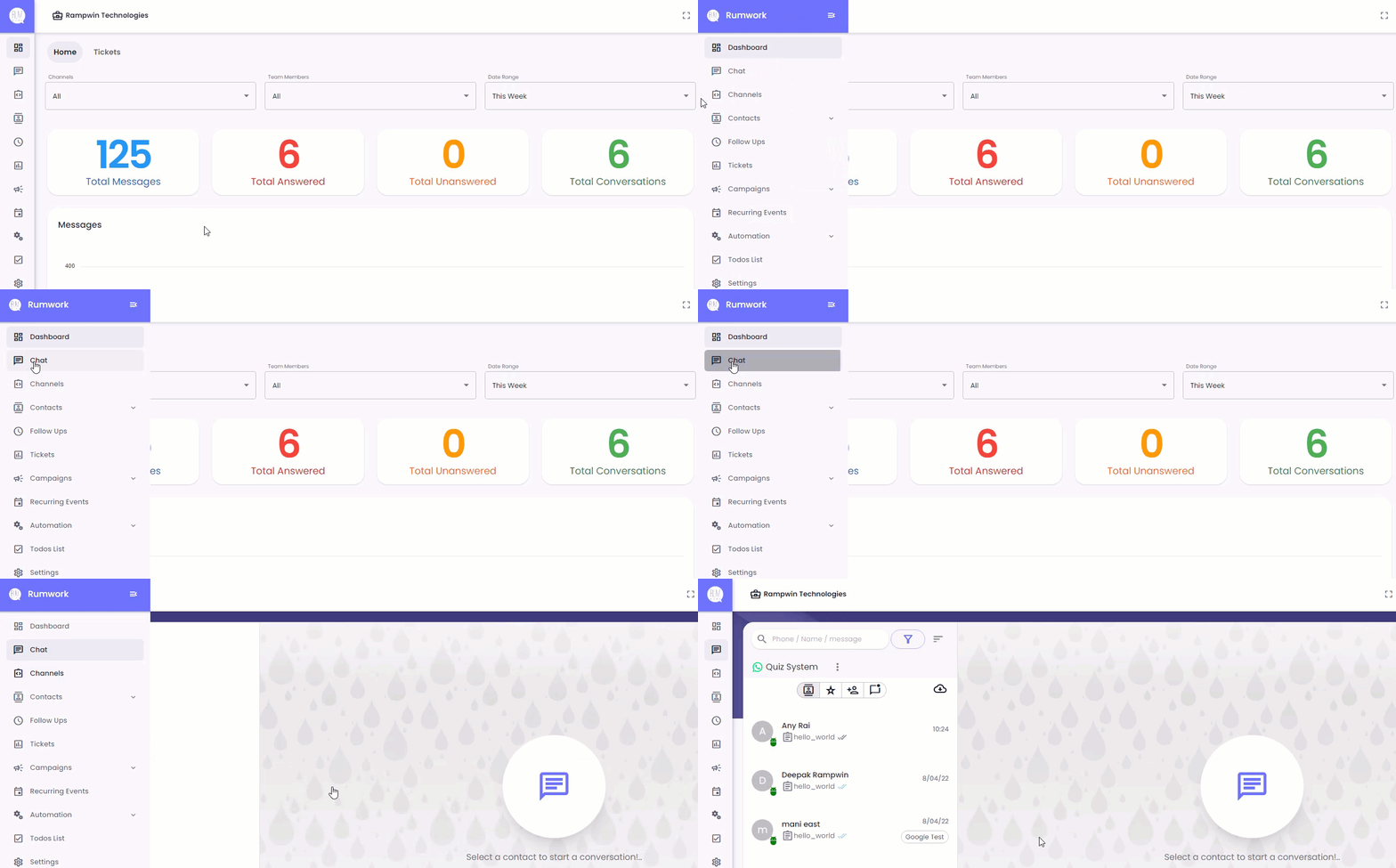
Although upon login to Rampwin, by default, you'll be on the Chat module interface. But still, to access the Chat module, click the Chat option in the sidebar.
Accessing Chat Module
The Chat module has different sections that allow you to efficiently manage and perform several actions on conversations.
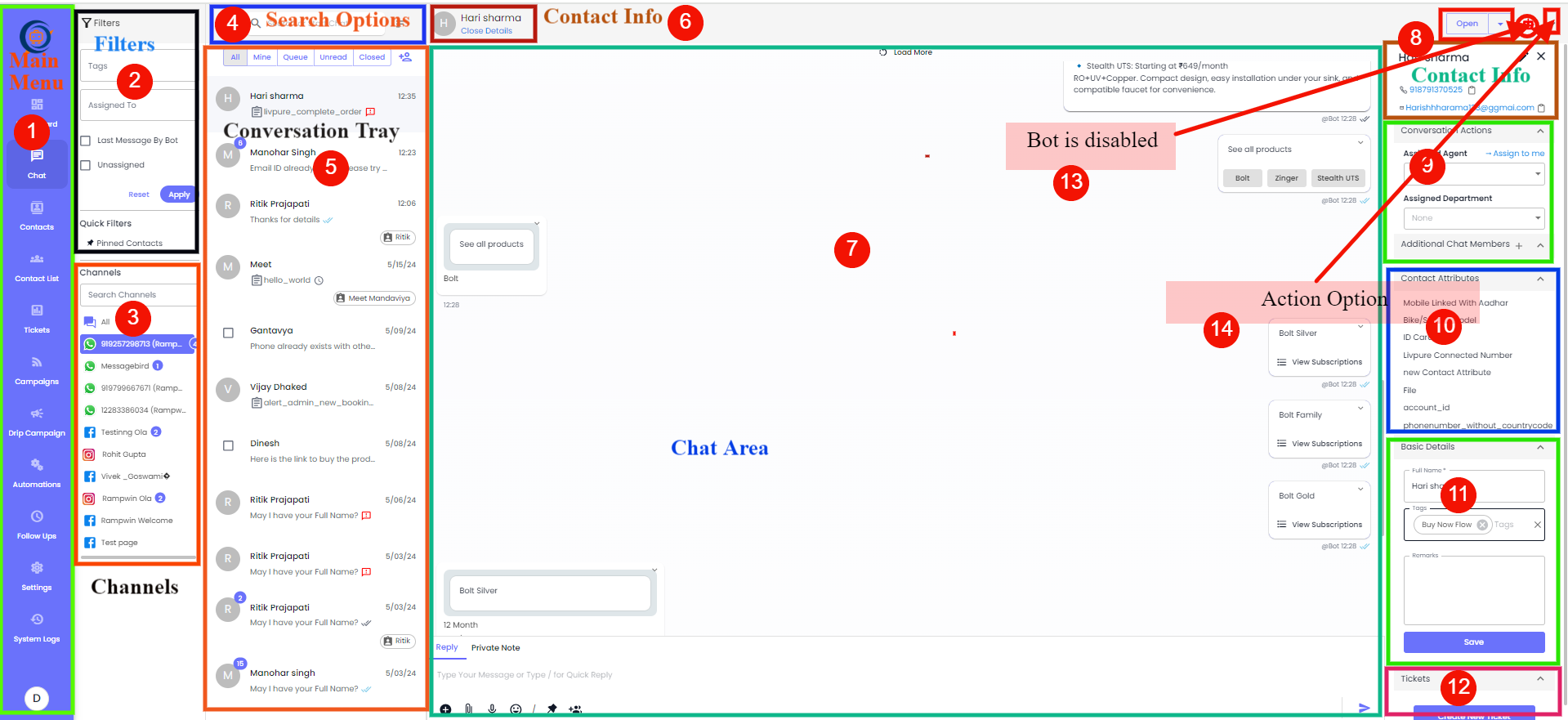
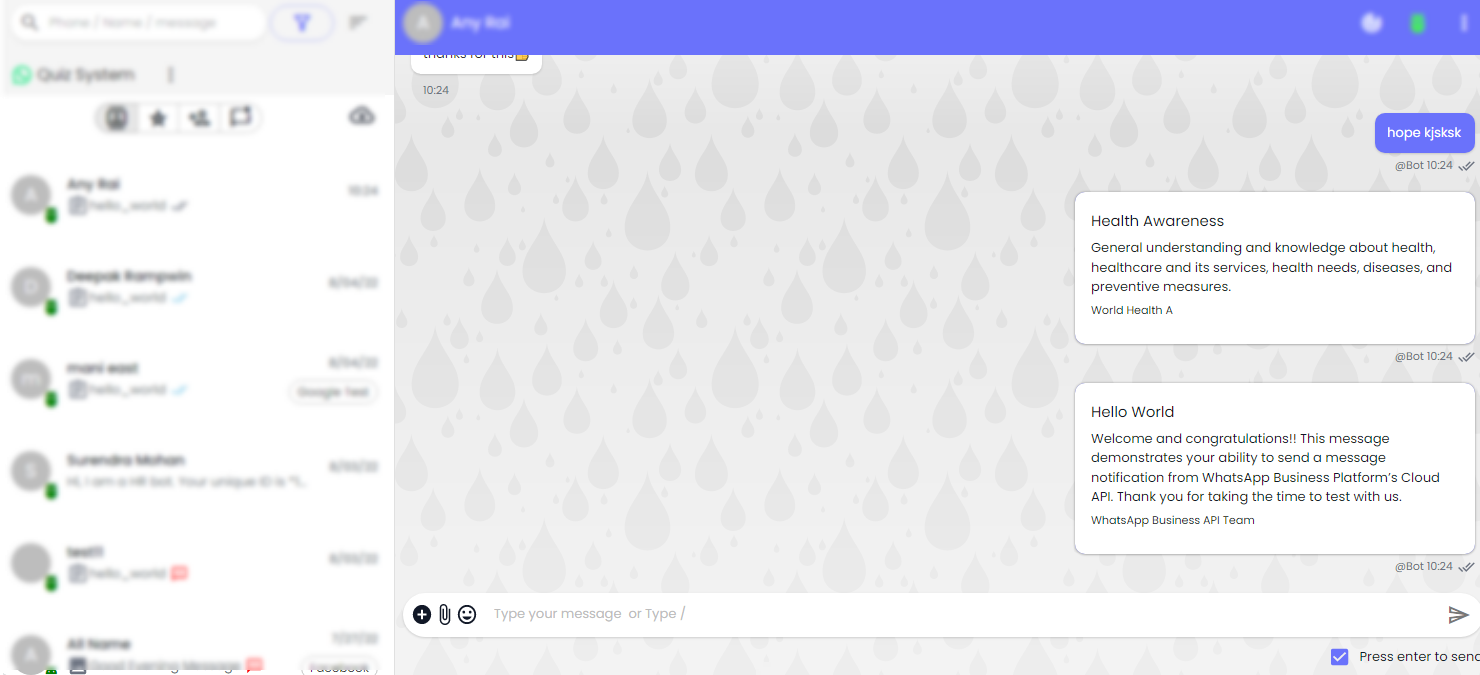
#### Overview of the Communication Dashboard
This image illustrates the main components of the communication dashboard, enabling efficient handling and tracking of customer interactions.
1. **Main Menu**:
* Provides quick access to different sections like Dashboard, Chat, Contacts, Tickets, Campaigns, Drip Campaigns, Automations, Follow-Ups, Settings, and System Logs.
1. **Filters**:
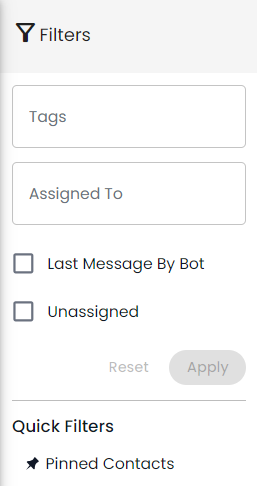
* Allows you to filter conversations by various tags, assigned personnel, and message status (e.g., last message by bot, unassigned).
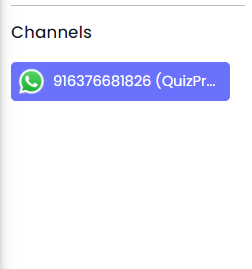
2. **Channels**:
* Displays all available communication channels. You can search for specific channels and select the desired channel to view associated conversations.
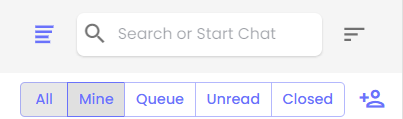
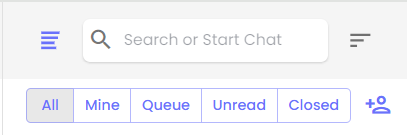
1. **Search Options**:
* Enables searching within conversations based on status (All, Mine, Queue, Unread, Closed).
1. **Conversation Tray**:
* Lists all active conversations, displaying key details like contact name, last message, and timestamp. Click on a conversation to view and interact in the chat area.
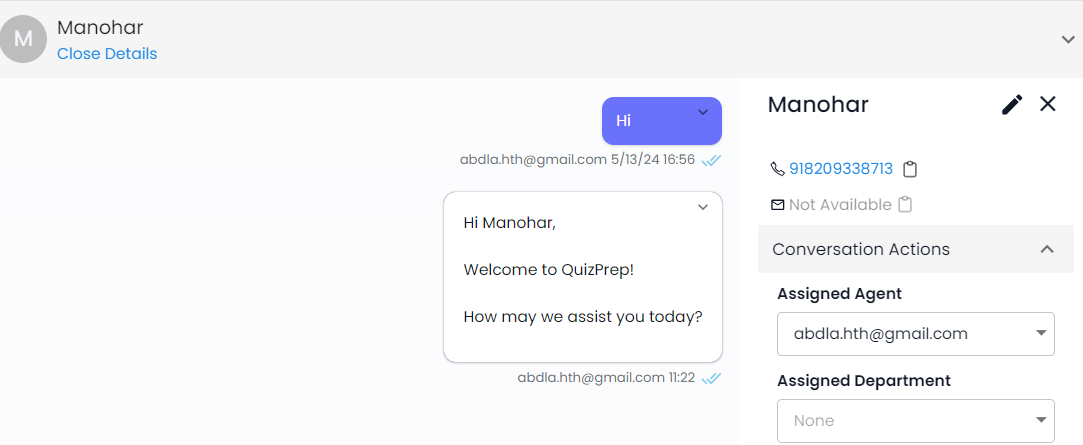
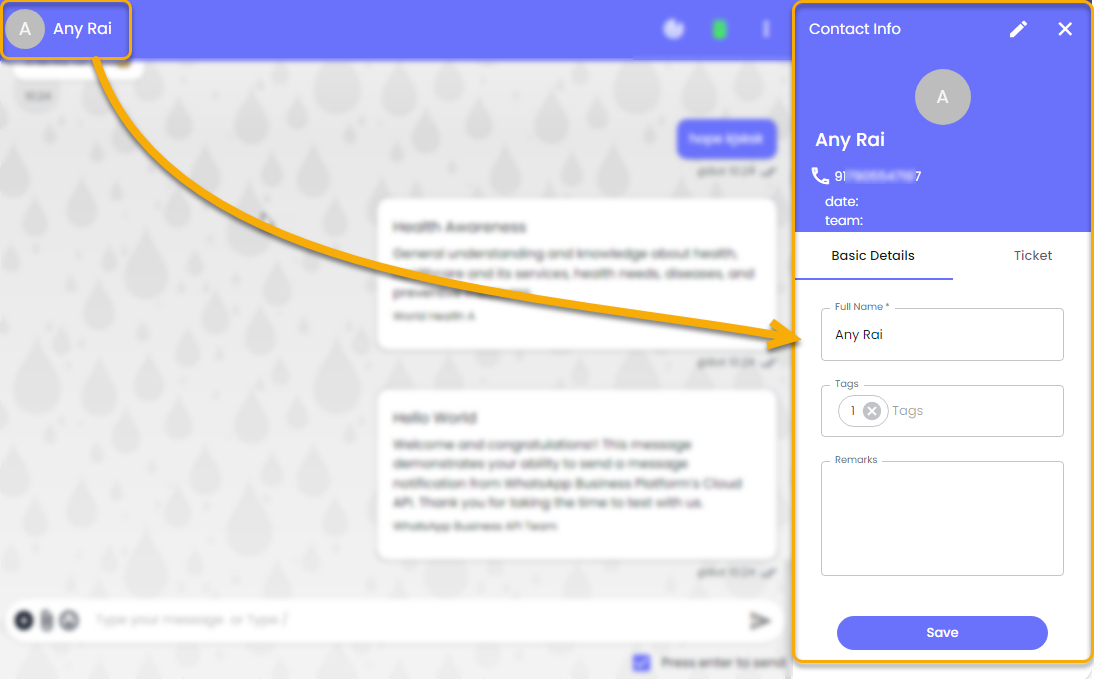
1. **Contact Info**:
* Shows detailed information about the selected contact, including name, phone number, and email address.
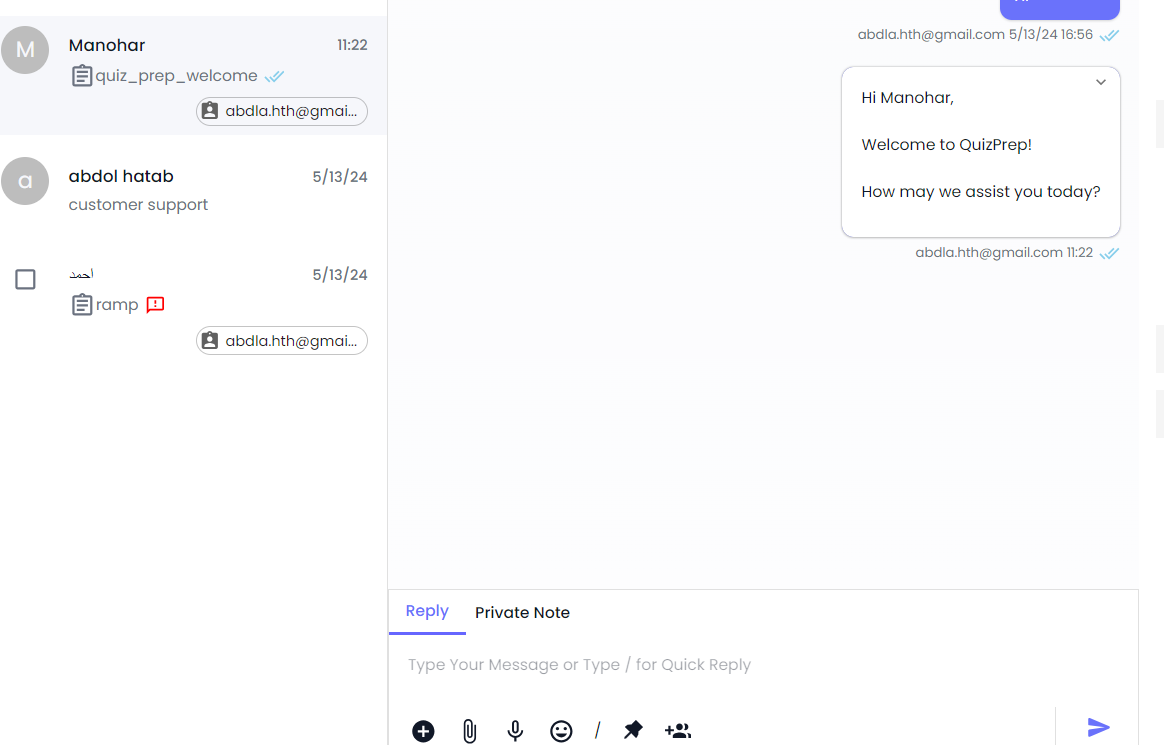
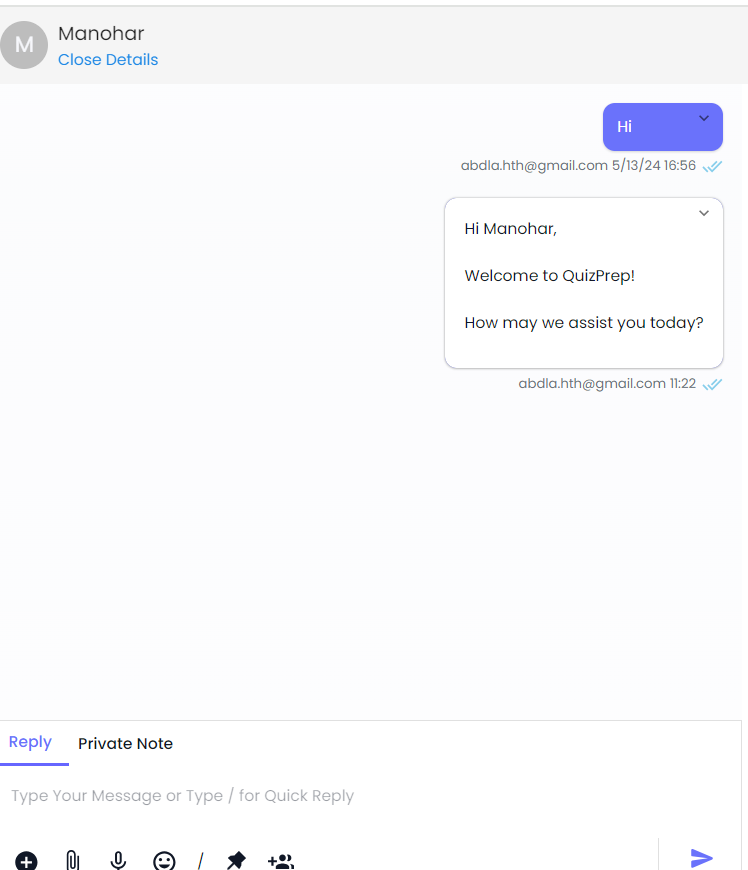
1. **Chat Area**:
* The main area for viewing and responding to messages. You can switch between replying to the customer and adding private notes.
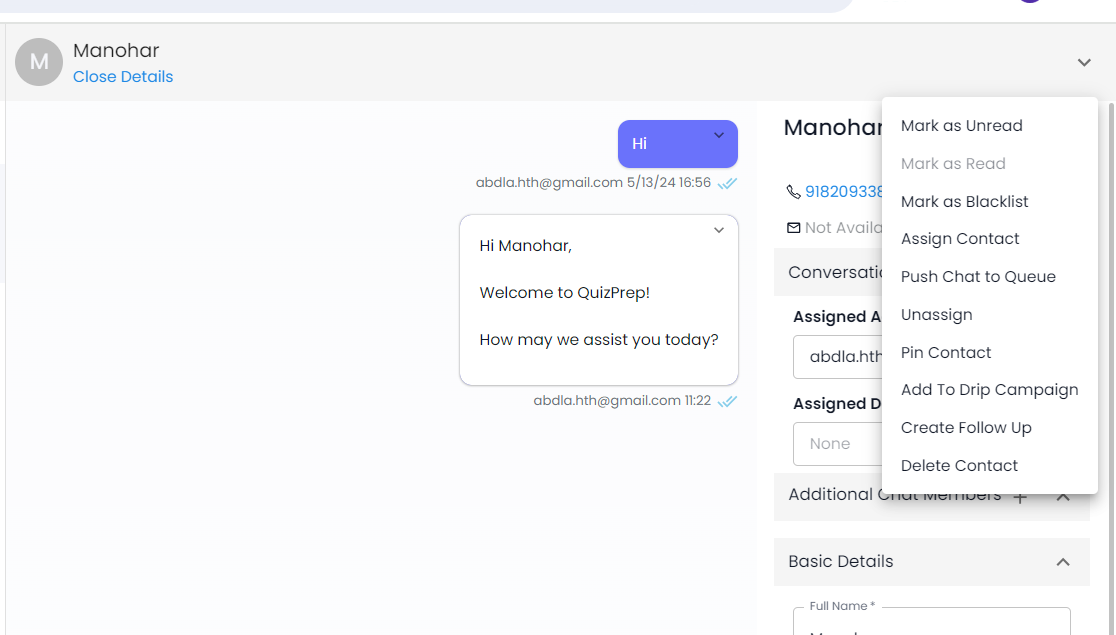
1. **Action Options**:
* Provides options to change the conversation status (e.g., Open, Close) and other quick actions.
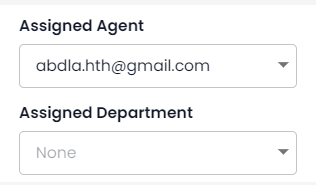
1. **Assign Agent**:
* Allows you to assign the conversation to yourself or another team member, select the department, and add additional chat members if needed.
1. **Contact Attributes**:
* Displays various attributes related to the contact, such as mobile number, ID card, and other custom attributes.
1. **Basic Details**:
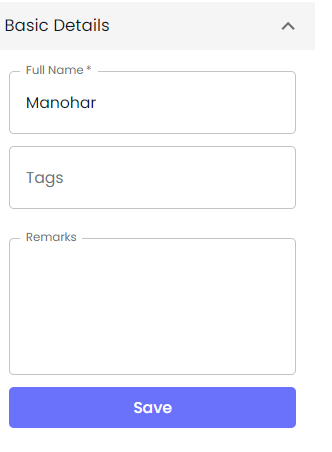
* Basic contact information including full name, tags, and any additional remarks. You can edit and save these details as required.
1. **Tickets**:
* Shows ticketing options. You can create new tickets for further follow-up and support.
### Main menu
Great! Here's the list of main menu options you provided:
1. Dashboard
2. Chat
3. Contacts
4. Contacts List
5. Tickets
6. Campaigns
7. Drip Campaigns
8. Automation's
9. Follow-Ups
10. Setting
11. System Logs
### Filters
To filter all chats according to users, you can follow these steps:
1. Go to the "Chat" section in your dashboard.
2. Look for the filter or search bar provided in the chat interface.
3. Enter the name or username of the user you want to filter chats for.
4. Press enter or click on the search icon to apply the filter.
5. The chat interface will display only the chats related to the specified user.
### Channels
To select the channels in the chat option, follow these steps:
1. **Search for Channels:**
* Look for an option labeled "Channels" or "Messaging Channels."
2. **Select Channel Types:**
* You will see a list of available channels (e.g., live chat, messaging apps, social media platforms).
* Search for the specific channels you are interested in.
* Switch between channels to view conversations and communicate with users messaging from different chat platforms.
### Search Options
To search for a specific chat in your chat application, follow these steps:
1. **Type the name of the person, group, or specific keywords related to the chat you are looking for.**
2. **Browse through the results to find the specific chat you need.**
3. **Click or tap on the desired chat from the search results to open it.**
### Contact Info
Contact Info In Chat
Edit contact information; create tickets and more.
### Chat Area
Rampwin Chat Area
Simply communicate with users using different message types and more.
### Chat More Options
Change conversation Open status read status, assign bot, pin chat, and more.
### What's Next?
To improve your Chat, let's learn how you can integrate a bot into it.