> For the complete documentation index, see [llms.txt](https://docs.rampwin.com/llms.txt). Markdown versions of documentation pages are available by appending `.md` to page URLs; this page is available as [Markdown](https://docs.rampwin.com/english/more-how-tos/assign-facebook-page-admin-role.md).

# Assign Facebook Page Admin Role

If you're not the admin of the Facebook Page, ask the admin to make you by following the steps below.

{% hint style="info" %}
The following guide is only for Classic Pages on Facebook.
{% endhint %}

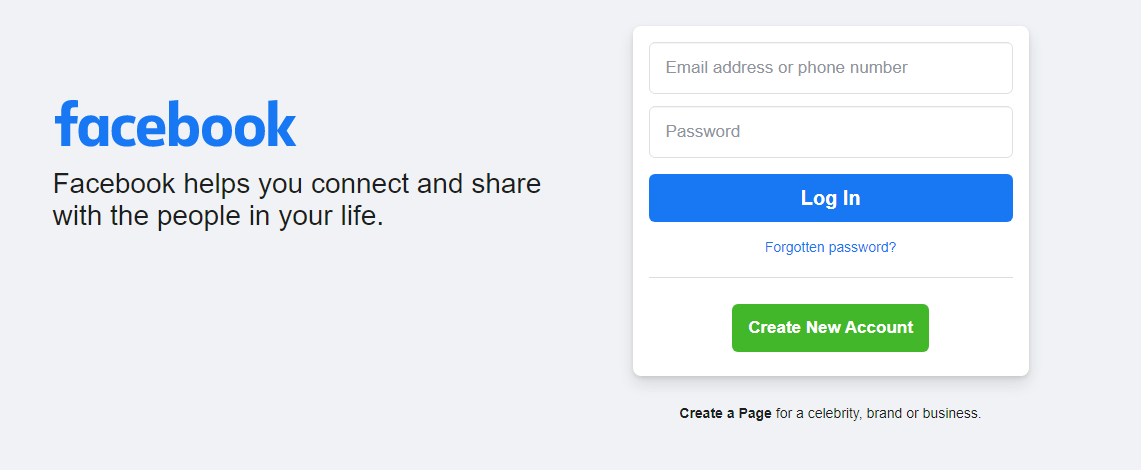
* To assign an Admin role to a Facebook Page, first, login to your Facebook account.

<figure><img src="https://files.gitbook.com/v0/b/gitbook-x-prod.appspot.com/o/spaces%2FhElFPtMZjXYjDDMBT5q2%2Fuploads%2FDQok14pkhHrk1nW8OGmh%2FFacebook%20Login.png?alt=media&#x26;token=84af8403-14d6-4db7-99d2-a101f974bd91" alt=""><figcaption></figcaption></figure>

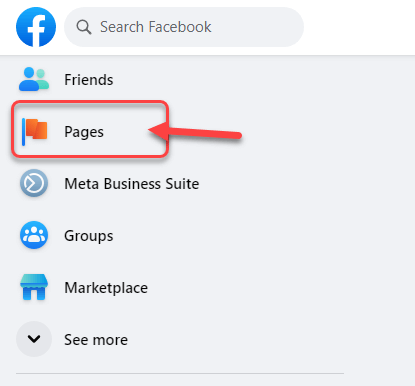
Then, click **See More** (Left Tab/Menu), if you don't find the Pages option already there. Or simply, click **Pages**.

<figure><img src="https://files.gitbook.com/v0/b/gitbook-x-prod.appspot.com/o/spaces%2FhElFPtMZjXYjDDMBT5q2%2Fuploads%2Fvfqil4psLitHp737K6YC%2FOpening%20Facebook%20Pages.png?alt=media&#x26;token=fb622676-b6f2-4c4c-8b77-c33e5b6e0680" alt=""><figcaption></figcaption></figure>

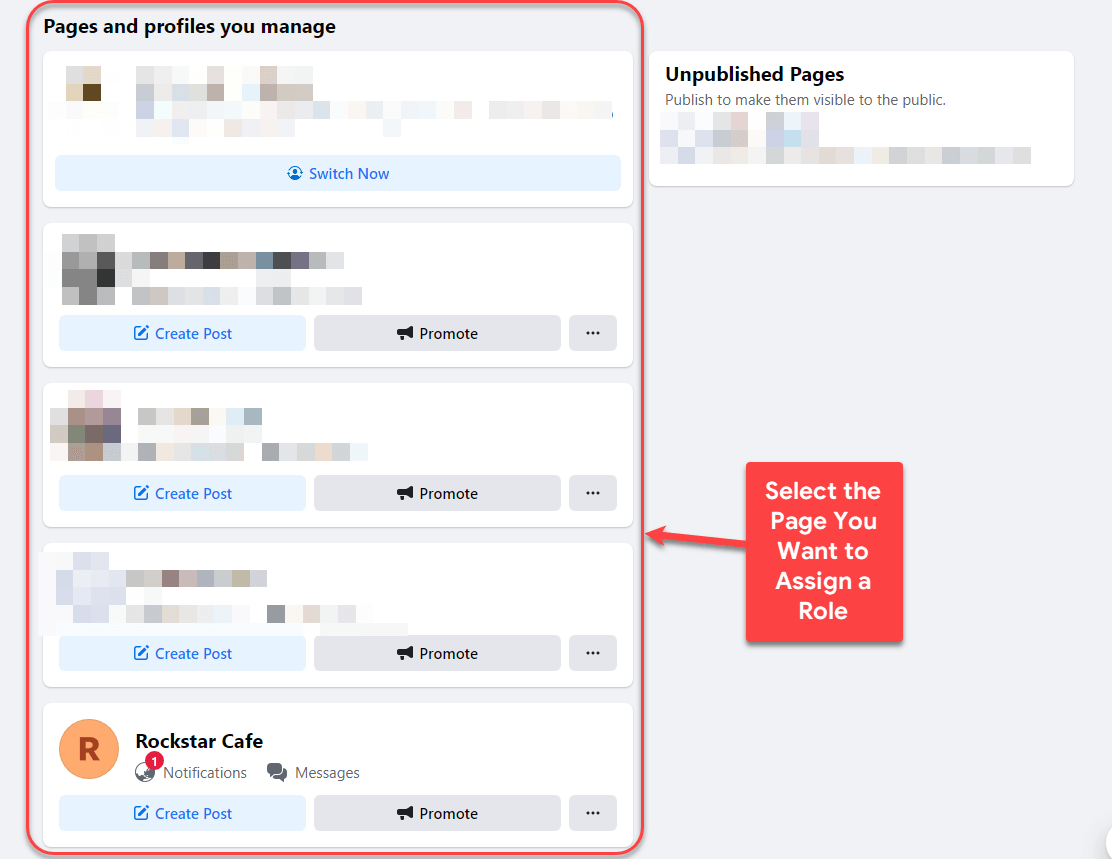
* From the pages list, select the page you want to assign a new admin.

<figure><img src="https://files.gitbook.com/v0/b/gitbook-x-prod.appspot.com/o/spaces%2FhElFPtMZjXYjDDMBT5q2%2Fuploads%2FsO0yMcmRYYA90tJvWjf6%2FSelecting%20the%20Page%20in%20Facebook%20to%20assign%20a%20role.png?alt=media&#x26;token=d3f5e427-055f-4163-ae8d-4f492b457ec4" alt=""><figcaption></figcaption></figure>

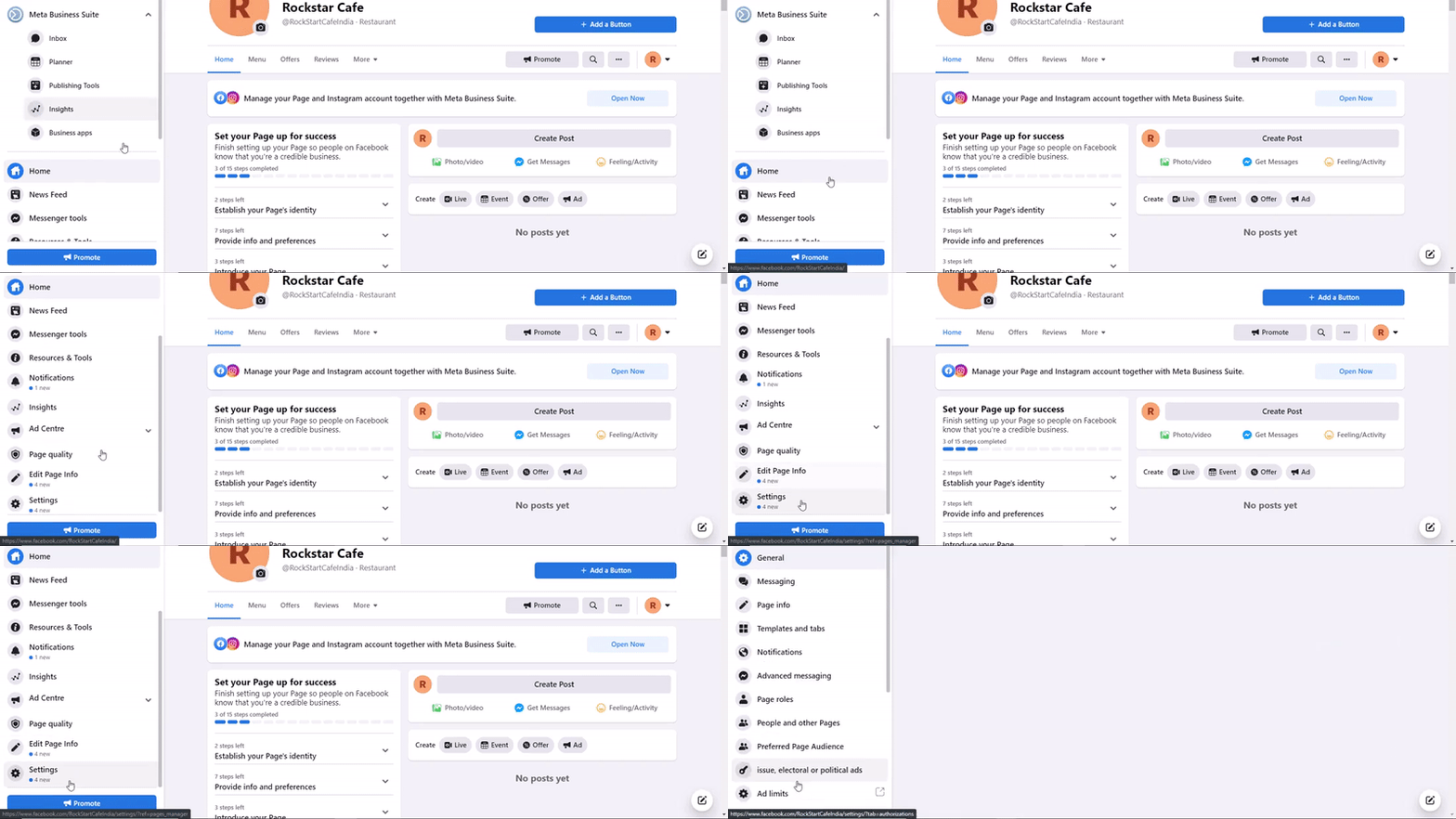
Then, scroll the Left Tab downward, and select **Settings**.

<figure><img src="https://files.gitbook.com/v0/b/gitbook-x-prod.appspot.com/o/spaces%2FhElFPtMZjXYjDDMBT5q2%2Fuploads%2FFxiPyJVN0ije7flCkhtD%2FAccessing%20Facebook%20Page&#x27;s%20Settings.gif?alt=media&#x26;token=531f5dca-441e-42b3-80d7-c07facb71b9e" alt=""><figcaption></figcaption></figure>

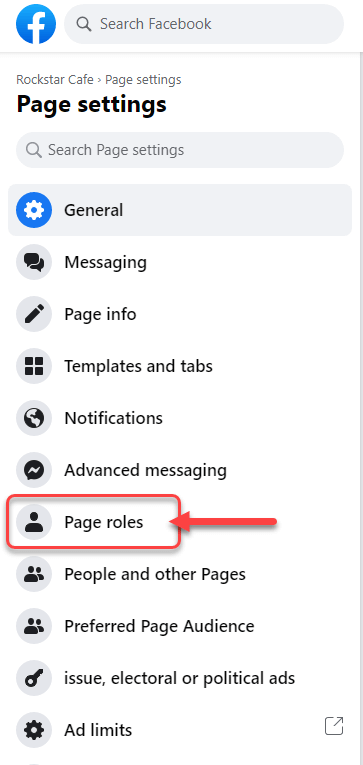
* From the Left Tab, select **Page Roles**.

<figure><img src="https://files.gitbook.com/v0/b/gitbook-x-prod.appspot.com/o/spaces%2FhElFPtMZjXYjDDMBT5q2%2Fuploads%2FwEvcXn9skn82RiUfCQqx%2FSelecting%20Page%20Roles%20in%20Facebook%20Page%20Settings.png?alt=media&#x26;token=b96ee833-fdb0-4a37-bfe7-12fe04cd6623" alt=""><figcaption></figcaption></figure>

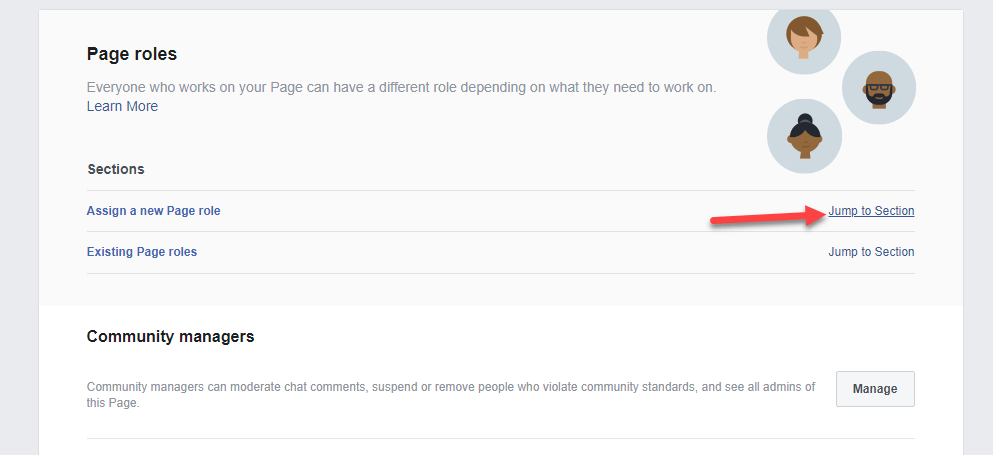
* A new window will appear with *Assign a new Page role* option. Click on **Jump to Section** right next to it.

<figure><img src="https://files.gitbook.com/v0/b/gitbook-x-prod.appspot.com/o/spaces%2FhElFPtMZjXYjDDMBT5q2%2Fuploads%2FHagk1Jty4BDwJyWeZwDa%2FJump%20to%20Section%20in%20Facebook%20Page%20Role%20options.png?alt=media&#x26;token=023ab47a-41fb-450e-a140-c28c84091e60" alt=""><figcaption></figcaption></figure>

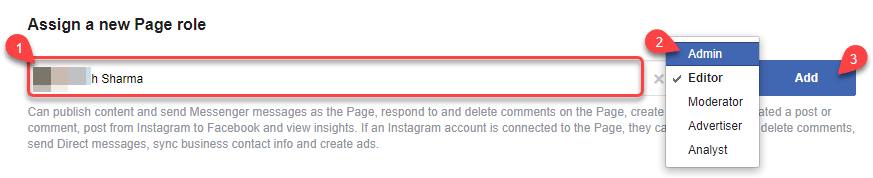
* It will take you to the Assign a new Page Role. Here, add the user's email or their name. Select the person that appears. Then, change *Editor* to *Admin*, and click *Add*.

<figure><img src="https://files.gitbook.com/v0/b/gitbook-x-prod.appspot.com/o/spaces%2FhElFPtMZjXYjDDMBT5q2%2Fuploads%2FdR84Fjv66qq6K7qwbvy3%2FAssigning%20a%20new%20Admin%20to%20a%20Facebook%20Page.png?alt=media&#x26;token=50c3c150-0792-4cb0-a6d3-556125557633" alt=""><figcaption></figcaption></figure>

## Assign Facebook Page Admin Role

To create a RUM Work Facebook Channel it's necessary that you're the admin of the Facebook Page that you'll connect with RUM Work Channel.If you're not the admin of the Facebook Page, ask the admin to make you by following the steps below\.The following guide is only for Classic Pages on Facebook.To assign an Admin role to a Facebook Page, first, login to your Facebook account.​​Then, click See More (Left Tab/Menu), if you don't find the Pages option already there. Or simply, click Pages.​​From the pages list, select the page you want to assign a new admin.​​Then, scroll the Left Tab downward, and select Settings.​​From the Left Tab, select Page Roles.![](https://files.gitbook.com/v0/b/gitbook-x-prod.appspot.com/o/spaces%2FhElFPtMZjXYjDDMBT5q2%2Fuploads%2FwEvcXn9skn82RiUfCQqx%2FSelecting%20Page%20Roles%20in%20Facebook%20Page%20Settings.png?alt=media\&token=b96ee833-fdb0-4a37-bfe7-12fe04cd6623)

* A new window will appear with *Assign a new Page role* option. Click on **Jump to Section** right next to it.

![](https://files.gitbook.com/v0/b/gitbook-x-prod.appspot.com/o/spaces%2FhElFPtMZjXYjDDMBT5q2%2Fuploads%2FHagk1Jty4BDwJyWeZwDa%2FJump%20to%20Section%20in%20Facebook%20Page%20Role%20options.png?alt=media\&token=023ab47a-41fb-450e-a140-c28c84091e60)

* It will take you to the Assign a new Page Role. Here, add the user's email or their name. Select the person that appears. Then, change *Editor* to *Admin*, and click *Add*.

![](https://files.gitbook.com/v0/b/gitbook-x-prod.appspot.com/o/spaces%2FhElFPtMZjXYjDDMBT5q2%2Fuploads%2FdR84Fjv66qq6K7qwbvy3%2FAssigning%20a%20new%20Admin%20to%20a%20Facebook%20Page.png?alt=media\&token=50c3c150-0792-4cb0-a6d3-556125557633)That's it; you've successfully assigned an admin role to a Facebook Page. Now, [return to Create a RUM Work Facebook Channel](https://app.gitbook.com/o/-MQAs72RT04GIqTxl152/s/hElFPtMZjXYjDDMBT5q2/messaging-channels/facebook-integration#step-1-access-rum-work-channels).