# General

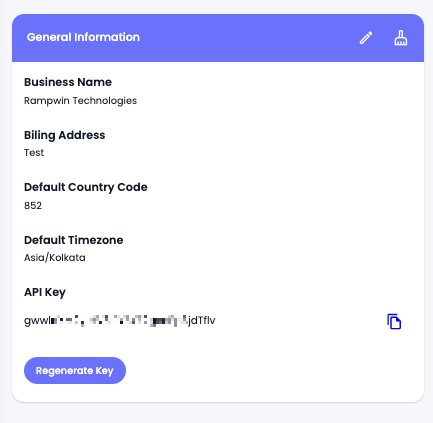
Using the **General Information** option of the [My Account](broken://pages/H0qFFMusJTKPeBnpfXqi) settings, you can manage the following details,&#x20;

* Business Name
* Billing Address
* Default Country Code
* Default Timezone
* API Key

<figure><img src="https://files.gitbook.com/v0/b/gitbook-x-prod.appspot.com/o/spaces%2FhElFPtMZjXYjDDMBT5q2%2Fuploads%2F3aF7rp35b5zepF0GUbE0%2FGeneral%20Information%20block.png?alt=media&#x26;token=f98766f7-1f1c-47db-9dbb-8422e8737214" alt=""><figcaption><p>General Information</p></figcaption></figure>

To add the information or make changes to it, click the Edit icon.&#x20;

<figure><img src="https://files.gitbook.com/v0/b/gitbook-x-prod.appspot.com/o/spaces%2FhElFPtMZjXYjDDMBT5q2%2Fuploads%2FdfNhLunaPmP3y3P7L1ml%2FEdit%20General%20Information.png?alt=media&#x26;token=5ffa6643-67e5-4249-b0f5-2fa34fd67ae2" alt=""><figcaption><p>Edit General Information</p></figcaption></figure>

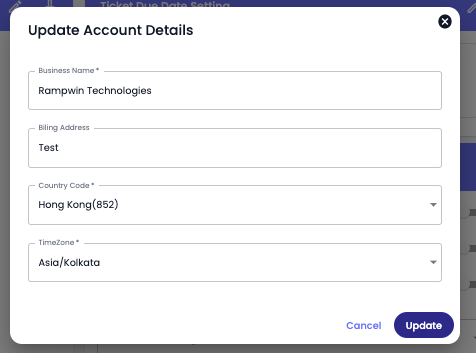
Then, you get the fields to add the information or make changes. Simply input the Business Name first, then the Billing Address. Choose Default Country Code and Time Zone. Once you're done editing or adding the info, click **Update** to save changes.

<figure><img src="https://files.gitbook.com/v0/b/gitbook-x-prod.appspot.com/o/spaces%2FhElFPtMZjXYjDDMBT5q2%2Fuploads%2FZI1SY7Ke1hna3bwCX0TR%2FUpdate%20General%20Information.png?alt=media&#x26;token=e9051acc-1658-449b-8404-c0c8d3afdb92" alt=""><figcaption></figcaption></figure>

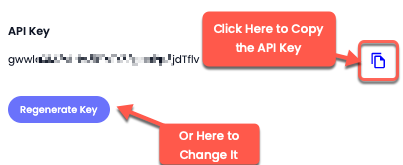
If you're required to access the API Key of your Rampwin business account, you can obtain that by clicking the Copy button.

<figure><img src="https://files.gitbook.com/v0/b/gitbook-x-prod.appspot.com/o/spaces%2FhElFPtMZjXYjDDMBT5q2%2Fuploads%2FcrLxP2wsepFmF6WUFhqa%2FGeneral%20Info%20API%20Key.png?alt=media&#x26;token=cfd1f787-25fd-420a-a543-b83b200eff58" alt=""><figcaption></figcaption></figure>

And if, in any scenario, you need to change the API, then you can do that by clicking the **Regenerate Key** button.&#x20;

### Reset Data

If you're required to delete all of your data from Rampwin, for example, contacts, chat, campaigns and more, then you can do that by clicking the Clean icon.

<figure><img src="https://files.gitbook.com/v0/b/gitbook-x-prod.appspot.com/o/spaces%2FhElFPtMZjXYjDDMBT5q2%2Fuploads%2FsNA30MJr10smC0bDiVr2%2FCleaning%20RUM%20Work%20Data.png?alt=media&#x26;token=349ad9d3-db4b-417b-a8c6-d27bfff6bfda" alt=""><figcaption></figcaption></figure>

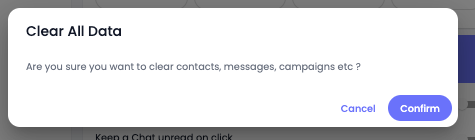
It will open the Clear All Data confirmation popup.&#x20;

<figure><img src="https://files.gitbook.com/v0/b/gitbook-x-prod.appspot.com/o/spaces%2FhElFPtMZjXYjDDMBT5q2%2Fuploads%2FT0E7NHtlPMA2EXvfSU7U%2FConfirm%20Data%20Cleaning.png?alt=media&#x26;token=8a5829f3-32ff-42c7-8a48-d6b1472386a7" alt=""><figcaption></figcaption></figure>

To finalise cleaning, click **Confirm**. And all of your data will be removed safely.

---

# Agent Instructions: Querying This Documentation

If you need additional information that is not directly available in this page, you can query the documentation dynamically by asking a question.

Perform an HTTP GET request on the current page URL with the `ask` query parameter:

```
GET https://docs.rampwin.com/english/general.md?ask=<question>
```

The question should be specific, self-contained, and written in natural language.
The response will contain a direct answer to the question and relevant excerpts and sources from the documentation.

Use this mechanism when the answer is not explicitly present in the current page, you need clarification or additional context, or you want to retrieve related documentation sections.