# Follow Ups

Using the Follow Ups module, you can remind yourself or one of your teammates about the last conversation you had with the client/customer/user, and based on that, go for a follow-up.&#x20;

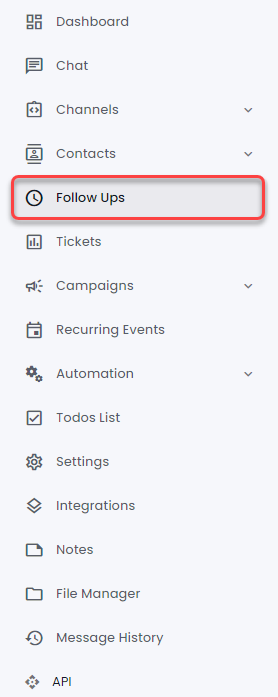
<figure><img src="https://files.gitbook.com/v0/b/gitbook-x-prod.appspot.com/o/spaces%2FhElFPtMZjXYjDDMBT5q2%2Fuploads%2F5od4FnVysYItKKyLCznF%2FFollow%20Ups%20in%20the%20Sidebar%20RUM%20Work.png?alt=media&#x26;token=d52eca6e-0911-4c05-9b95-308f292dcc84" alt=""><figcaption></figcaption></figure>

From your Dashboard, go to the left sidebar, and select **Follow Ups**.&#x20;

<figure><img src="https://files.gitbook.com/v0/b/gitbook-x-prod.appspot.com/o/spaces%2FhElFPtMZjXYjDDMBT5q2%2Fuploads%2FPSvRG4zVDWr2CIAenSEE%2FFollow%20Ups%20Calendar%20Window.png?alt=media&#x26;token=b00b2f68-f57e-4d69-8487-5c089ae49799" alt=""><figcaption></figcaption></figure>

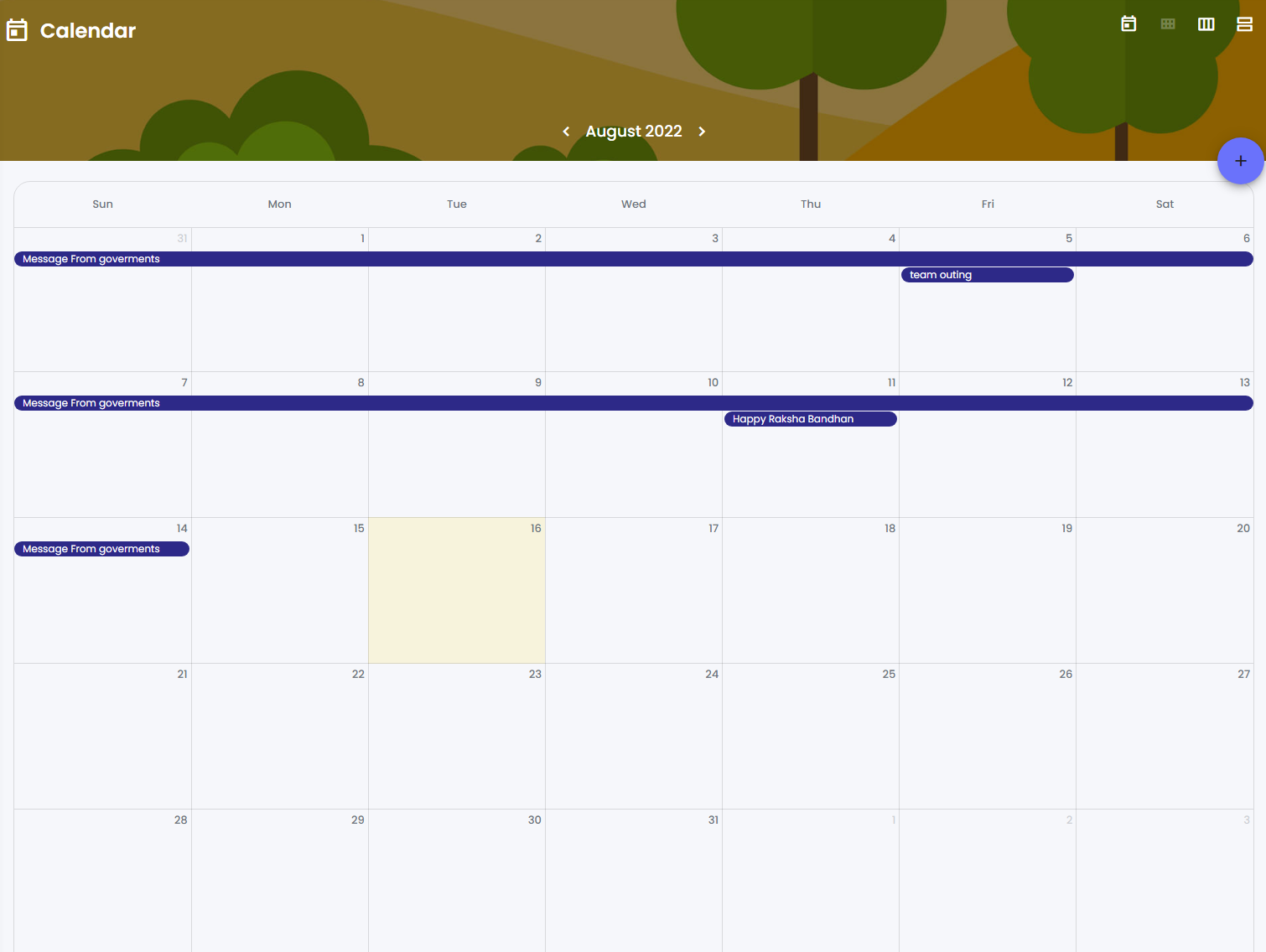
As you access the Follow Ups, you'd see a calendar where all the follows will be listed. From the calendar view, you get the option to change months, calendar view; and create a follow up.&#x20;

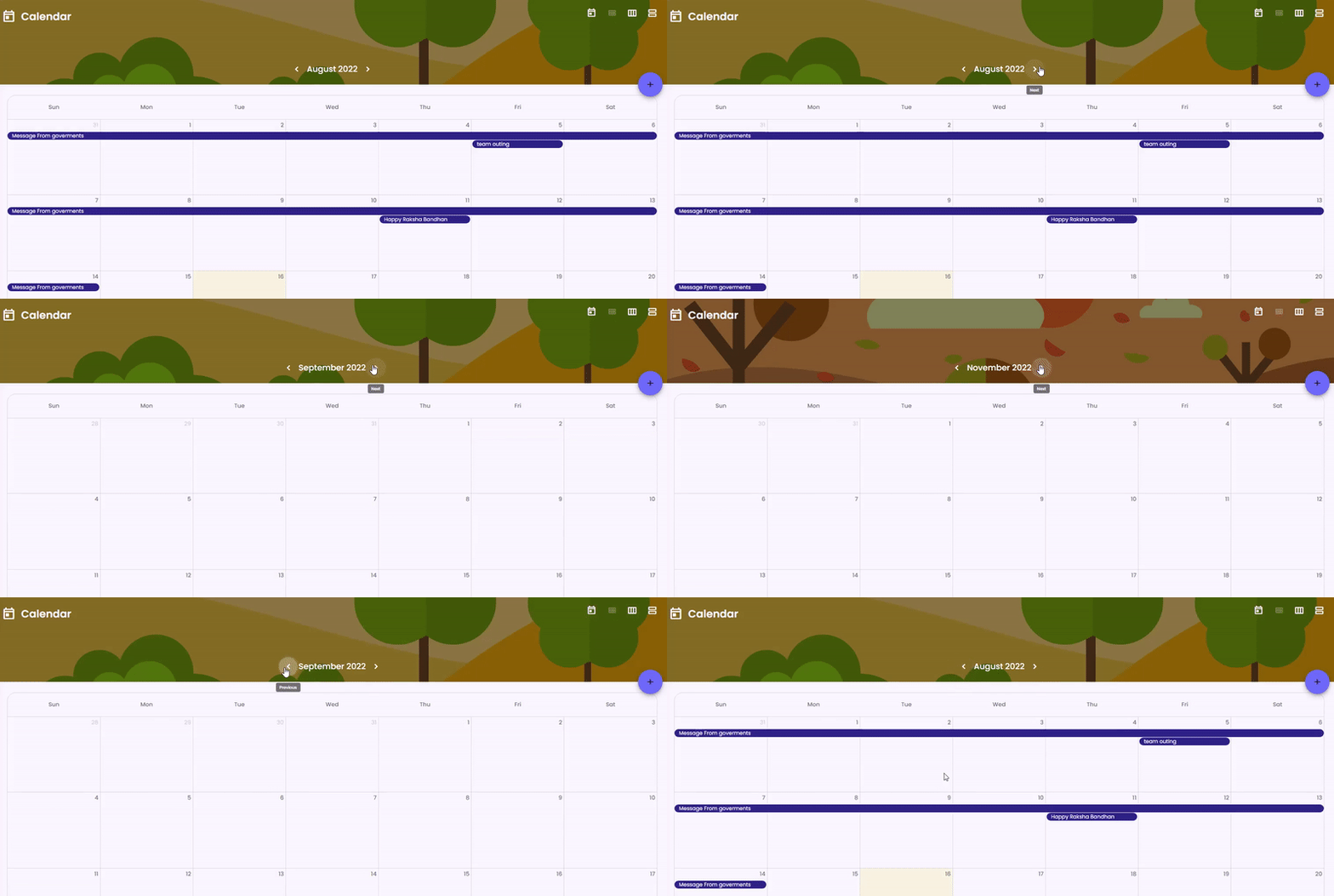
<figure><img src="https://files.gitbook.com/v0/b/gitbook-x-prod.appspot.com/o/spaces%2FhElFPtMZjXYjDDMBT5q2%2Fuploads%2Fig8KacRwuG3nuGJQx84b%2FMonths%20Change%20in%20Follow%20Up.gif?alt=media&#x26;token=d89705d7-e54d-4b03-bfcb-ef1cc22c5ec2" alt=""><figcaption></figcaption></figure>

To change months, click the slider arrows next to the month's name.&#x20;

<figure><img src="https://files.gitbook.com/v0/b/gitbook-x-prod.appspot.com/o/spaces%2FhElFPtMZjXYjDDMBT5q2%2Fuploads%2F4GVRPb1wP9kQos0meLUR%2FCalendar%20View%20Options.png?alt=media&#x26;token=f6446f32-5de4-452b-bf52-ccb2d88362d5" alt=""><figcaption></figcaption></figure>

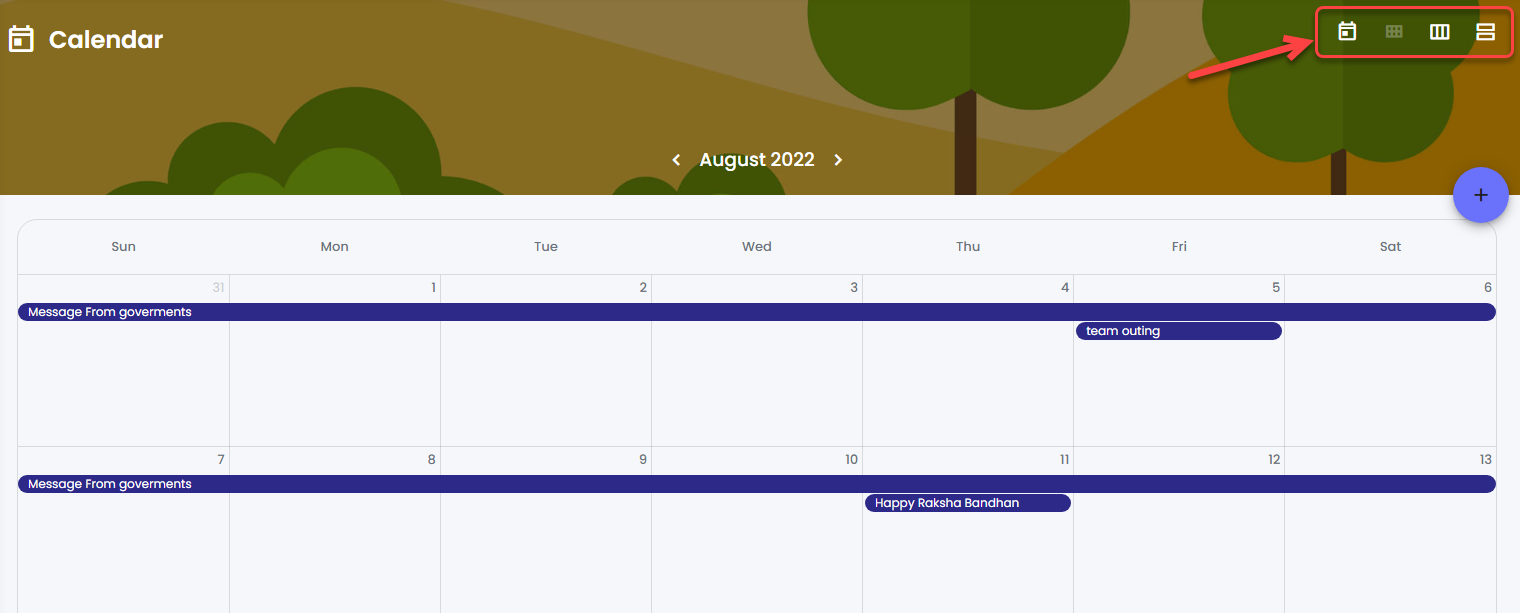
To change the calendar view, use the options in the top right corner.

* <img src="https://files.gitbook.com/v0/b/gitbook-x-prod.appspot.com/o/spaces%2FhElFPtMZjXYjDDMBT5q2%2Fuploads%2F9VTKNTZlGIT2UCshz6E3%2FBack%20to%20Today.png?alt=media&#x26;token=91f3dfcd-849d-4b90-824d-8a4ba5e2f0a8" alt="" data-size="line"> = Back to the current date.
* <img src="https://files.gitbook.com/v0/b/gitbook-x-prod.appspot.com/o/spaces%2FhElFPtMZjXYjDDMBT5q2%2Fuploads%2FZdZsiAVn81ie6KyhCv37%2FMonth%20View.png?alt=media&#x26;token=88aa32b1-b1bc-47b4-9589-c936fe5d64b8" alt="" data-size="line"> = Month view.
* <img src="https://files.gitbook.com/v0/b/gitbook-x-prod.appspot.com/o/spaces%2FhElFPtMZjXYjDDMBT5q2%2Fuploads%2FlQJiTeQ975QmhV0bwCNz%2FWeeks%20View.png?alt=media&#x26;token=5904c6c2-e9bc-4203-b2ec-487fa3d77f3f" alt="" data-size="line"> = Week view.
* <img src="https://files.gitbook.com/v0/b/gitbook-x-prod.appspot.com/o/spaces%2FhElFPtMZjXYjDDMBT5q2%2Fuploads%2FAq0Rg3ZiXkfU0DzElp03%2FDay%20View.png?alt=media&#x26;token=b2e02dc3-f848-4c3d-9a61-46f3c7a1a2e6" alt="" data-size="line"> = Day view.

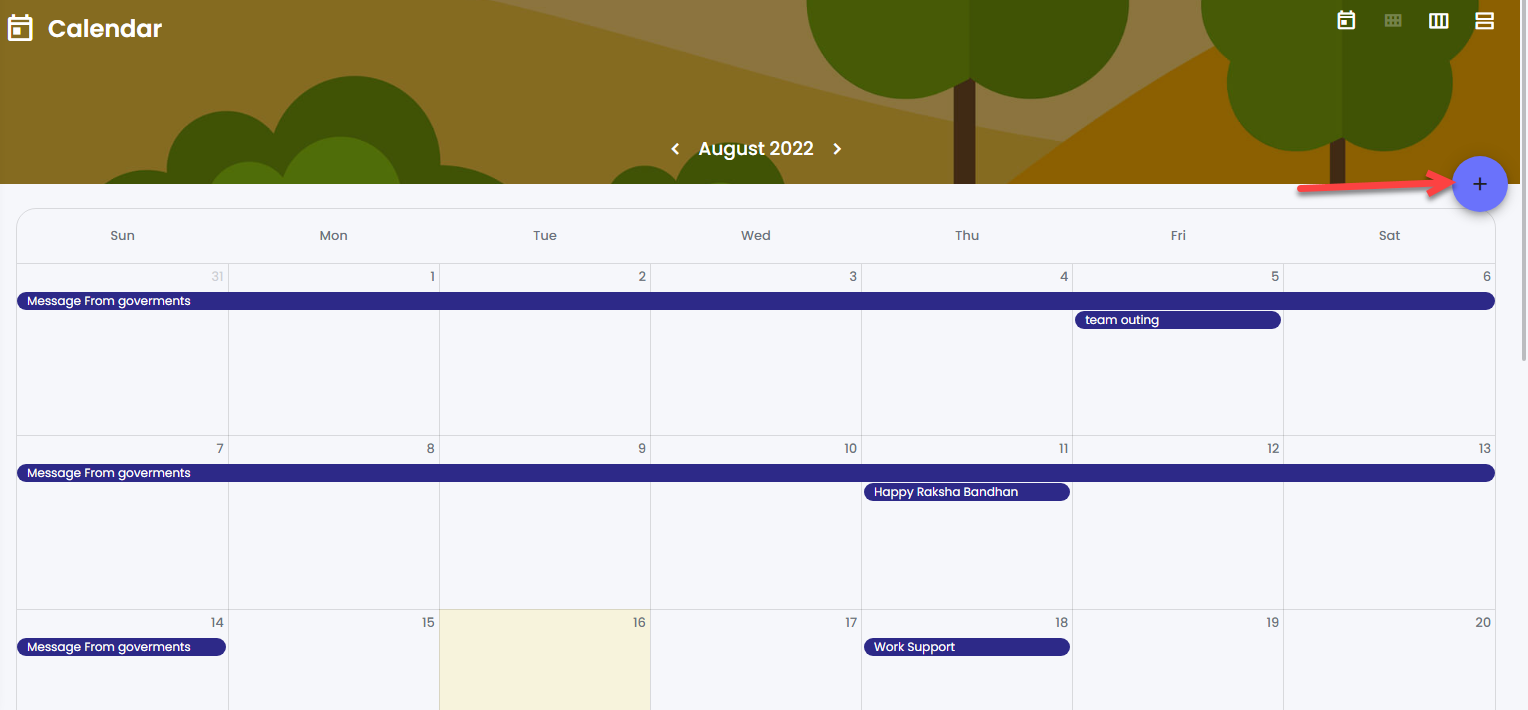
<figure><img src="https://files.gitbook.com/v0/b/gitbook-x-prod.appspot.com/o/spaces%2FhElFPtMZjXYjDDMBT5q2%2Fuploads%2F1H7LZITwMWp64Ut8nhh8%2FFollow%20Up%20Add%20Button.png?alt=media&#x26;token=88251307-c8d8-4860-8510-375abf21666e" alt=""><figcaption></figcaption></figure>

To create a new follow up, click the <img src="https://files.gitbook.com/v0/b/gitbook-x-prod.appspot.com/o/spaces%2FhElFPtMZjXYjDDMBT5q2%2Fuploads%2FHq0Ds9vB0QE3K7dujgfv%2FPlus%20Button%20Icon%20Follow%20Up.png?alt=media&#x26;token=855f3bde-4bf2-49ed-9cc8-59e92f81d53d" alt="" data-size="line"> Plus Icon button.&#x20;

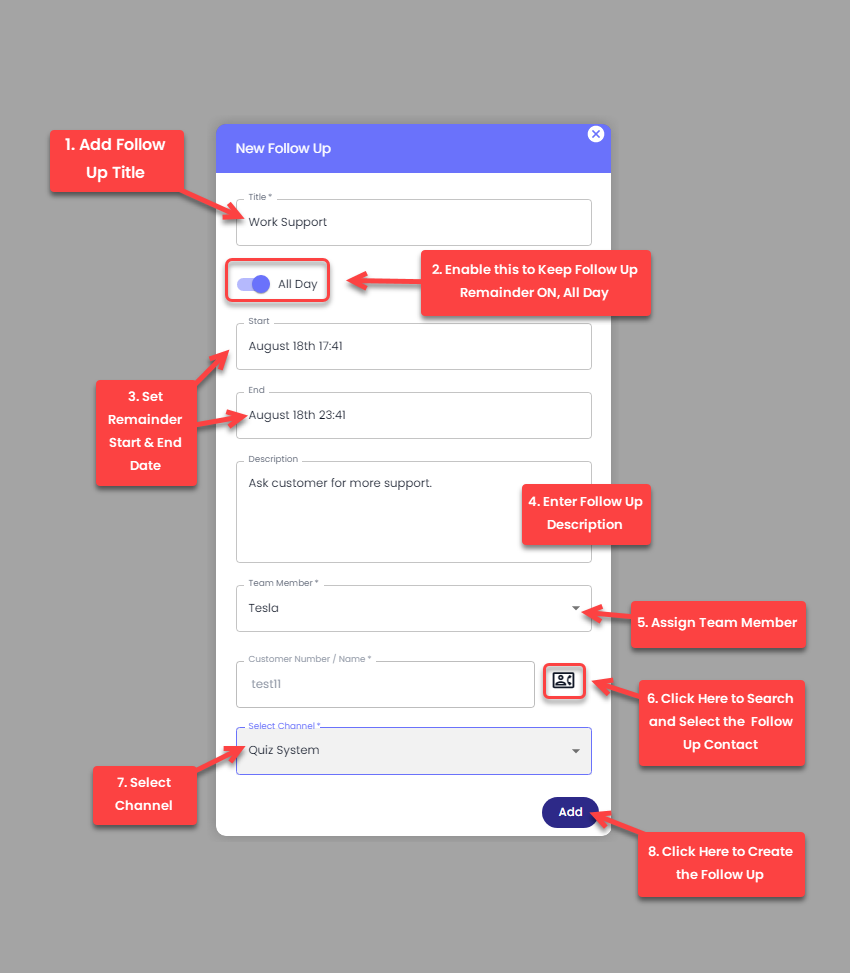
<figure><img src="https://files.gitbook.com/v0/b/gitbook-x-prod.appspot.com/o/spaces%2FhElFPtMZjXYjDDMBT5q2%2Fuploads%2FtAsymdYTNvsPOfhLo6qI%2FCreating%20a%20Follow%20Up.png?alt=media&#x26;token=32e5abb9-115b-4dc4-ad55-ad2b39671422" alt=""><figcaption></figcaption></figure>

This will open the New Follow Up modal, where add the details as required, and once done, click **Add**.&#x20;

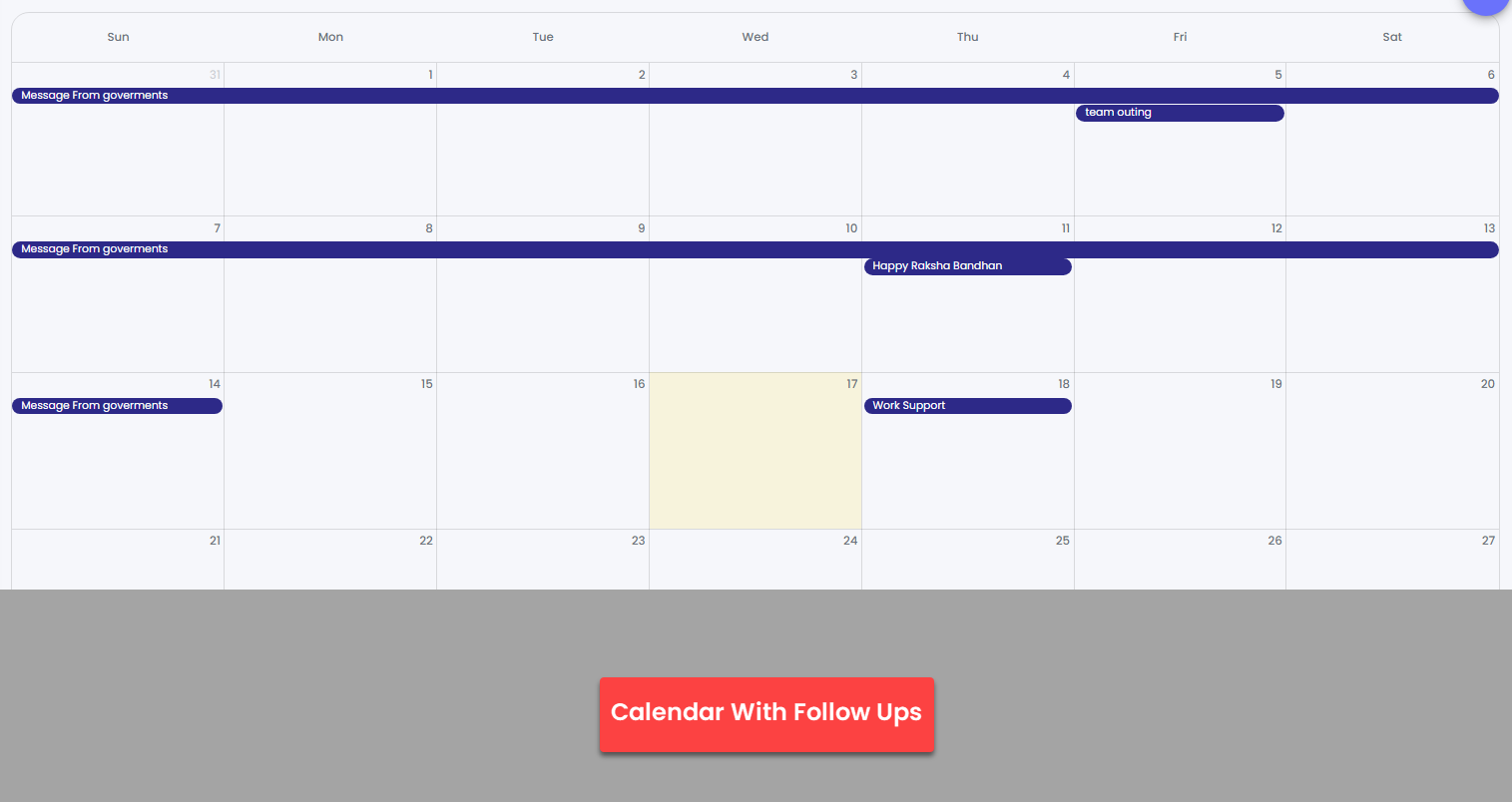
<figure><img src="https://files.gitbook.com/v0/b/gitbook-x-prod.appspot.com/o/spaces%2FhElFPtMZjXYjDDMBT5q2%2Fuploads%2FjPrjS33XFaKnxMr3zNgt%2FCalendar%20with%20Follow%20Ups.png?alt=media&#x26;token=bc2d30e9-9b2f-41e0-99e6-fc95e61315f3" alt=""><figcaption></figcaption></figure>

You'll find the created follow up in the calendar like the above.&#x20;

{% hint style="info" %}
You can also create a follow up using the [Chat module](broken://pages/Not8dBMgBrtlXHBKv9u9#create-follow-up).&#x20;
{% endhint %}

### Edit or Delete a Follow Up

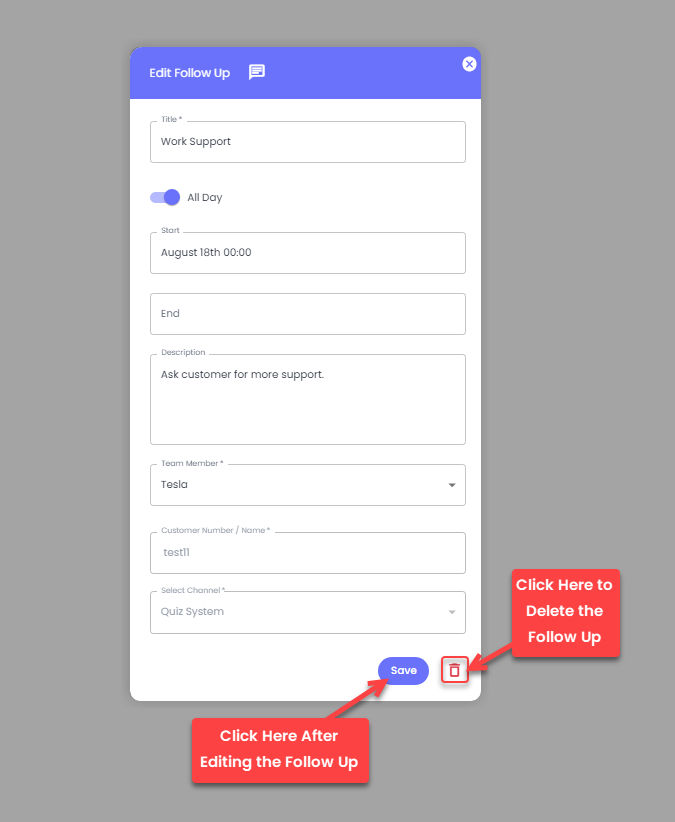
If you want to make changes to a follow up, simply click it in the calendar, then apply changes and click **Save**.&#x20;

<figure><img src="https://files.gitbook.com/v0/b/gitbook-x-prod.appspot.com/o/spaces%2FhElFPtMZjXYjDDMBT5q2%2Fuploads%2FOMQ1BoTIIKXRK8Xl9her%2FEdit%20Follow%20Up%20Modal.png?alt=media&#x26;token=5ae79840-3c88-4bc7-8fc6-0eba17b93842" alt=""><figcaption></figcaption></figure>

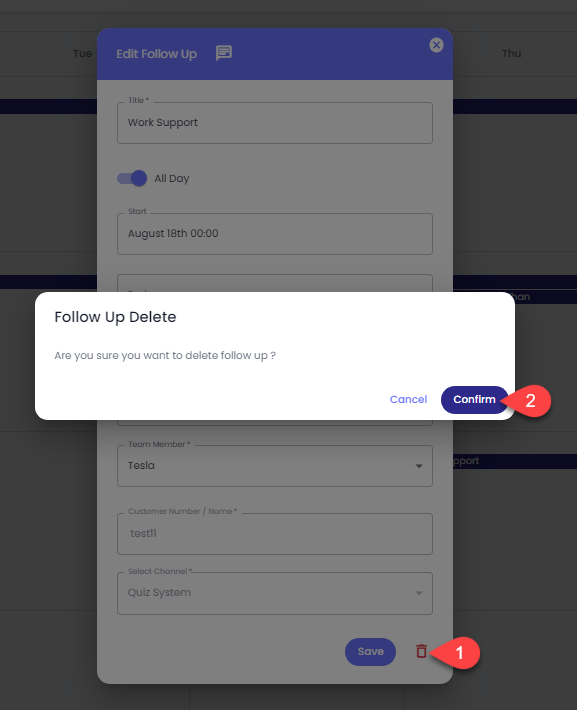
The delete option is also found next to the Save button. To remove a follow up, tap the Trash Icon button and then **Confirm.**
<figure><img src="https://files.gitbook.com/v0/b/gitbook-x-prod.appspot.com/o/spaces%2FhElFPtMZjXYjDDMBT5q2%2Fuploads%2FnnXYzDzogcUzBCjxCNaC%2FConfirm%20Follow%20Up%20Delete.png?alt=media&#x26;token=d0d86f2b-0d81-4ff2-829f-bc0ab465af9c" alt=""><figcaption></figcaption></figure>


---

# Agent Instructions: Querying This Documentation

If you need additional information that is not directly available in this page, you can query the documentation dynamically by asking a question.

Perform an HTTP GET request on the current page URL with the `ask` query parameter:

```
GET https://docs.rampwin.com/english/follow-ups.md?ask=<question>
```

The question should be specific, self-contained, and written in natural language.
The response will contain a direct answer to the question and relevant excerpts and sources from the documentation.

Use this mechanism when the answer is not explicitly present in the current page, you need clarification or additional context, or you want to retrieve related documentation sections.