# Drip Campaigns

### Overview

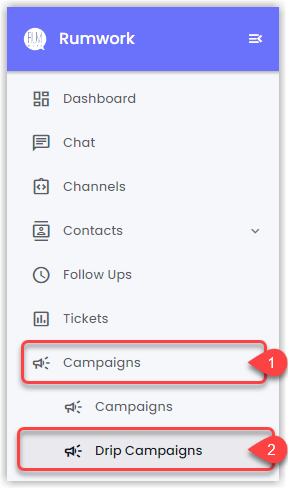
To access Drip Campaigns, go to **Campaigns** → **Drip Campaigns**.

<figure><img src="https://files.gitbook.com/v0/b/gitbook-x-prod.appspot.com/o/spaces%2FhElFPtMZjXYjDDMBT5q2%2Fuploads%2FHuUnW0wXvraQBuTLMIuJ%2FAccessing%20Drip%20Campaigns.png?alt=media&#x26;token=f024ca15-ae7a-4463-8ece-70bb5f9a1801" alt=""><figcaption></figcaption></figure>

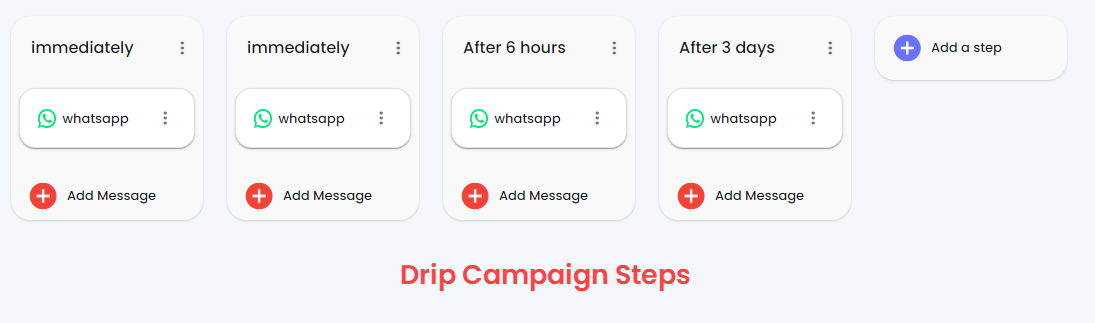
The Drip Campaigns work around a Step-by-Step message broadcast system. Each step includes single or multiple messages of the same or different channels. To get the messages broadcasted of each step, the first step needs to be completed. And after that, the following steps will be executed based on the condition.

<figure><img src="https://files.gitbook.com/v0/b/gitbook-x-prod.appspot.com/o/spaces%2FhElFPtMZjXYjDDMBT5q2%2Fuploads%2FnRmuMdrjyZ6G3ghza4HA%2FDrip%20Campaign%20Steps.png?alt=media&#x26;token=ebddd8c4-02f2-4ccd-8aac-011561d7f342" alt=""><figcaption></figcaption></figure>

Using Drip Campaigns, you can send multiple messages to single or multiple contacts. The message type could be a simple message, List/Button/Options/Product Messages, or a [pre-approved message template](broken://pages/YEy5TCNc3NUmJ5RKSMiJ) based on the selected channels.&#x20;

{% hint style="warning" %}
WhatsApp Business Platform has a Customer Service Window (24-hour) in which businesses can send simple messages, List/Button/Options/Product Messages, and [pre-approved templates](broken://pages/YEy5TCNc3NUmJ5RKSMiJ). Outside the customer service window, the business would require a message template.&#x20;
{% endhint %}

### Create a Drip Campaign

<figure><img src="https://files.gitbook.com/v0/b/gitbook-x-prod.appspot.com/o/spaces%2FhElFPtMZjXYjDDMBT5q2%2Fuploads%2Fe1aENKU1Wps0CGfEv8Qg%2FAccessign%20Drip%20Campaign%20Builder.png?alt=media&#x26;token=63e170d3-fd7b-4a08-a968-b5c89b8af802" alt=""><figcaption><p>Accessing Drip Campaign Builder</p></figcaption></figure>

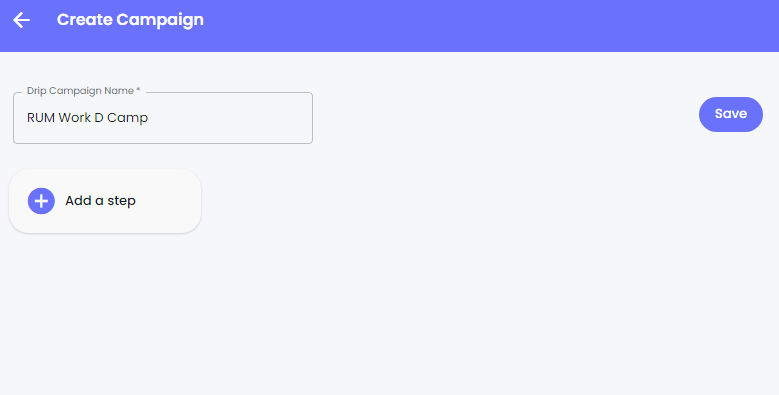
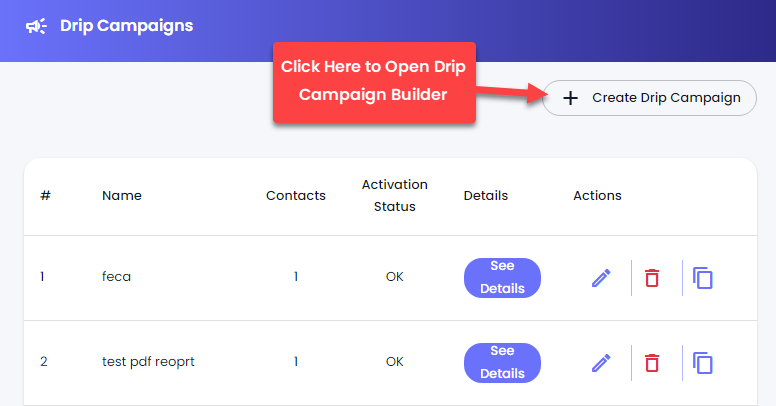
In the Drip Campaigns window, click the **Create Drip Campaign** button. This will open the Drip Campaign Builder, where you get the option to define the Campaign Name and add the Step.

<figure><img src="https://files.gitbook.com/v0/b/gitbook-x-prod.appspot.com/o/spaces%2FhElFPtMZjXYjDDMBT5q2%2Fuploads%2FF7xLYSIk0h8LqcwuaiRY%2FDrip%20Campaign%20Builder.png?alt=media&#x26;token=649ab335-bbce-47c7-8f28-fafce6b2879c" alt=""><figcaption></figcaption></figure>

Simply define the Campaign Name.&#x20;

### Add a Step

<figure><img src="https://files.gitbook.com/v0/b/gitbook-x-prod.appspot.com/o/spaces%2FhElFPtMZjXYjDDMBT5q2%2Fuploads%2FAjepmHMYpFNZiYPzayjC%2FAdd%20a%20step%20button.png?alt=media&#x26;token=20e7db8c-9b60-4a71-9eda-bd9d61c24f8d" alt=""><figcaption></figcaption></figure>

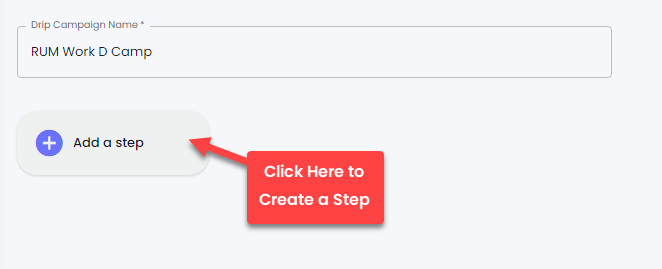
After assigning the campaign name, click **Add a step** button to create a step for the Drip Campaign.&#x20;

<figure><img src="https://files.gitbook.com/v0/b/gitbook-x-prod.appspot.com/o/spaces%2FhElFPtMZjXYjDDMBT5q2%2Fuploads%2FqNXvvf8WG1tkjxR5vgBh%2FAdd%20Step%20modal.png?alt=media&#x26;token=b91e3533-0d19-4e09-aa2a-64e93eab265b" alt=""><figcaption></figcaption></figure>

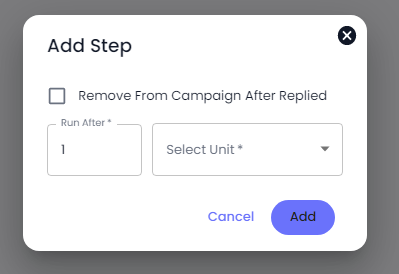
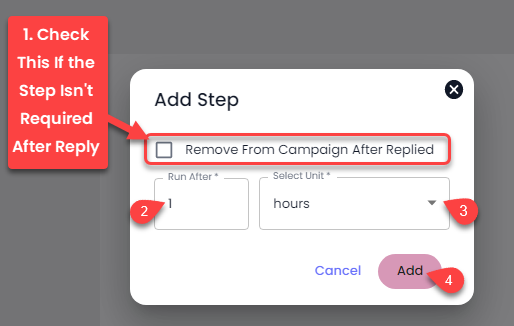
As you do that, an Add Step modal will popup with the options to

* Remove the step from the campaign after replied.
* Add value for the unit. (Run After)
* And select the unit. (Select Unit)

<figure><img src="https://files.gitbook.com/v0/b/gitbook-x-prod.appspot.com/o/spaces%2FhElFPtMZjXYjDDMBT5q2%2Fuploads%2Fu4YB71eeoQ7XYENcIFK4%2FSelect%20Unit.png?alt=media&#x26;token=1a5c978c-7df5-44e8-9616-27667514c997" alt=""><figcaption></figcaption></figure>

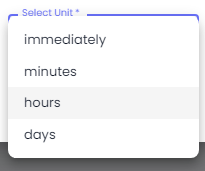
At Rampwin, you get 4 units to run a step in a Drip Campaign. The units are,&#x20;

* **Immediately** - Execute the step as soon as the contact(s) is assigned.
* **Minutes** - Execute the step after mentioned minutes defined in the Run After Field.
* **Hours** - Execute the step after mentioned hours defined in the Run After Field.
* **Days** - Execute the step after mentioned days defined in the Run After Field.

<figure><img src="https://files.gitbook.com/v0/b/gitbook-x-prod.appspot.com/o/spaces%2FhElFPtMZjXYjDDMBT5q2%2Fuploads%2F8FblponJVPSdKRMwSZGz%2FAdd%20Step%20With%20Instructions.png?alt=media&#x26;token=dda43392-6381-437c-9f5e-255f71b241fe" alt=""><figcaption></figcaption></figure>

To add the step,&#x20;

1. Check *Remove From Campaign After Replied*, if you don't want the step once it's executed.
2. Then, set value in the Run After field.
3. Afterward, select the unit in the Select Unit field to validate the Run After field's value.
4. And once done with the above, click **Add**.

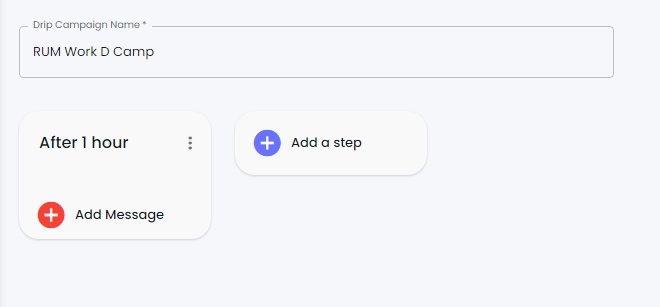
<figure><img src="https://files.gitbook.com/v0/b/gitbook-x-prod.appspot.com/o/spaces%2FhElFPtMZjXYjDDMBT5q2%2Fuploads%2FZdkruJmU7S0LUQsyWzUe%2FAdded%20Step%20in%20Drip%20Campaign.png?alt=media&#x26;token=92714945-88b1-4337-966c-a50a2b8a9cf4" alt=""><figcaption></figcaption></figure>

And you'll find the step like the above.

### Add Message

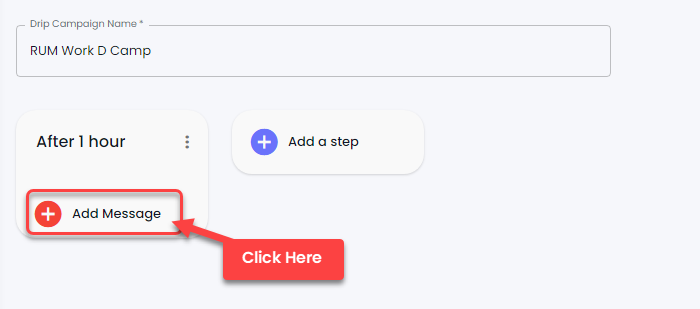
<figure><img src="https://files.gitbook.com/v0/b/gitbook-x-prod.appspot.com/o/spaces%2FhElFPtMZjXYjDDMBT5q2%2Fuploads%2FaIJg61vY2wc7b82C3K42%2FAdding%20a%20Message%20to%20the%20step.png?alt=media&#x26;token=bffb15f9-9fa0-468b-92c7-f220354b923b" alt=""><figcaption></figcaption></figure>

After adding a step, you need to add a message(s) to it. And for that, click the **Add Message** button in the step.

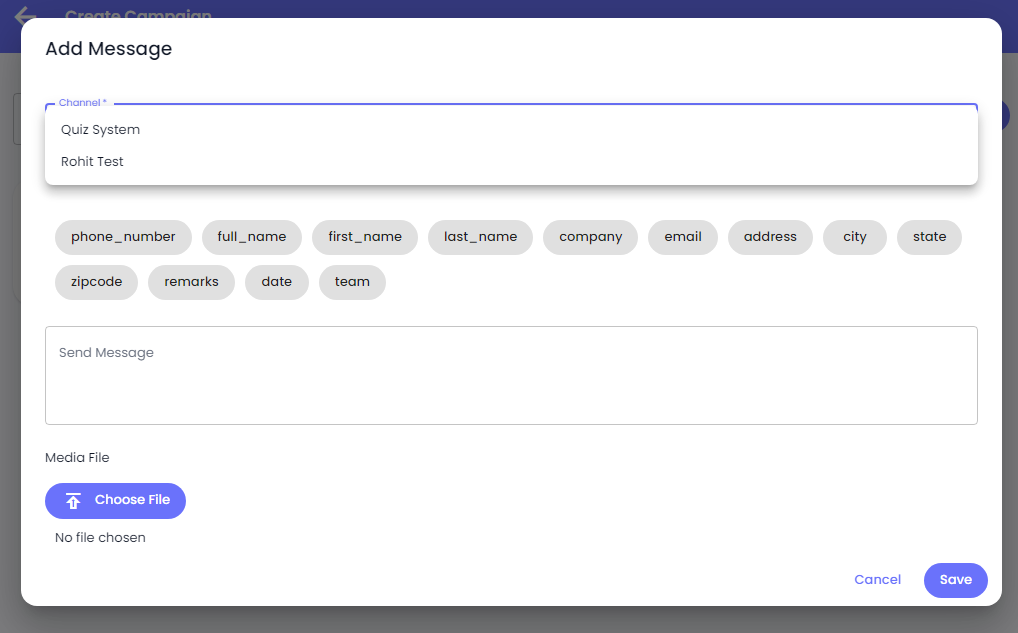
<figure><img src="https://files.gitbook.com/v0/b/gitbook-x-prod.appspot.com/o/spaces%2FhElFPtMZjXYjDDMBT5q2%2Fuploads%2FSzVKi52cTGkLvZSxjepU%2FAdd%20Message%20Modal%20for%20the%20step%20of%20Drip%20Campaign.png?alt=media&#x26;token=7a68dd2a-44e7-4444-a8c4-4ebfed8e533a" alt=""><figcaption></figcaption></figure>

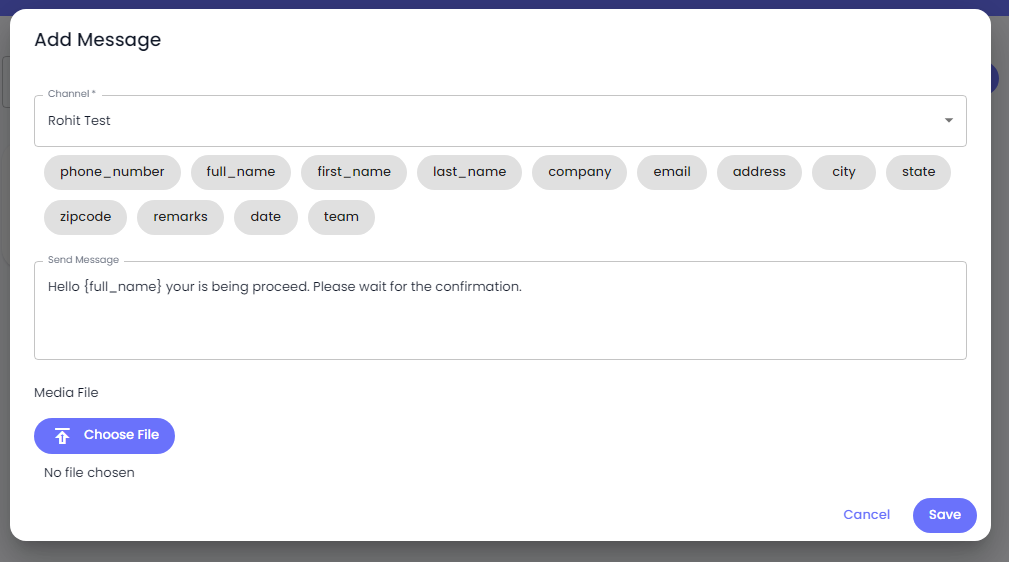
As you do that, the Add Message modal will popup. In that, you can select your Channel and based on that, input your message.&#x20;

<figure><img src="https://files.gitbook.com/v0/b/gitbook-x-prod.appspot.com/o/spaces%2FhElFPtMZjXYjDDMBT5q2%2Fuploads%2F49xlGSvxW6Q2zAl659nD%2FDrip%20Campaign%20Maytapi%20Channel%20Message.png?alt=media&#x26;token=720c315d-de09-4cf0-a222-c7d38a5ac00c" alt=""><figcaption></figcaption></figure>

For the WhatsApp Channel such as [Maytapi](broken://pages/3EoloiABHbTMXPvdlEfP), you can only send a simple message. Therefore, use the fields available to input the text, upload a file if required, and once done, click **Save**.&#x20;

<figure><img src="https://files.gitbook.com/v0/b/gitbook-x-prod.appspot.com/o/spaces%2FhElFPtMZjXYjDDMBT5q2%2Fuploads%2Fncni3S4taN2yVQKWVFgD%2FAdd%20Message%20With%20Select%20Message%20Type.png?alt=media&#x26;token=34f9d700-531f-4614-bf6f-e9e9e2e89ceb" alt=""><figcaption></figcaption></figure>

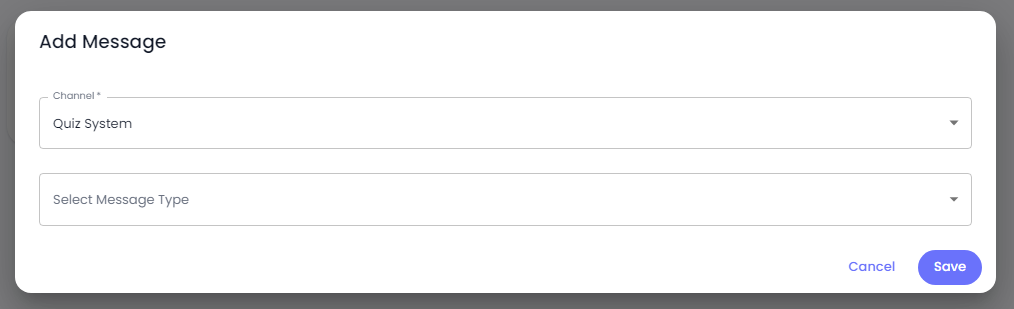
If you select the channel created with 360dialog, Emma and Cloud API, you get the option to **Select Message Type**.&#x20;

<figure><img src="https://files.gitbook.com/v0/b/gitbook-x-prod.appspot.com/o/spaces%2FhElFPtMZjXYjDDMBT5q2%2Fuploads%2FCnKOcUz20Tq14FIqYlSs%2FSelect%20Message%20Types.png?alt=media&#x26;token=29d568c3-63f7-4e25-9eb5-6578f8631ebc" alt=""><figcaption></figcaption></figure>

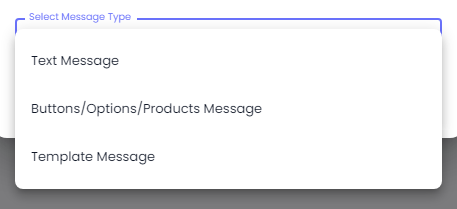
The available, message types are

* Text Message (simple message the same as you can send in the Maytapi for the campaign.)
* Buttons/Options/Products Message
* Template Message

{% hint style="warning" %}
You can only use Text Message and Buttons/Options/Products Message in the Drip Campaign when it's within the 24-hour customer service window. Otherwise, choose Template Message.
{% endhint %}

Simply select a message type and continue with it.

#### Buttons/Options/Products Message for Drip Campaign's Step

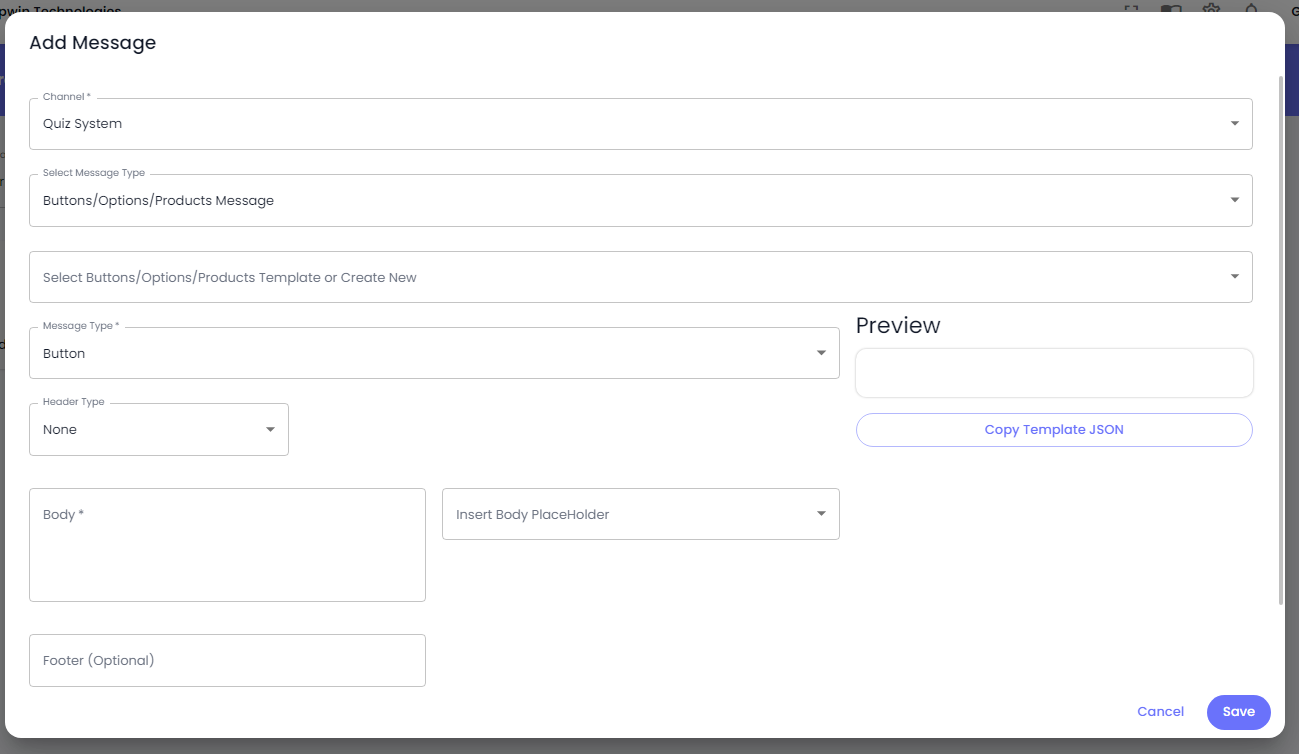
When you select the Buttons/Options/Products Message message type, you get the following options and fields.&#x20;

<figure><img src="https://files.gitbook.com/v0/b/gitbook-x-prod.appspot.com/o/spaces%2FhElFPtMZjXYjDDMBT5q2%2Fuploads%2FvVP5sfciCUNpslxbP78t%2FAdd%20Message%20Buttons%20or%20Options%20or%20Products%20Message.png?alt=media&#x26;token=941ffe9b-3fa1-470f-adab-2a087a1a59e8" alt=""><figcaption></figcaption></figure>

You can start creating a new Buttons/Options/Product Message.&#x20;

{% hint style="info" %}
Refer to selected Channel's Channel Configuration Docs to learn more about creating a Buttons/Options/Products Message.&#x20;

* [360dialog](broken://pages/ICaj3MaCaZVFxuyjO8dZ#channel-configuration).
* [Emma](broken://pages/5Zybshi4Ij6lvAkMfxou#channel-configuration).
* [Cloud API](broken://pages/2gcD3539AyaRgi9CliBI#channel-configuration).
  {% endhint %}

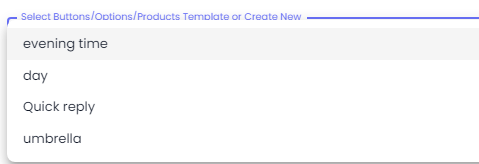
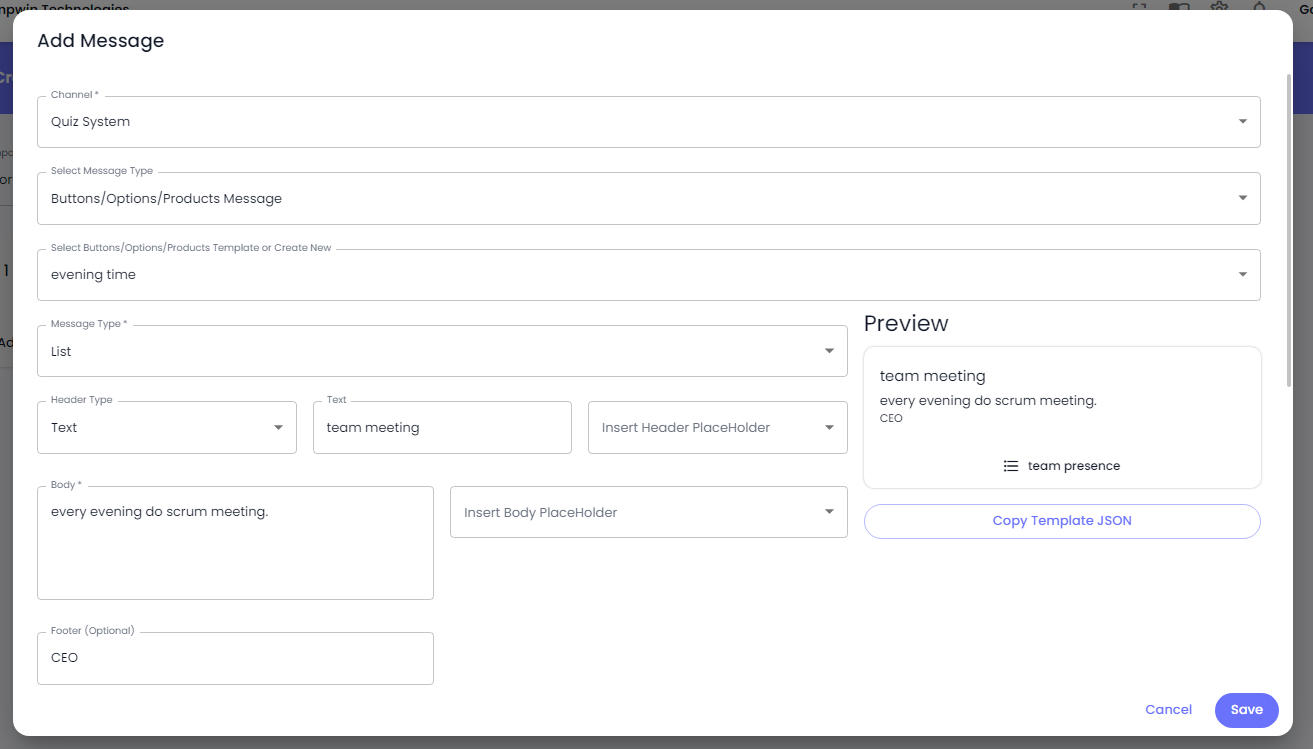
Or you can select an already created Buttons/Options/Product Message you created before while configuring the channel.

<figure><img src="https://files.gitbook.com/v0/b/gitbook-x-prod.appspot.com/o/spaces%2FhElFPtMZjXYjDDMBT5q2%2Fuploads%2FfAP7fJnhEYDeXHEpRrqv%2FSelect%20an%20already%20created%20Buttons%20or%20Options%20or%20Products%20Message.png?alt=media&#x26;token=47f3e135-e735-44b8-a572-f8e48ea2b856" alt=""><figcaption></figcaption></figure>

Once you select the Buttons/Options/Products Message, you can see all the content and details of it.&#x20;

<figure><img src="https://files.gitbook.com/v0/b/gitbook-x-prod.appspot.com/o/spaces%2FhElFPtMZjXYjDDMBT5q2%2Fuploads%2FXlw6VlGG4dwhlLi5Z2Ri%2FAlready%20Created%20Buttons%20or%20Options%20or%20Products%20Message.png?alt=media&#x26;token=cc96ce2a-3ba1-42eb-8242-0d819d2381d6" alt=""><figcaption></figcaption></figure>

Once satisfied with the message content, click **Save**.

#### Template Message for Drip Campaign's Step

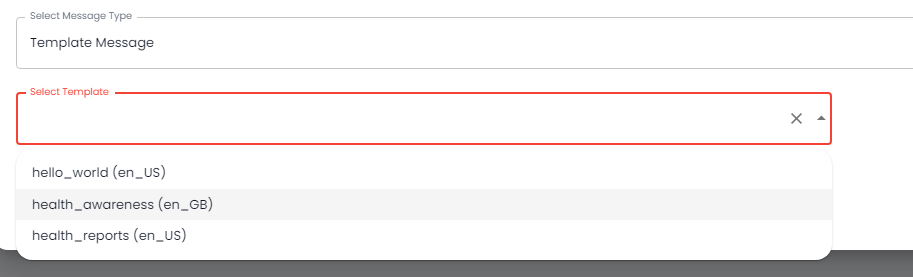
<figure><img src="https://files.gitbook.com/v0/b/gitbook-x-prod.appspot.com/o/spaces%2FhElFPtMZjXYjDDMBT5q2%2Fuploads%2FYroCddxsDwGcJfIH9GBg%2FSelect%20Template%20option%20for%20Template%20Message%20Message%20Type.png?alt=media&#x26;token=0ce2e013-543b-4087-ab25-8234563c6fb0" alt=""><figcaption></figcaption></figure>

When you select the Template Message as the Message Type, you get the option to select a template you've created before.&#x20;

{% hint style="info" %}
Refer to [WhatsApp Message Templates](broken://pages/YEy5TCNc3NUmJ5RKSMiJ) Docs to learn more about creating a Template Message.&#x20;
{% endhint %}

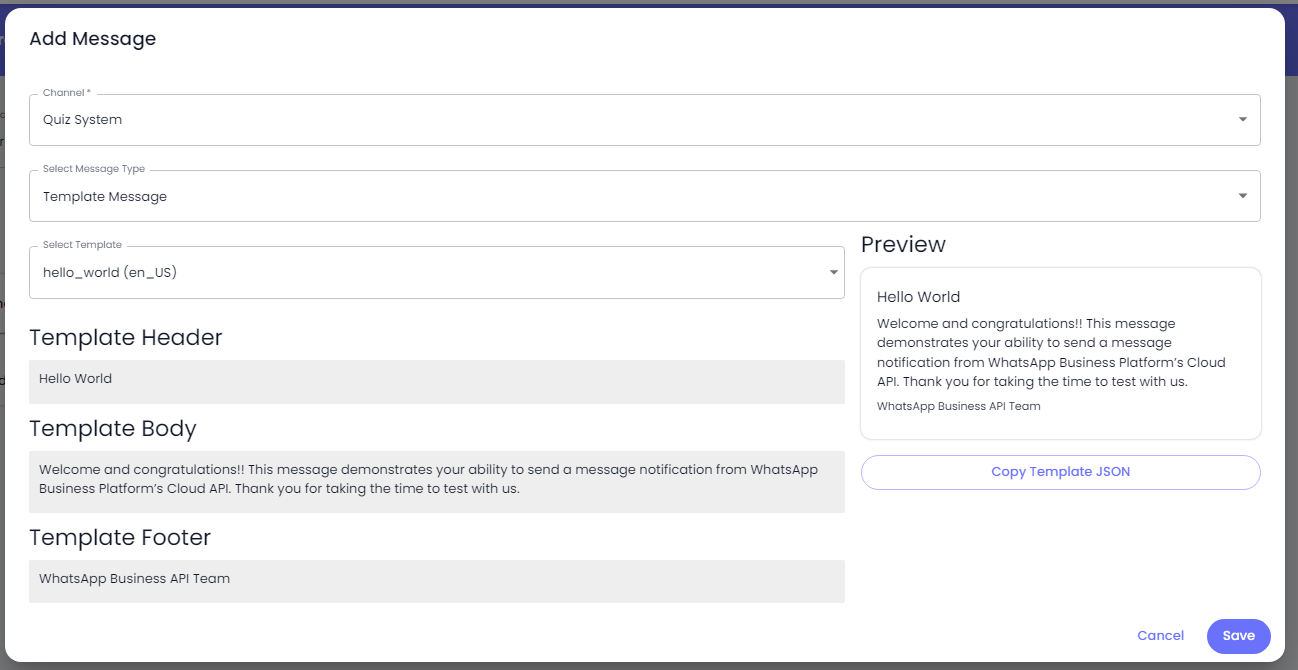
<figure><img src="https://files.gitbook.com/v0/b/gitbook-x-prod.appspot.com/o/spaces%2FhElFPtMZjXYjDDMBT5q2%2Fuploads%2FJNMQGyKAkczx7Ucuuy8K%2FTemplate%20Message%20and%20its%20content.png?alt=media&#x26;token=e9a062fe-1b0a-44b5-adeb-39db95906f4e" alt=""><figcaption></figcaption></figure>

Select the template, then review its content and if everything's correct, click **Save**. Your added message will appear in the step as the following.

<figure><img src="https://files.gitbook.com/v0/b/gitbook-x-prod.appspot.com/o/spaces%2FhElFPtMZjXYjDDMBT5q2%2Fuploads%2FVZWYrwFuCr6rUGqOnCNc%2FStep%20With%20a%20Message.png?alt=media&#x26;token=c5341afb-f3c7-4fc8-a313-e2cfbb32df84" alt=""><figcaption></figcaption></figure>

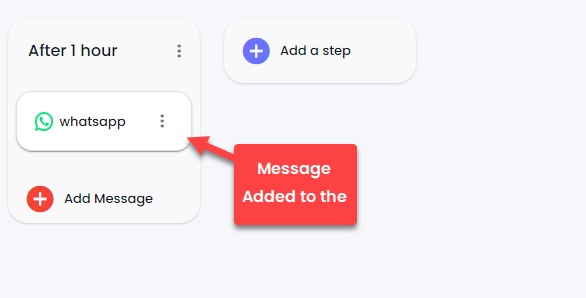
Likewise, you can add another message to the step. And for another step, simply click the **Add a step** button and follow the same procedure mentioned above.

<figure><img src="https://files.gitbook.com/v0/b/gitbook-x-prod.appspot.com/o/spaces%2FhElFPtMZjXYjDDMBT5q2%2Fuploads%2FcVpRKXHgMtp3MtqFrzlI%2FSaving%20a%20Drip%20Campaign.png?alt=media&#x26;token=469228cb-ed29-48a6-a00f-63ccf4adf860" alt=""><figcaption></figcaption></figure>

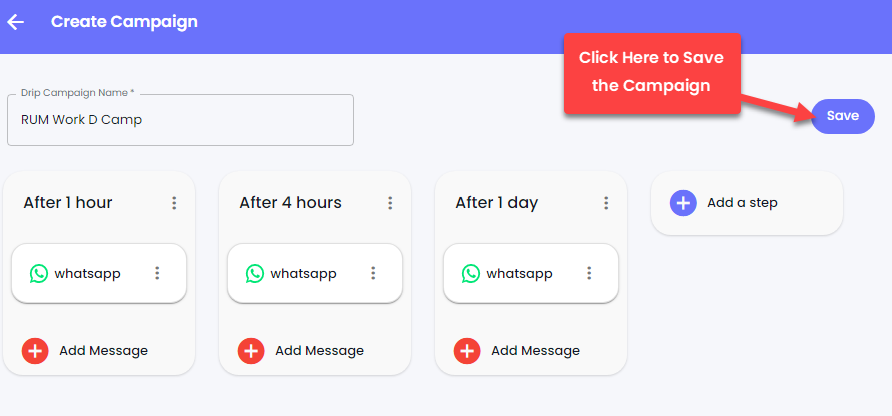
After adding all the steps and their messages, click the **Save** button to create the Drip Campaign.

<figure><img src="https://files.gitbook.com/v0/b/gitbook-x-prod.appspot.com/o/spaces%2FhElFPtMZjXYjDDMBT5q2%2Fuploads%2FUJs8ejOvR7bLYs7KemNh%2FDrip%20Campaign%20List.png?alt=media&#x26;token=40a013d3-6943-432e-98fb-f32b9b384dca" alt=""><figcaption></figcaption></figure>

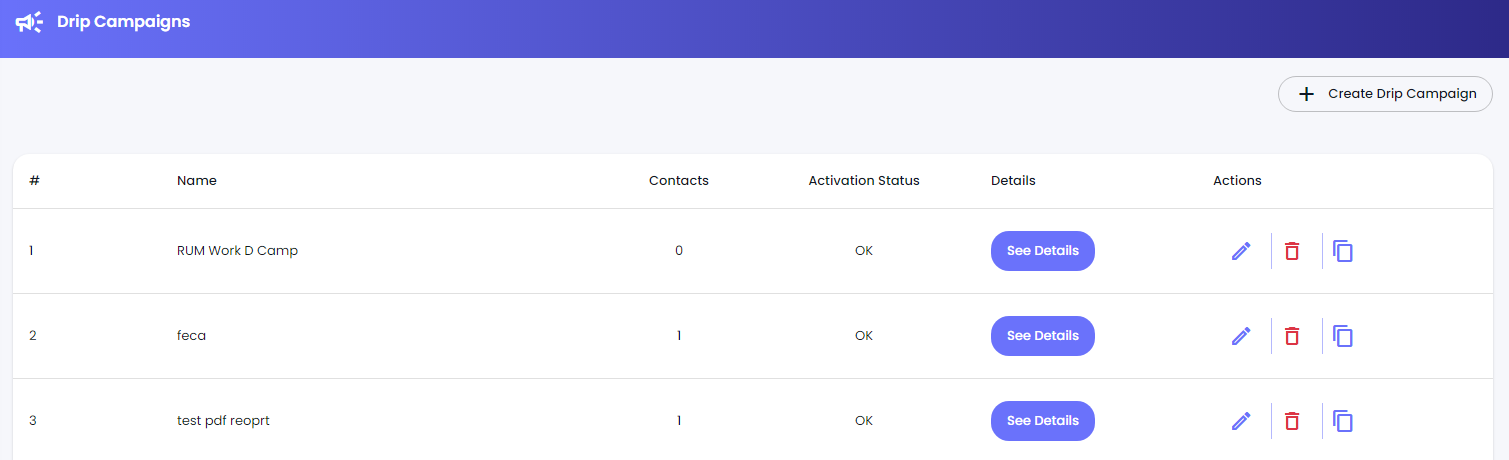
Once it's created, you'll find it in the Drip Campaigns list just like the above screenshot.

### Use a Drip Campaign

You've created a Drip Campaign; however, to run it, you need to assign contacts to it. And to do that, there are 2 ways.

* [Using the Chat](#assigning-contacts-to-a-drip-campaign-using-chat). (For single contact assign)
* Or [Through Contacts](#assigning-contacts-to-a-drip-campaign-using-contacts). (For bulk contacts assign)

Let's look at both ways one by one.

#### Assigning Contacts to a Drip Campaign (Using Chat)

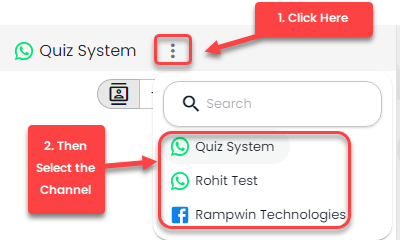
On your [Chat](broken://pages/yrp96aIUQEMCXnSNFzRi) screen, make sure you're on the right channel that you've used to create the campaign. If not, then click the<img src="https://files.gitbook.com/v0/b/gitbook-x-prod.appspot.com/o/spaces%2FhElFPtMZjXYjDDMBT5q2%2Fuploads%2FmdFmWLY4ZJ2b4UiCxunX%2FMenu%20Icon%20in%20the%20Chat.png?alt=media&#x26;token=b4c2cdf5-342f-4004-b333-e30c0d47ca1c" alt="" data-size="line">Menu button next to the channel name and select the appropriate channel.&#x20;

<figure><img src="https://files.gitbook.com/v0/b/gitbook-x-prod.appspot.com/o/spaces%2FhElFPtMZjXYjDDMBT5q2%2Fuploads%2FIFJPU3pwrqRHVCTrhtUN%2FChanging%20the%20channel%20for%20Campaign.png?alt=media&#x26;token=164a7cbf-068e-468e-b296-e038614d7587" alt=""><figcaption></figcaption></figure>

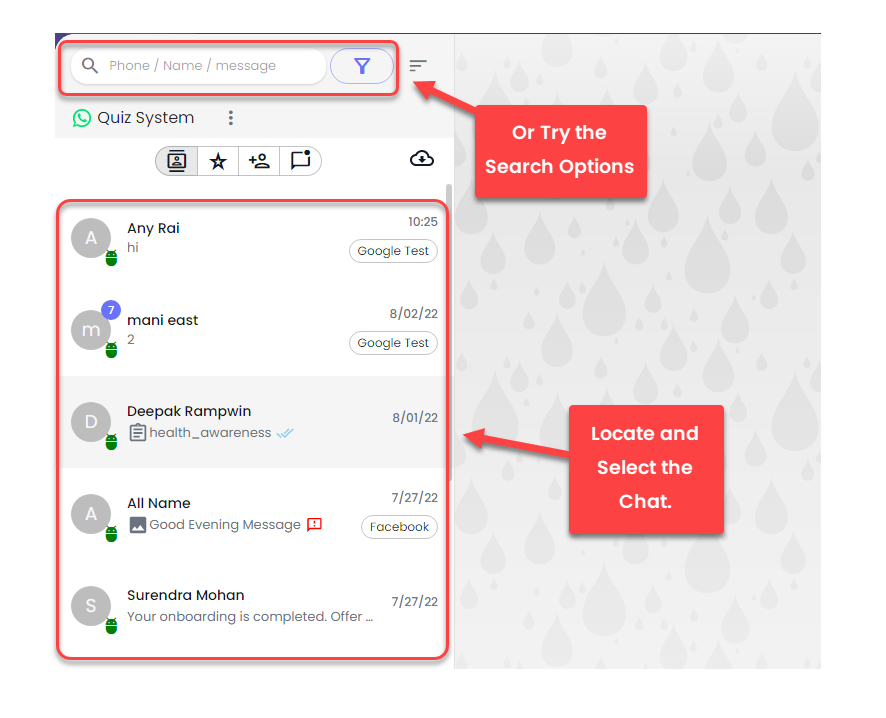
After selecting the channel, locate and select the chat of the contact you want to assign to the Drip Campaign. You can use the chat search option to speed the process.

<figure><img src="https://files.gitbook.com/v0/b/gitbook-x-prod.appspot.com/o/spaces%2FhElFPtMZjXYjDDMBT5q2%2Fuploads%2FdzVp824SCvIiePuCUXIp%2FSelecting%20a%20Contact%20for%20Drip%20Campaign.png?alt=media&#x26;token=a2f076e0-f1c8-4e74-82b2-7c31005d92fb" alt=""><figcaption></figcaption></figure>

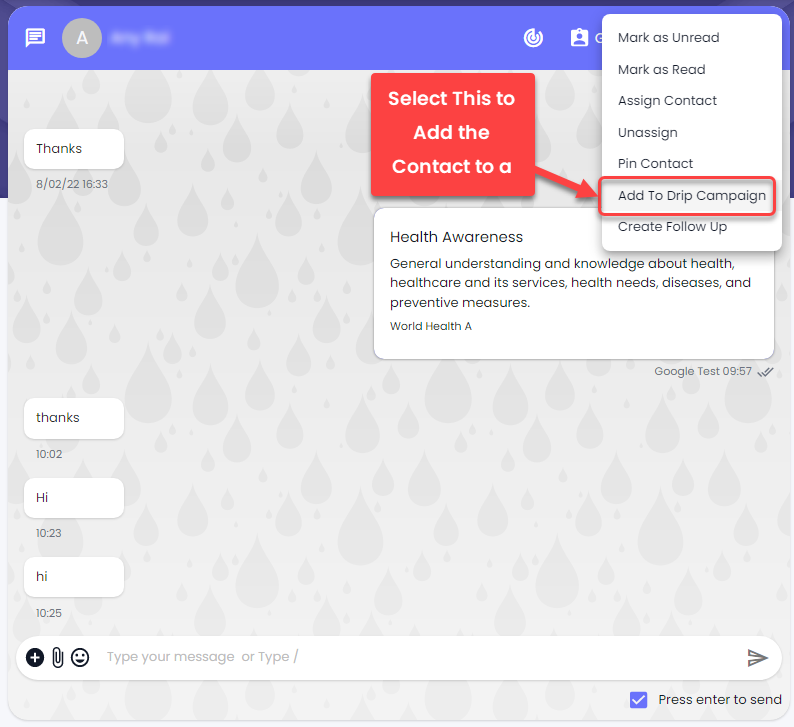
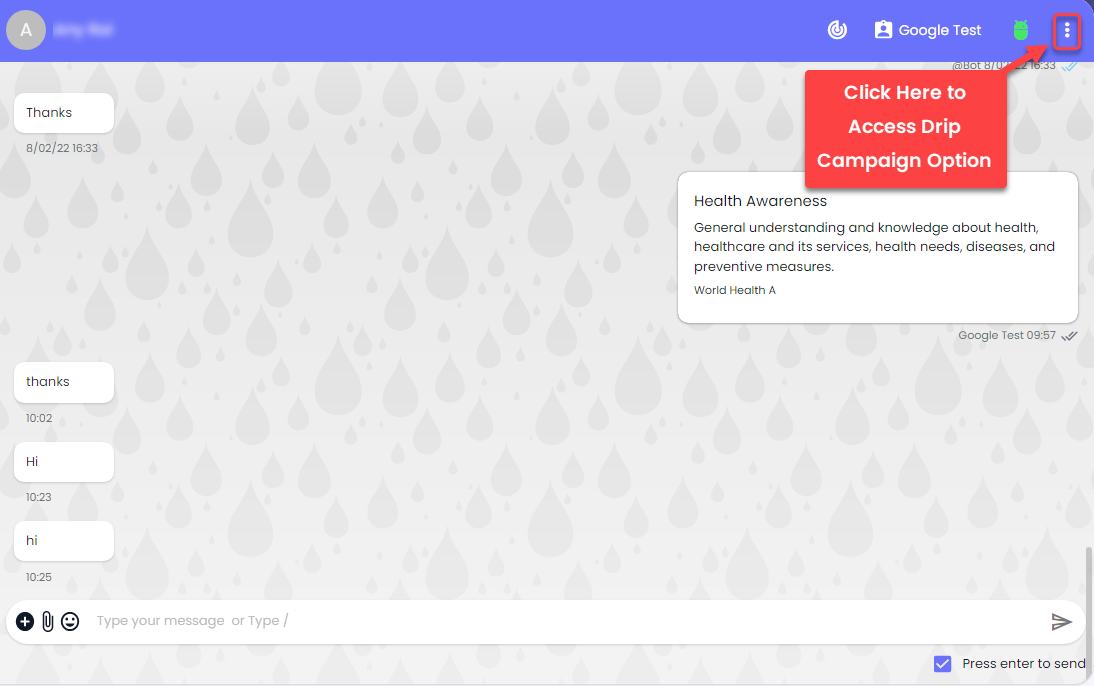
Once opened the conversation, click the<img src="https://files.gitbook.com/v0/b/gitbook-x-prod.appspot.com/o/spaces%2FhElFPtMZjXYjDDMBT5q2%2Fuploads%2FmdFmWLY4ZJ2b4UiCxunX%2FMenu%20Icon%20in%20the%20Chat.png?alt=media&#x26;token=b4c2cdf5-342f-4004-b333-e30c0d47ca1c" alt="" data-size="line">Options button in the top right corner.
<figure><img src="https://files.gitbook.com/v0/b/gitbook-x-prod.appspot.com/o/spaces%2FhElFPtMZjXYjDDMBT5q2%2Fuploads%2FIYxnzeqqRuIFsiH4KU9s%2FAccessing%20Drip%20Campaign%20Option%20in%20the%20Chat.png?alt=media&#x26;token=e0a9cb2c-1de6-4eb5-b4f2-b184078e39dd" alt=""><figcaption></figcaption></figure>

Then select **Add to Drip Campaign** from the available options.&#x20;

<figure><img src="https://files.gitbook.com/v0/b/gitbook-x-prod.appspot.com/o/spaces%2FhElFPtMZjXYjDDMBT5q2%2Fuploads%2Fku7eatIE58hYzDiNTSBT%2FAdd%20to%20Drip%20Campaign%20Button%20in%20Chat.png?alt=media&#x26;token=795db860-26cd-4502-8874-96fd955365f9" alt=""><figcaption></figcaption></figure>

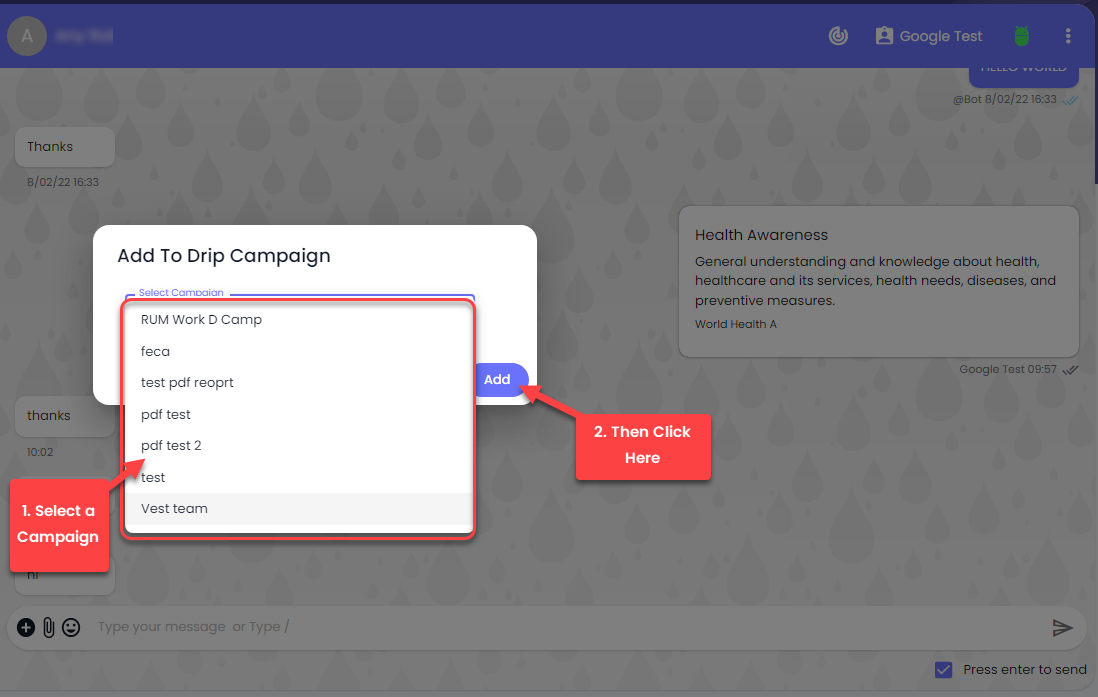
A modal will appear, in that select the campaign to which you want to assign that particular contact.&#x20;

<figure><img src="https://files.gitbook.com/v0/b/gitbook-x-prod.appspot.com/o/spaces%2FhElFPtMZjXYjDDMBT5q2%2Fuploads%2FCoKeiff9bDdQExFBtBiP%2FSelecting%20a%20Campaign%20to%20Add%20the%20Contact.png?alt=media&#x26;token=5168c26e-7aa1-439c-b82c-ef41842ab113" alt=""><figcaption></figcaption></figure>

Once selected, click **Add**. That's it; you've added a contact to the Drip Campaign. If the campaign's step is set to immediately, then it will be executed the moment you add the contact.&#x20;

#### Assigning Contacts to a Drip Campaign (Using Contacts)

In addition to the Chat, you can use [Contacts](broken://pages/Wlgg4DBG7Z4Shw5uchO7) to add single or multiple contacts to a Drip Campaign.&#x20;

<figure><img src="https://files.gitbook.com/v0/b/gitbook-x-prod.appspot.com/o/spaces%2FhElFPtMZjXYjDDMBT5q2%2Fuploads%2Fy66bWJfQR1kUX1wEiKTq%2FAccessing%20Contacts%20module%20for%20Drip%20Campaign.png?alt=media&#x26;token=26396759-e39f-42fa-a0b5-16959e8e18b4" alt=""><figcaption></figcaption></figure>

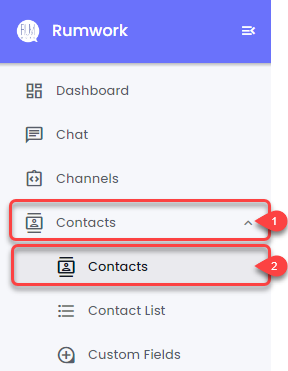
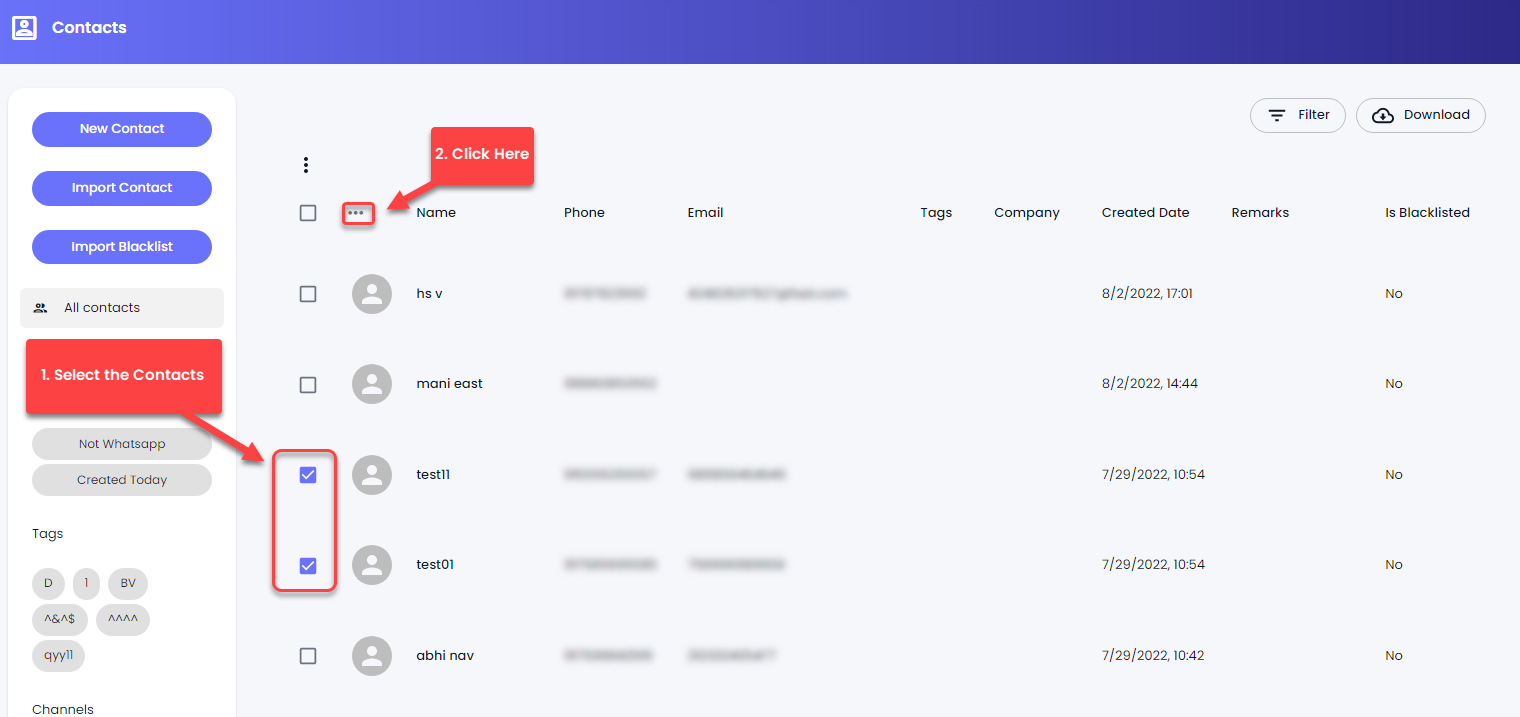
To do that, first, go to **Contacts** → and select **Contacts**.

<figure><img src="https://files.gitbook.com/v0/b/gitbook-x-prod.appspot.com/o/spaces%2FhElFPtMZjXYjDDMBT5q2%2Fuploads%2FKF2KaTMll4kD9jPkyb9x%2FSelecting%20Contacts%20from%20Contacts%20for%20Drip%20Campaign.png?alt=media&#x26;token=152567c1-0ceb-40ee-afdc-90836720472a" alt=""><figcaption></figcaption></figure>

Then, select the contacts you want to add to the Drip Campaign. Once selected, click the<img src="https://files.gitbook.com/v0/b/gitbook-x-prod.appspot.com/o/spaces%2FhElFPtMZjXYjDDMBT5q2%2Fuploads%2FmdFmWLY4ZJ2b4UiCxunX%2FMenu%20Icon%20in%20the%20Chat.png?alt=media&#x26;token=b4c2cdf5-342f-4004-b333-e30c0d47ca1c" alt="" data-size="line">Menu button next to bulk select, and then click **Add to Drip Campaign**.
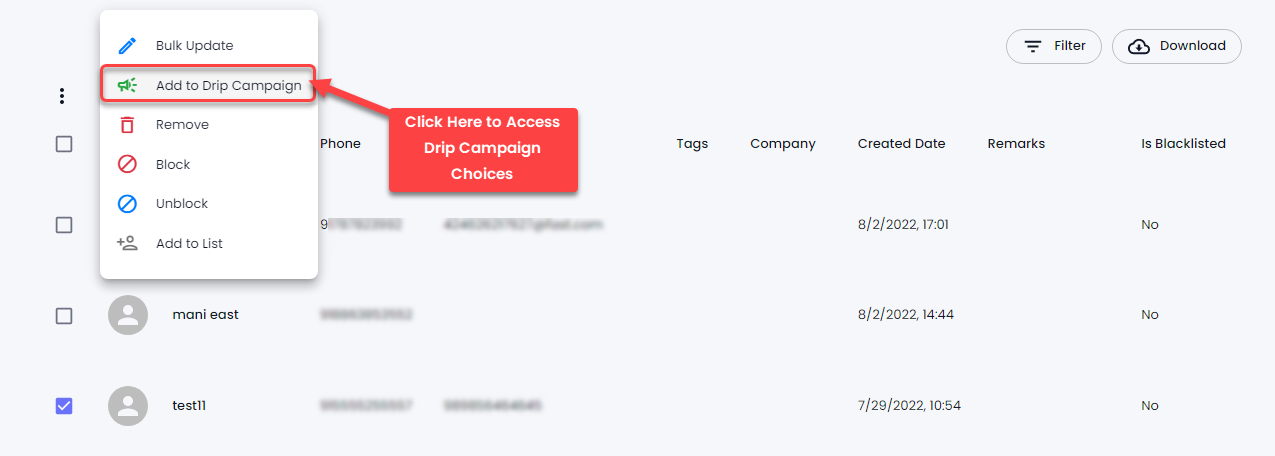
<figure><img src="https://files.gitbook.com/v0/b/gitbook-x-prod.appspot.com/o/spaces%2FhElFPtMZjXYjDDMBT5q2%2Fuploads%2FuLI24PKCWnbrCk7Ufd3M%2FAdd%20to%20Drip%20Campaign%20Button%20in%20Contacts.png?alt=media&#x26;token=d4313a5a-884d-45a1-87cb-712b5c0e500b" alt=""><figcaption></figcaption></figure>

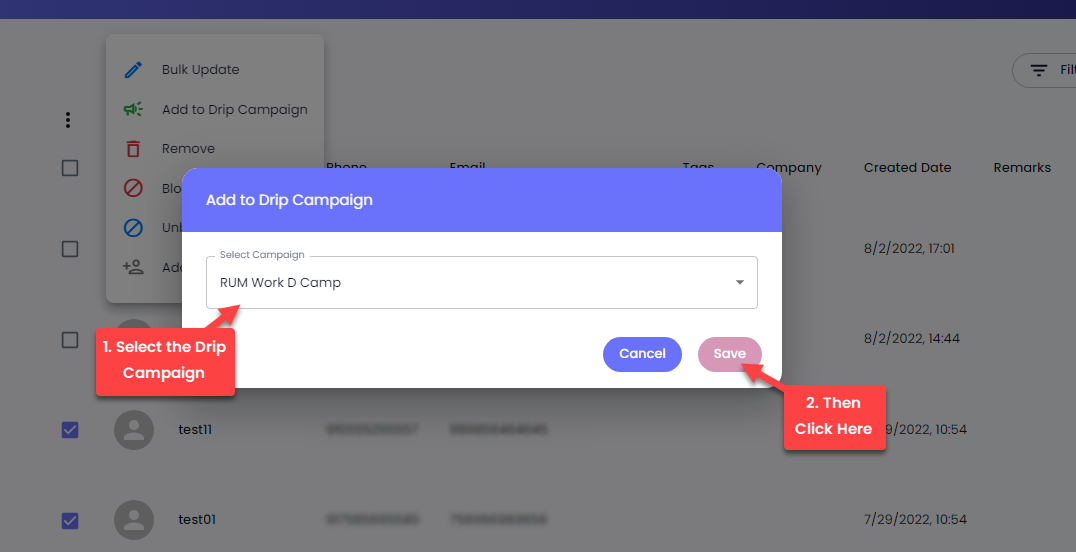
Select the campaign to which you want to add the contacts and then click **Save**.&#x20;

<figure><img src="https://files.gitbook.com/v0/b/gitbook-x-prod.appspot.com/o/spaces%2FhElFPtMZjXYjDDMBT5q2%2Fuploads%2FMf1eWHd67viiKA23ngV5%2FSelecting%20a%20Drip%20Campaign%20Modal%20from%20Contacts.png?alt=media&#x26;token=5c744404-8648-4873-bd67-16239b46f10d" alt=""><figcaption></figcaption></figure>

That's it, you've added the contacts to a Drip Campaign. If the campaign's step is set to immediately, then it will be executed the moment you add the contact.&#x20;

### Campaign Details

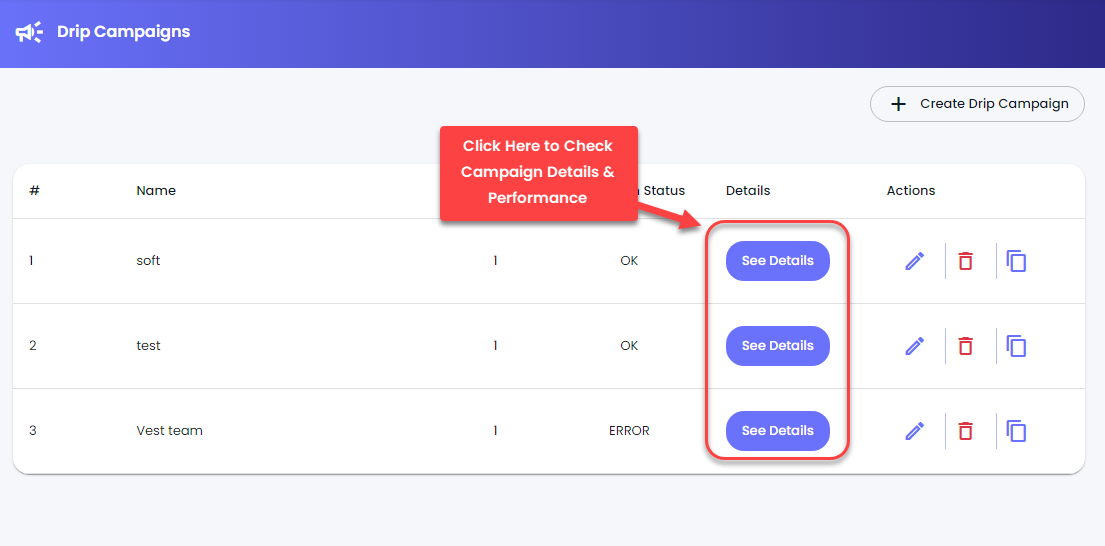
To check how your campaign performed, click the **See Details** button.&#x20;

<figure><img src="https://files.gitbook.com/v0/b/gitbook-x-prod.appspot.com/o/spaces%2FhElFPtMZjXYjDDMBT5q2%2Fuploads%2FXuQcfTFD7PXoAqgsHpmV%2FSee%20Details%20Button%20Drip%20Campaign.png?alt=media&#x26;token=4eeced90-4a51-441a-80cc-9ab3a41c922c" alt=""><figcaption></figcaption></figure>

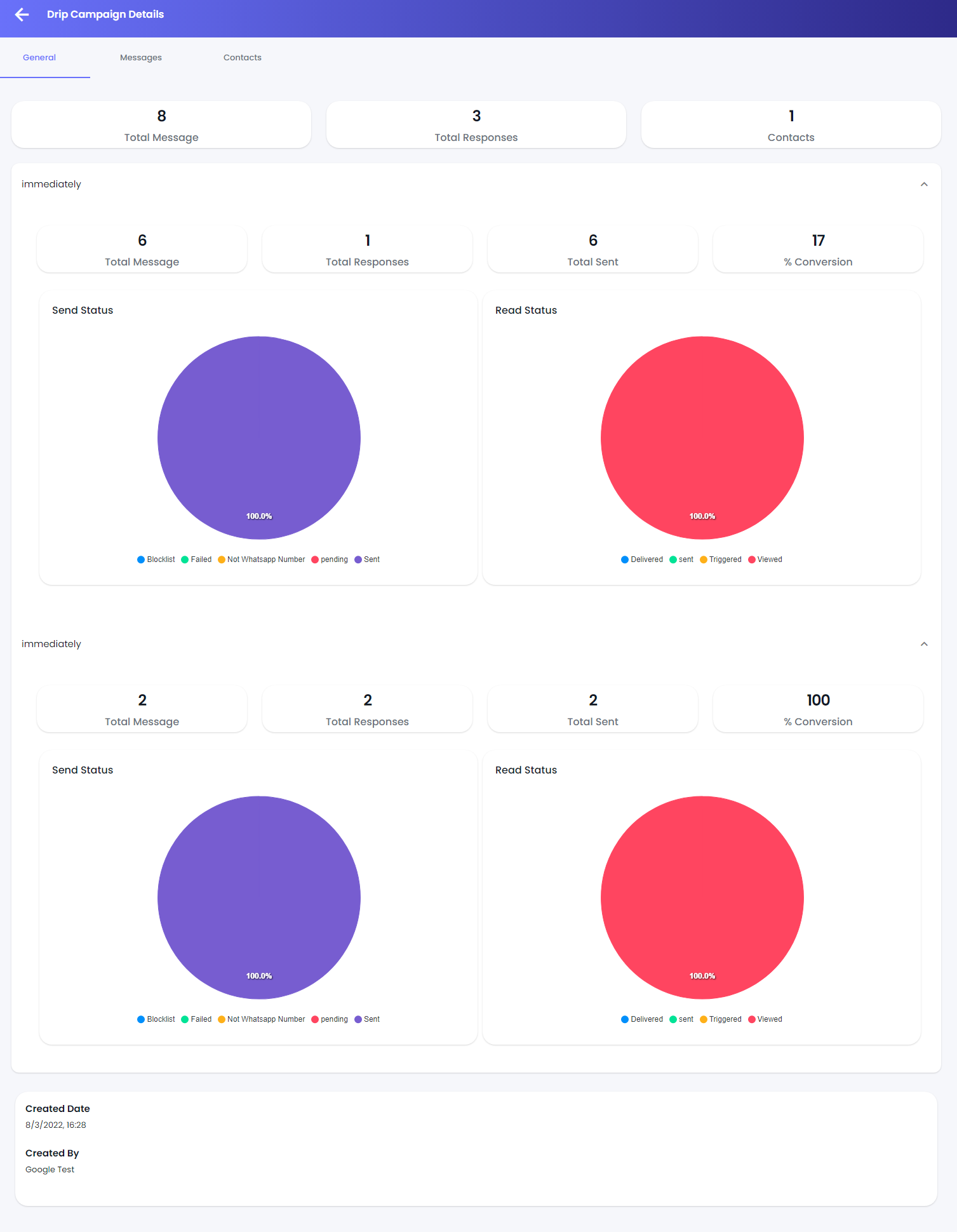
This will open the Campaign Details window where you can view General, Message, and Contact details.&#x20;

<figure><img src="https://files.gitbook.com/v0/b/gitbook-x-prod.appspot.com/o/spaces%2FhElFPtMZjXYjDDMBT5q2%2Fuploads%2FHOmWgryA1CiLiSWU4dkj%2FGeneral%20Drip%20Campaign%20Details.png?alt=media&#x26;token=4416ce8f-fd15-4d1f-a942-834e02a2e5d2" alt=""><figcaption></figcaption></figure>

In the General Details window, you can view the Total number of Messages Sent, Received, and Exchanged. You can also view the campaign Conversation Rate, Read, and Sent Status of each step's messages.&#x20;

Plus, check the details of when the Campaign was created, and who created it.

#### Messages Detail

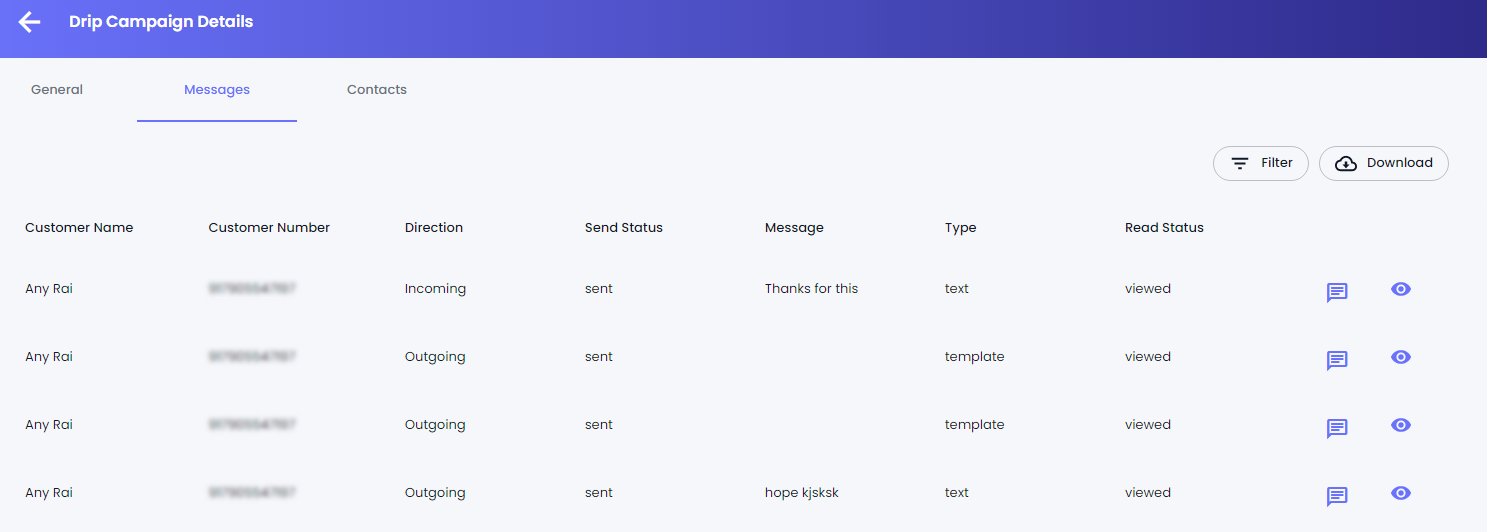
<figure><img src="https://files.gitbook.com/v0/b/gitbook-x-prod.appspot.com/o/spaces%2FhElFPtMZjXYjDDMBT5q2%2Fuploads%2FwdD0akRdpfabuePeWFJ6%2FDrip%20Campaign%20Messages%20Details.png?alt=media&#x26;token=e9bfe76b-ab85-4fd2-a0e1-fee44613d0a0" alt=""><figcaption><p>Message Details</p></figcaption></figure>

The Messages Details window allows seeing contact details as well as their status of reading the campaign. You can converse with the user directly from the campaigns by clicking the<img src="https://files.gitbook.com/v0/b/gitbook-x-prod.appspot.com/o/spaces%2FhElFPtMZjXYjDDMBT5q2%2Fuploads%2FKK6pZfyu0raziI98xUTE%2FChat%20Button%20Campaign.png?alt=media&#x26;token=0e6e95e2-ecad-481d-a80c-4330c28ceb7e" alt="" data-size="line">Chat button. Furthermore, view the complete detail of the message for each contact by clicking the<img src="https://files.gitbook.com/v0/b/gitbook-x-prod.appspot.com/o/spaces%2FhElFPtMZjXYjDDMBT5q2%2Fuploads%2FKXZGsf5VKTgvcfVP3k2N%2FMessage%20Details%20View%20Button.png?alt=media&#x26;token=68168e52-eba4-400b-a0ff-663889a46cfe" alt="" data-size="line">View button.

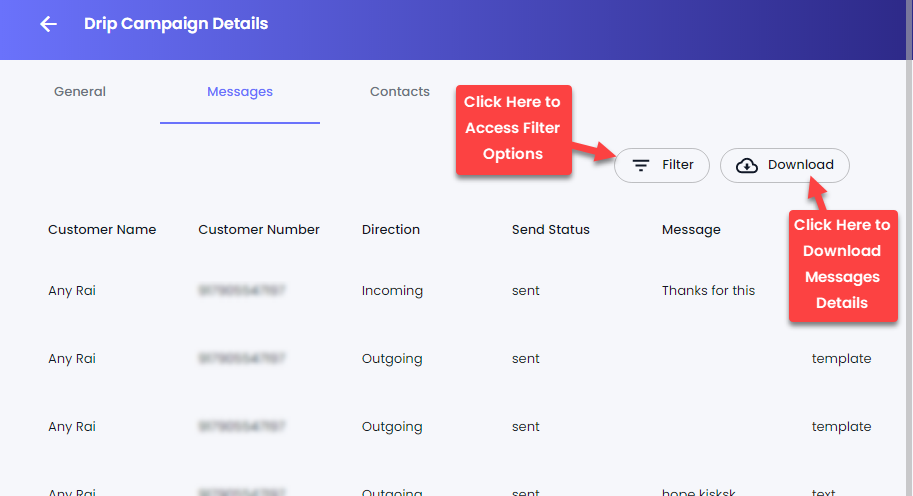
<figure><img src="https://files.gitbook.com/v0/b/gitbook-x-prod.appspot.com/o/spaces%2FhElFPtMZjXYjDDMBT5q2%2Fuploads%2Fgt3LvBIDjXXpUOlYjMhm%2FFilter%20and%20Dowload%20option%20of%20the%20Drip%20Campaign%20Messages.png?alt=media&#x26;token=78f10316-bbb4-4522-880a-de0198069ad3" alt=""><figcaption></figcaption></figure>

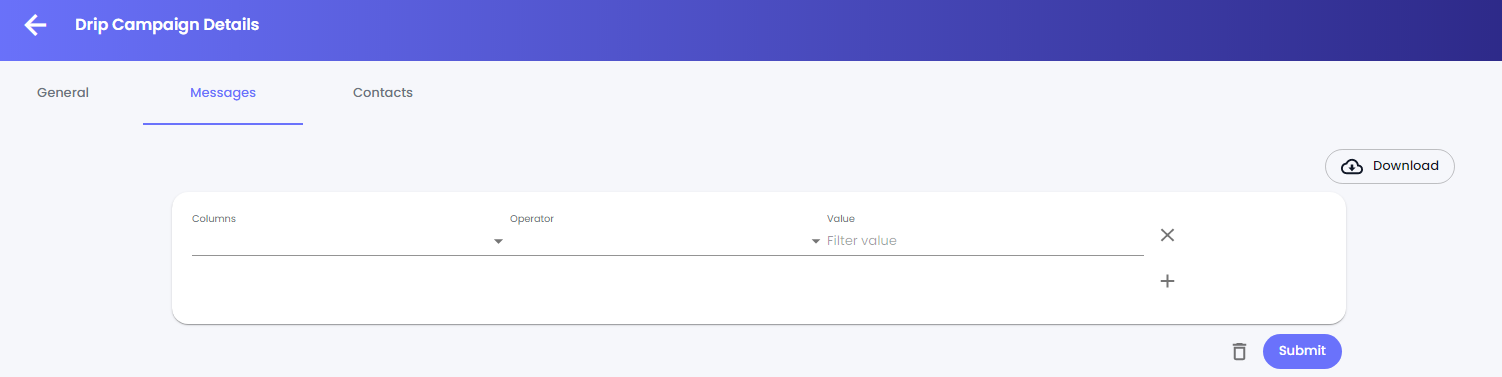
In addition to these, apply filters and download the details by clicking the **Filter** and **Download** buttons, respectively. When you click the Filter button, you get the following options to filter our messages details,

<figure><img src="https://files.gitbook.com/v0/b/gitbook-x-prod.appspot.com/o/spaces%2FhElFPtMZjXYjDDMBT5q2%2Fuploads%2FIriwUm8eKL3A6L4gVhIz%2FFilter%20Options%20in%20the%20Drip%20Campaign%20Messages%20Details.png?alt=media&#x26;token=eeca9575-4387-437d-8c0a-9c907835d2f7" alt=""><figcaption></figcaption></figure>

* **Columns**
* **Operator**
* **Value**

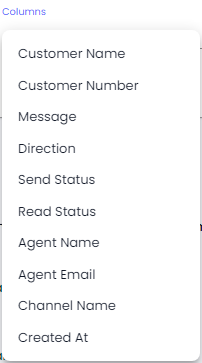
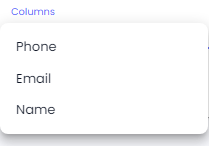
First, you need to select the column on the basis you want to filter the contacts. There are 10 options from which you can select the column.

<figure><img src="https://files.gitbook.com/v0/b/gitbook-x-prod.appspot.com/o/spaces%2FhElFPtMZjXYjDDMBT5q2%2Fuploads%2FIfqQ35x1B5uXOayzd8X2%2FColumns%20in%20the%20Drip%20Campaign%20Messages%20Detail%20Filter.png?alt=media&#x26;token=98bb51e7-9d55-46f6-8e29-01321695f411" alt=""><figcaption></figcaption></figure>

After selecting the column, select the Operator that will verify the Value in the column. There are 6 operator types from which you can select one.

<figure><img src="https://files.gitbook.com/v0/b/gitbook-x-prod.appspot.com/o/spaces%2FhElFPtMZjXYjDDMBT5q2%2Fuploads%2FwLDMJjrNWl2ZD9FzRXs6%2FDrip%20Campaign%20Messages%20Details%20Operator%20Filters.png?alt=media&#x26;token=eb28c53a-3562-4855-a15b-9bbe9d9e0c3f" alt=""><figcaption></figcaption></figure>

* IS - The Column and Value should exactly match to apply the filter.
* STARTSWITH - The value in the Column should start with the value in the Value field to run the filter.
* CONTAINS - If the value in the Column includes the value in the Value field, the filter will run.
* IN - The Read and Send Status should be IN the Value.&#x20;
* MATCHES - The Channel Name should Match the Value.&#x20;
* BETWEEN - The message should be Created Between the Date Range set in the Value.

Once selected the operator, enter the value or select the option available in the Value field. The value field, based on the selected Column, provides you with different options that are,

* I/O for the Direction column, indicating Incoming and Outgoing messages.
* FAILED, SENT, NOT\_ON\_WHATSAPP, PENDING options for the Send Status column.
* TRIGGERED, DELIVERED, and VIEWED options for the Read Status column.
* Channel names for the Channel Name column.
* Date Range (Today, Yesterday, This Week, This Month and Custom) for Created At column.

&#x20;After adding the values in the fields, click **Submit**.&#x20;

<figure><img src="https://files.gitbook.com/v0/b/gitbook-x-prod.appspot.com/o/spaces%2FhElFPtMZjXYjDDMBT5q2%2Fuploads%2FidO5bHTHJSTMfidFMMFL%2FApplying%20filter%20option%20for%20the%20Message%20Details%20Drip%20Campaign.png?alt=media&#x26;token=eeb4d101-388f-4fdc-9ad6-76ce0c13365e" alt=""><figcaption></figcaption></figure>

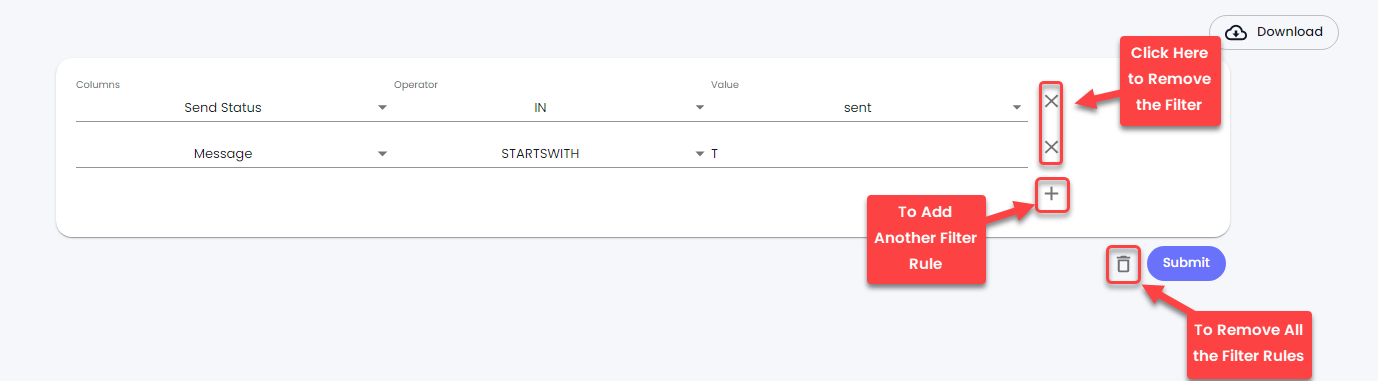
If you want to add another filter, click the Plus button ![](https://files.gitbook.com/v0/b/gitbook-x-prod.appspot.com/o/spaces%2FhElFPtMZjXYjDDMBT5q2%2Fuploads%2F1WNM2opBmG6WLkD1GbcH%2FPlus%20button%20for%20Filters.png?alt=media\&token=fc82bbfa-b811-4196-941e-a41568050bee)

<figure><img src="https://files.gitbook.com/v0/b/gitbook-x-prod.appspot.com/o/spaces%2FhElFPtMZjXYjDDMBT5q2%2Fuploads%2F6umzSdbi0xa8ks725zSG%2FAdd%2C%20Remove%20and%20Delete%20Filter%20Rules%20in%20Drip%20Campaign%20Message%20Details.png?alt=media&#x26;token=204e0420-f199-4f1c-9603-ebbc89154909" alt=""><figcaption></figcaption></figure>

To remove a filter, you can simply click the ✖ Remove button associated with the filter. And to delete all the filter rules, you can simply click the<img src="https://files.gitbook.com/v0/b/gitbook-x-prod.appspot.com/o/spaces%2FhElFPtMZjXYjDDMBT5q2%2Fuploads%2FnOKuiGH16Qhb31eqieuH%2FDelete%20Button%20for%20Filter.png?alt=media&#x26;token=8155fb9e-8453-4566-9a95-842e384b0341" alt="" data-size="original">Trash button.

#### Contacts Detail

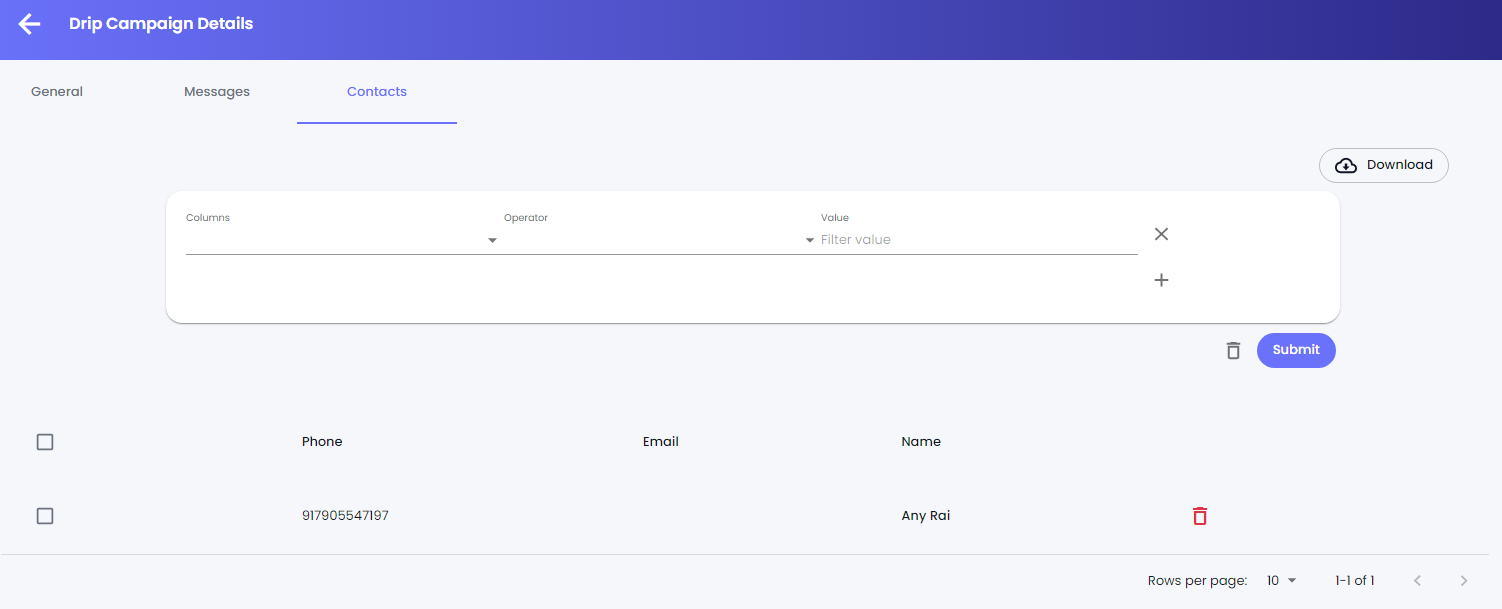
The Contacts detail window lets you view contacts added to the campaign. Plus, you can apply Filter, Download Contacts, or even remove a Contact(s) from the campaign.
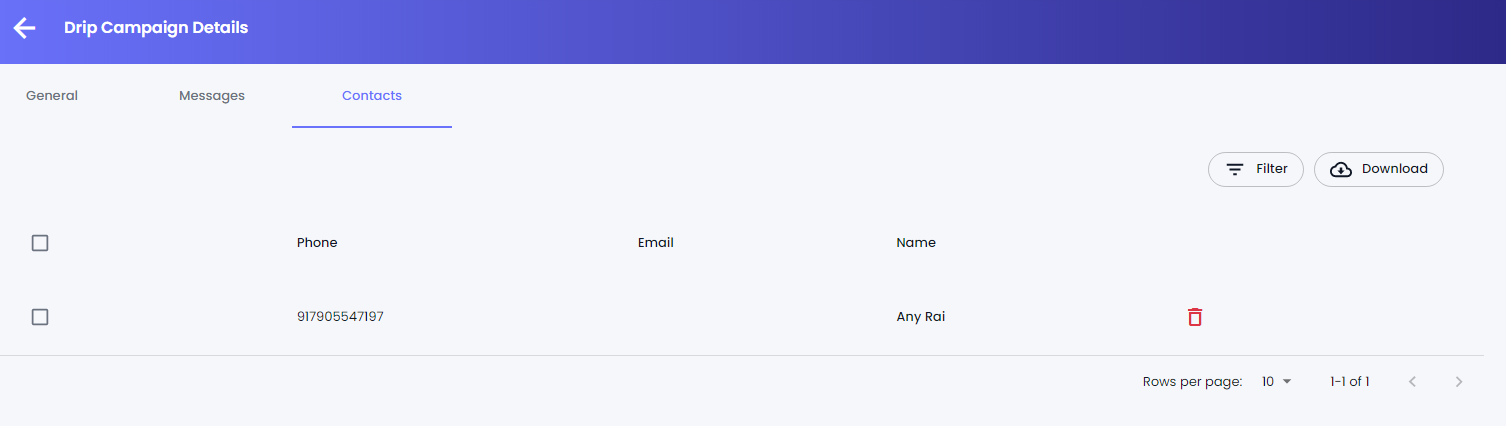
<figure><img src="https://files.gitbook.com/v0/b/gitbook-x-prod.appspot.com/o/spaces%2FhElFPtMZjXYjDDMBT5q2%2Fuploads%2FJcFEIBd3k3MEdVMeSZo8%2FRemoving%20a%20Contact%20from%20Drip%20Campaign.png?alt=media&#x26;token=ed41157d-f037-4f03-92a3-8b33fea4bdec" alt=""><figcaption></figcaption></figure>

To remove a single contact, simply click the <img src="https://files.gitbook.com/v0/b/gitbook-x-prod.appspot.com/o/spaces%2FhElFPtMZjXYjDDMBT5q2%2Fuploads%2F3Of4IVOBkTD6Yfey20F7%2FDelete%20Button.png?alt=media&#x26;token=82c696d8-8f39-4ebd-82c3-f74f28e61d38" alt="" data-size="line"> Trash button.&#x20;

<figure><img src="https://files.gitbook.com/v0/b/gitbook-x-prod.appspot.com/o/spaces%2FhElFPtMZjXYjDDMBT5q2%2Fuploads%2FiXbsUOfL4mStOAwddLmb%2FRemoving%20Bulk%20Contacts%20from%20a%20Drip%20Campaign.gif?alt=media&#x26;token=ac72bec3-d7ba-4bae-9e1f-4e4f5669fd67" alt=""><figcaption></figcaption></figure>

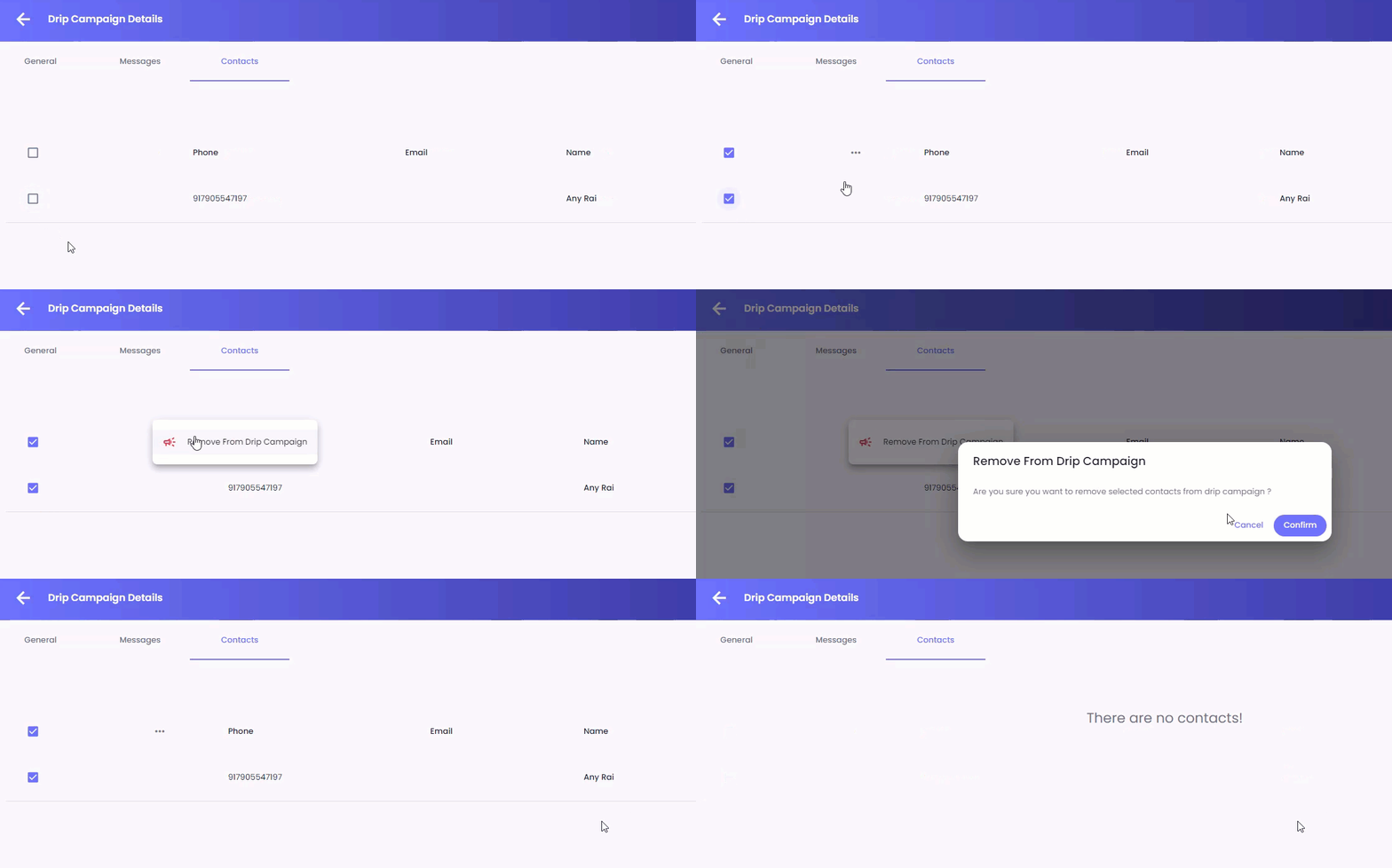
Or, to remove multiple contacts, first, select them, then click the ![](https://files.gitbook.com/v0/b/gitbook-x-prod.appspot.com/o/spaces%2FhElFPtMZjXYjDDMBT5q2%2Fuploads%2FIuURvhSfhvZU8ZTlpMYP%2FHorizontal%20Menu%20Options.png?alt=media\&token=dbc06bb8-de51-43aa-82ce-b6da06df3d6f)Options button next to Bulk select and click *Remove From Drip Campaign***.** Then click the **Confirm** button to finalise removal.

<figure><img src="https://files.gitbook.com/v0/b/gitbook-x-prod.appspot.com/o/spaces%2FhElFPtMZjXYjDDMBT5q2%2Fuploads%2FctpxlCHaX6TVOPuTzyr4%2FFilter%20options%20for%20Contacts%20detail%20Drip%20Campaign.png?alt=media&#x26;token=d846ca53-503c-4f42-917d-8ac0de85d187" alt=""><figcaption></figcaption></figure>

The Filters can be applied in the same way as Message Details; however, here, you only get 3 columns,

<figure><img src="https://files.gitbook.com/v0/b/gitbook-x-prod.appspot.com/o/spaces%2FhElFPtMZjXYjDDMBT5q2%2Fuploads%2FzbfcTIjz9zDUedd5W2m4%2FColumns%20Option.png?alt=media&#x26;token=25530270-246a-4109-9d7d-0bb404e80148" alt=""><figcaption></figcaption></figure>

* Phone.
* Email.
* And Name.

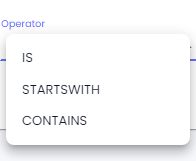
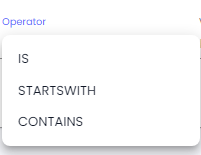
And based on these columns, you get 3 Operators,

<figure><img src="https://files.gitbook.com/v0/b/gitbook-x-prod.appspot.com/o/spaces%2FhElFPtMZjXYjDDMBT5q2%2Fuploads%2FFkRppxyxLGtzM9rwMAbX%2FOperator.png?alt=media&#x26;token=5e51a83e-19a4-4181-8db5-171cd54e82cf" alt=""><figcaption></figcaption></figure>

* IS
* STARTSWITH
* CONTAINS

<figure><img src="https://files.gitbook.com/v0/b/gitbook-x-prod.appspot.com/o/spaces%2FhElFPtMZjXYjDDMBT5q2%2Fuploads%2F2wFLoZYVZ78VKmwuFm2x%2FUsing%20Filter%20in%20Contacts%20Details%20Drip%20Campaign.png?alt=media&#x26;token=19d633ed-2833-47e3-942c-c8191ff5d693" alt=""><figcaption></figcaption></figure>

First, select the Column, then Operator, provide the Value and click **Submit**.

### Edit a Drip Campaign

To edit a Drip Campaign, click the<img src="https://files.gitbook.com/v0/b/gitbook-x-prod.appspot.com/o/spaces%2FhElFPtMZjXYjDDMBT5q2%2Fuploads%2FtM0TpJ2uFQAN4Ck2pMsa%2FEdit%20Button%20Blue.png?alt=media&#x26;token=e5fd4863-2e0e-4e4c-9854-bca693646d06" alt="" data-size="line">Edit button under the Actions tab of the campaign.
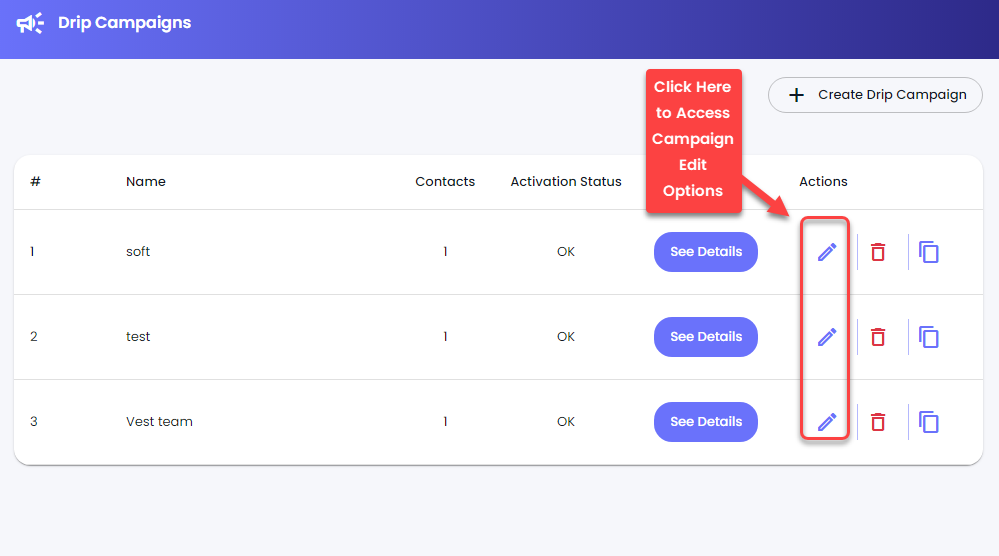
<figure><img src="https://files.gitbook.com/v0/b/gitbook-x-prod.appspot.com/o/spaces%2FhElFPtMZjXYjDDMBT5q2%2Fuploads%2FkkDAbPx6sFtgAhuKkiBy%2FDrip%20Campaign%20Edit%20Button.png?alt=media&#x26;token=47d4437f-5194-4003-b697-a029c3db90df" alt=""><figcaption></figcaption></figure>

### Edit/Delete a Step/Message

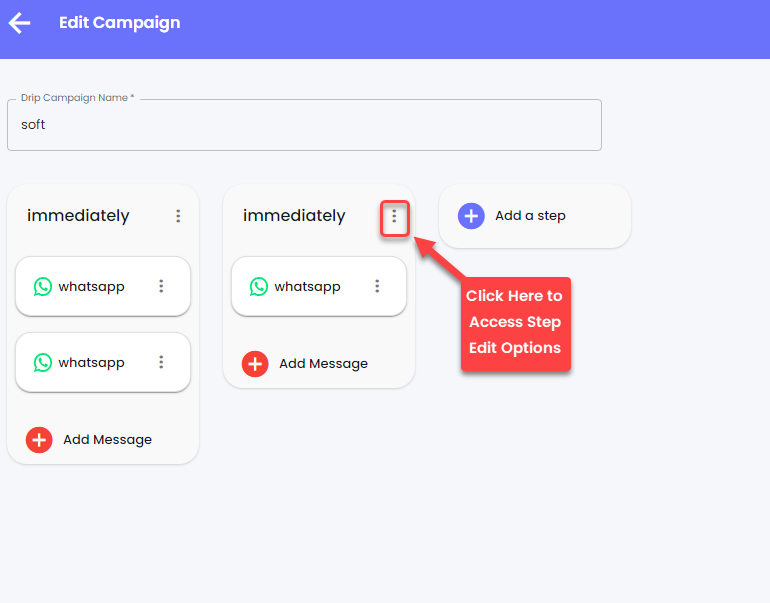
First, [Edit the Campaign](#edit-a-drip-campaign).&#x20;

<figure><img src="https://files.gitbook.com/v0/b/gitbook-x-prod.appspot.com/o/spaces%2FhElFPtMZjXYjDDMBT5q2%2Fuploads%2F3VQKggXHF0nqqGaSP1gp%2FStep%20Edit%20Options%20Access.png?alt=media&#x26;token=4d5d37e7-846a-4b86-8cbf-5ad28deba37e" alt=""><figcaption></figcaption></figure>

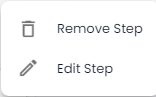
Then, to edit or remove a step, click the<img src="https://files.gitbook.com/v0/b/gitbook-x-prod.appspot.com/o/spaces%2FhElFPtMZjXYjDDMBT5q2%2Fuploads%2FmdFmWLY4ZJ2b4UiCxunX%2FMenu%20Icon%20in%20the%20Chat.png?alt=media&#x26;token=b4c2cdf5-342f-4004-b333-e30c0d47ca1c" alt="" data-size="line">Options button. Then from the available options, either select
<figure><img src="https://files.gitbook.com/v0/b/gitbook-x-prod.appspot.com/o/spaces%2FhElFPtMZjXYjDDMBT5q2%2Fuploads%2FIp89rYQqc0bLS9K2W3ki%2FStep%20Edit%20Options.png?alt=media&#x26;token=f86bb7c4-c5e4-424a-89aa-b1fa6fad373e" alt=""><figcaption></figcaption></figure>

* Remove Step
* Or Edit Step

Based on your selection, continue with the process

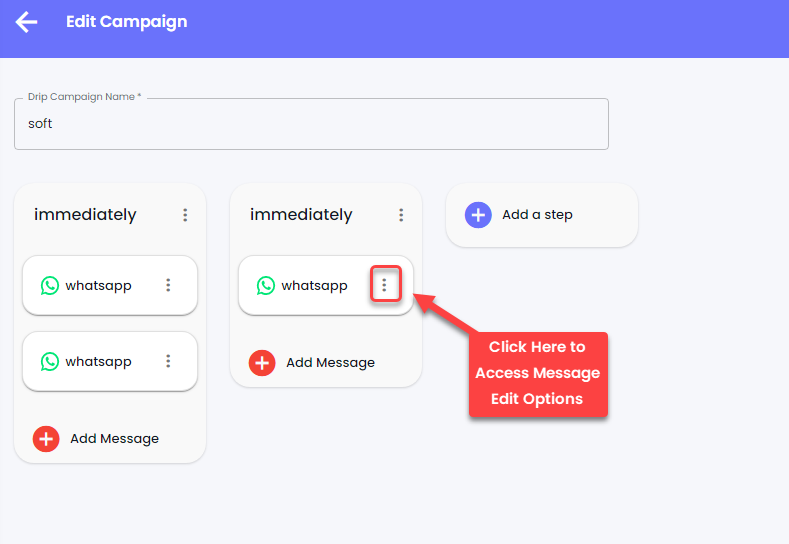
<figure><img src="https://files.gitbook.com/v0/b/gitbook-x-prod.appspot.com/o/spaces%2FhElFPtMZjXYjDDMBT5q2%2Fuploads%2FY1rD2DJDzQkcZxKhPcFA%2FAccessing%20Message%20Edit%20Options%20in%20Drip%20Campaign.png?alt=media&#x26;token=1afb40d5-405f-4717-b814-aff5f4003ffd" alt=""><figcaption></figcaption></figure>

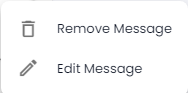
To edit or remove a message, click the<img src="https://files.gitbook.com/v0/b/gitbook-x-prod.appspot.com/o/spaces%2FhElFPtMZjXYjDDMBT5q2%2Fuploads%2FmdFmWLY4ZJ2b4UiCxunX%2FMenu%20Icon%20in%20the%20Chat.png?alt=media&#x26;token=b4c2cdf5-342f-4004-b333-e30c0d47ca1c" alt="" data-size="line">Options button associated with the message. Then from the available options, either select
<figure><img src="https://files.gitbook.com/v0/b/gitbook-x-prod.appspot.com/o/spaces%2FhElFPtMZjXYjDDMBT5q2%2Fuploads%2FixXarE5gLmTBYAtxhdOq%2FMessage%20Edit%20Options.png?alt=media&#x26;token=db903496-7063-4e3a-905d-c405225f0cbc" alt=""><figcaption></figcaption></figure>

* Remove Message
* Or Edit Message

Based on your selection, continue with the process. Once done with the edits, click **Update**.

### Delete a Drip Campaign

<figure><img src="https://files.gitbook.com/v0/b/gitbook-x-prod.appspot.com/o/spaces%2FhElFPtMZjXYjDDMBT5q2%2Fuploads%2FElMwvHsQpichW6bYTglh%2FDeleting%20a%20Drip%20Campaign.png?alt=media&#x26;token=a4b35ec8-6f01-4902-b304-11b72043d62c" alt=""><figcaption></figcaption></figure>

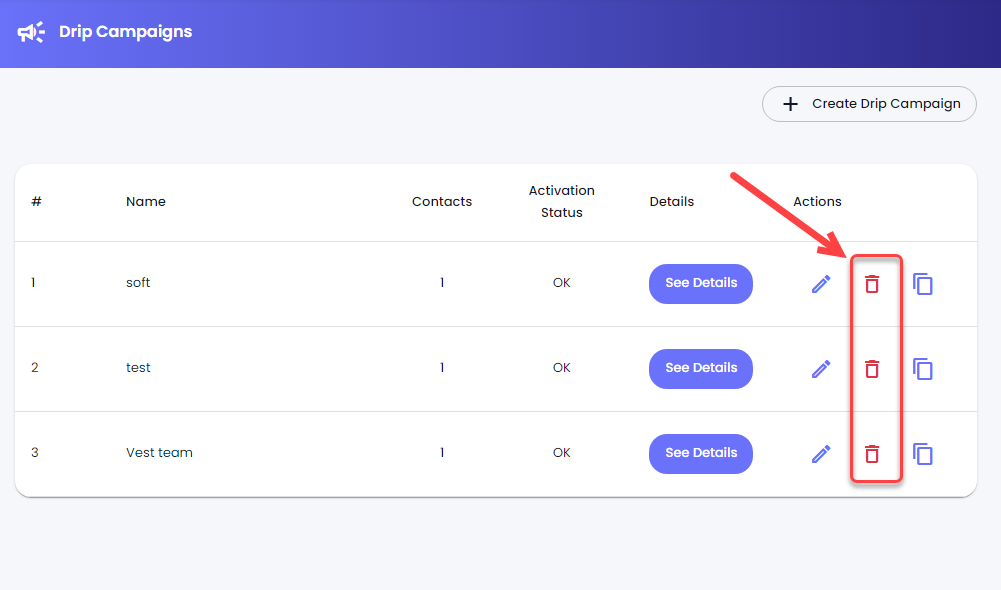
Click the<img src="https://files.gitbook.com/v0/b/gitbook-x-prod.appspot.com/o/spaces%2FhElFPtMZjXYjDDMBT5q2%2Fuploads%2F3Of4IVOBkTD6Yfey20F7%2FDelete%20Button.png?alt=media&#x26;token=82c696d8-8f39-4ebd-82c3-f74f28e61d38" alt="" data-size="line">Trash button under Actions tab.&#x20;

<figure><img src="https://files.gitbook.com/v0/b/gitbook-x-prod.appspot.com/o/spaces%2FhElFPtMZjXYjDDMBT5q2%2Fuploads%2FzoLoPzEjyTD9E5pGjkQl%2FConfirm%20Campaign%20Delete.png?alt=media&#x26;token=b9fbd7de-40e5-4524-9097-8e040096b811" alt=""><figcaption></figcaption></figure>

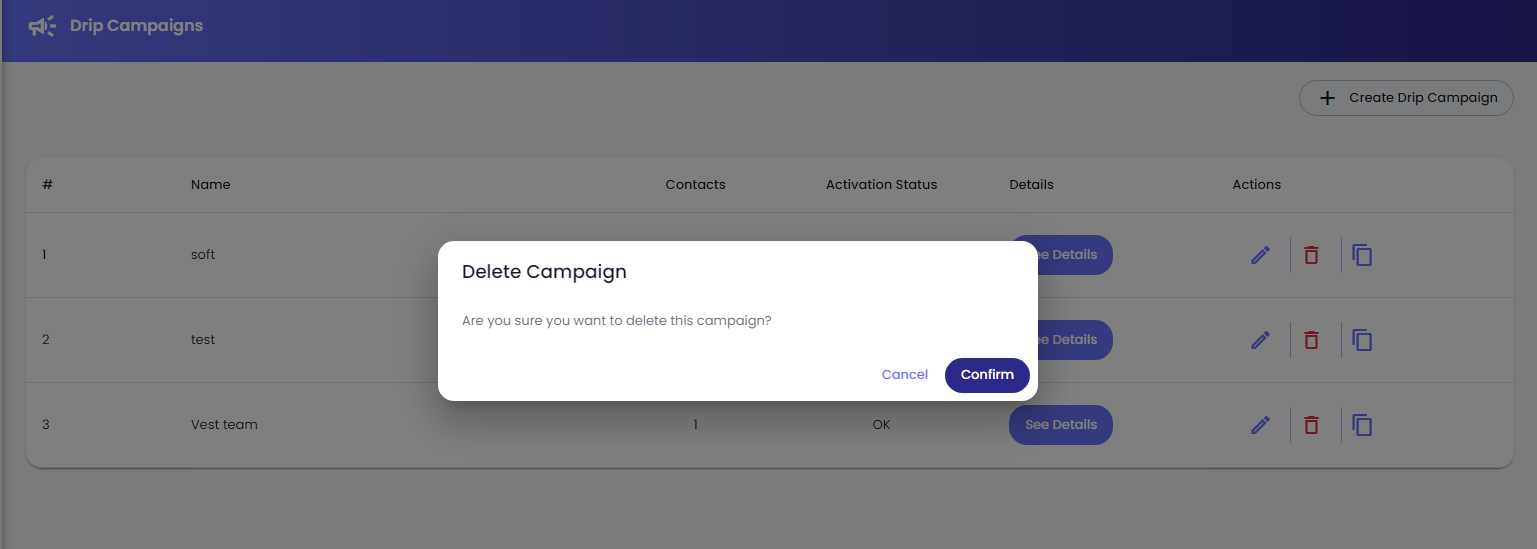
Then click the **Confirm** button to finalise the delete.

### Duplicate a Campaign

<figure><img src="https://files.gitbook.com/v0/b/gitbook-x-prod.appspot.com/o/spaces%2FhElFPtMZjXYjDDMBT5q2%2Fuploads%2FXWAtogc3XokgZm5lPPBf%2FDrip%20Campaign%20Duplicate%20Button.png?alt=media&#x26;token=db60b501-75ae-4d20-8979-8664f4a6d70e" alt=""><figcaption></figcaption></figure>

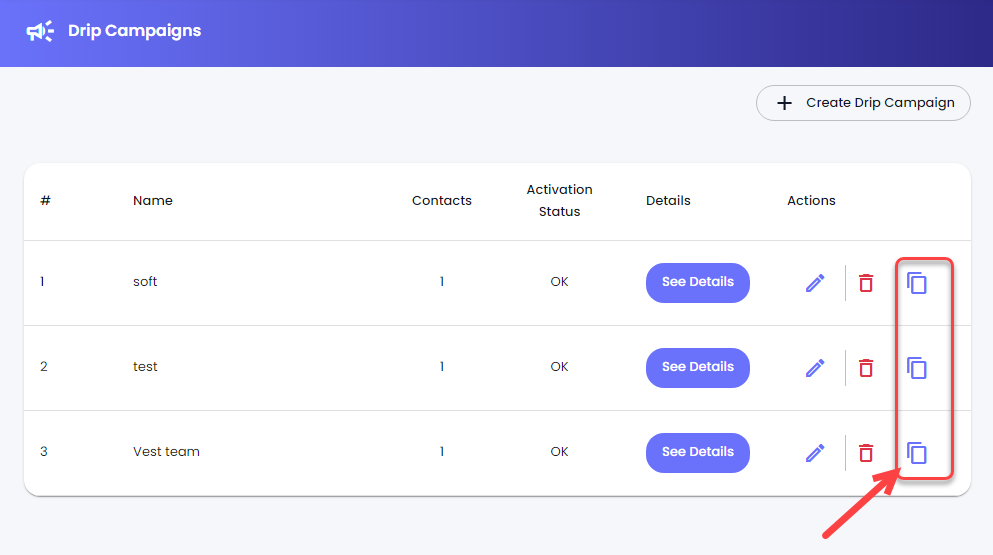
If you'd like to duplicate a campaign, click<img src="https://files.gitbook.com/v0/b/gitbook-x-prod.appspot.com/o/spaces%2FhElFPtMZjXYjDDMBT5q2%2Fuploads%2FMFKb5CR3QvlaV10MWhF8%2FDuplicate%20Icon.png?alt=media&#x26;token=4dbc2f44-7395-4eb4-90a6-2f0014a7b5c0" alt="" data-size="line">Duplicate button.

<figure><img src="https://files.gitbook.com/v0/b/gitbook-x-prod.appspot.com/o/spaces%2FhElFPtMZjXYjDDMBT5q2%2Fuploads%2FSwUvYZhXtEmnok5w7TCD%2FDuplicate%20Drip%20Campaign.png?alt=media&#x26;token=0d67415e-f454-4ea2-b905-1bf12c31c9ac" alt=""><figcaption></figcaption></figure>

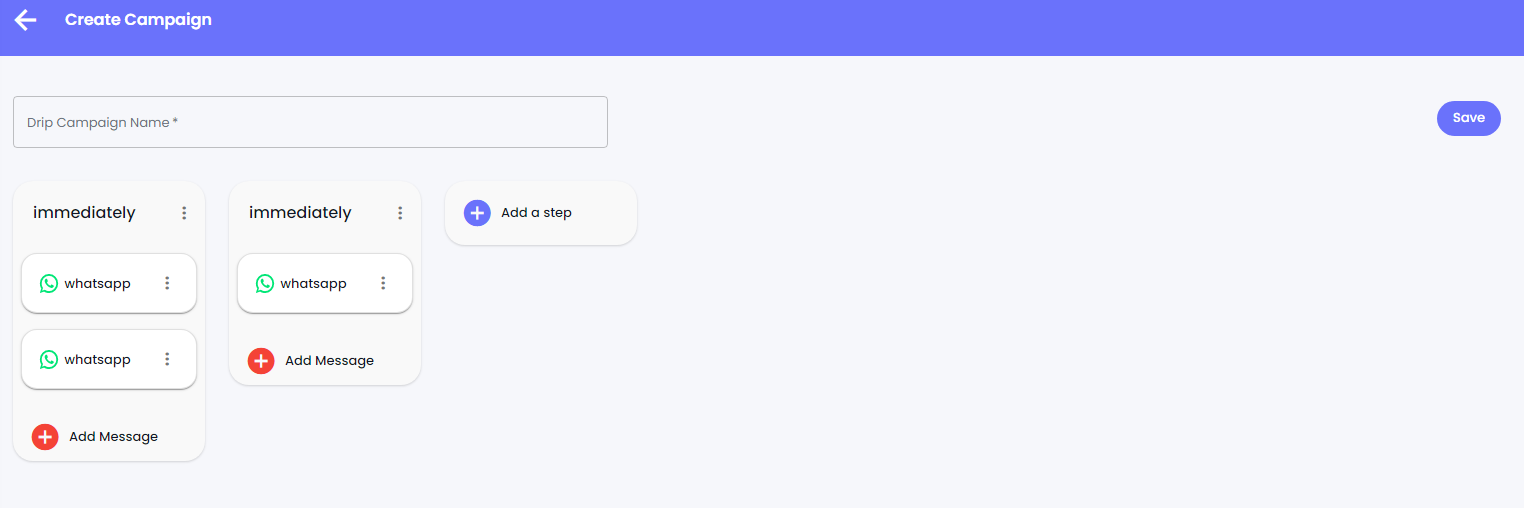
And as you do that, you'll be directed to the campaign builder with duplicate Steps and their messages. Now, follow the steps to add more steps, messages; edit or delete them. Then Save the campaign and assign contacts to finally run the Drip Campaign.


---

# Agent Instructions: Querying This Documentation

If you need additional information that is not directly available in this page, you can query the documentation dynamically by asking a question.

Perform an HTTP GET request on the current page URL with the `ask` query parameter:

```
GET https://docs.rampwin.com/english/drip-campaigns.md?ask=<question>
```

The question should be specific, self-contained, and written in natural language.
The response will contain a direct answer to the question and relevant excerpts and sources from the documentation.

Use this mechanism when the answer is not explicitly present in the current page, you need clarification or additional context, or you want to retrieve related documentation sections.