# Contacts

Or, if you want to add another filter in the same group, click the Plus button![](/files/FyMdBbety4yMN9WG1z0a)inside the filter group.The filter options available are,Otherwise, first, select the country code, then add tags (if required), and add the contacts' file from your local system. Using the Contact module of Rampwin, you can add, edit, remove, shortlist, blacklist, and perform more actions to your contacts to manage them effectively and per requirements. The module provides you with a lot of options that make it easier to use contacts for different reasons.&#x20;

<figure><img src="https://files.gitbook.com/v0/b/gitbook-x-prod.appspot.com/o/spaces%2FhElFPtMZjXYjDDMBT5q2%2Fuploads%2FeJwQGLFeezJXUnKbeZja%2FAccessing%20Contacts%20Module.png?alt=media&#x26;token=22c9785d-1fcd-4e49-8200-d36aab4b5f5f" alt=""><figcaption></figcaption></figure>

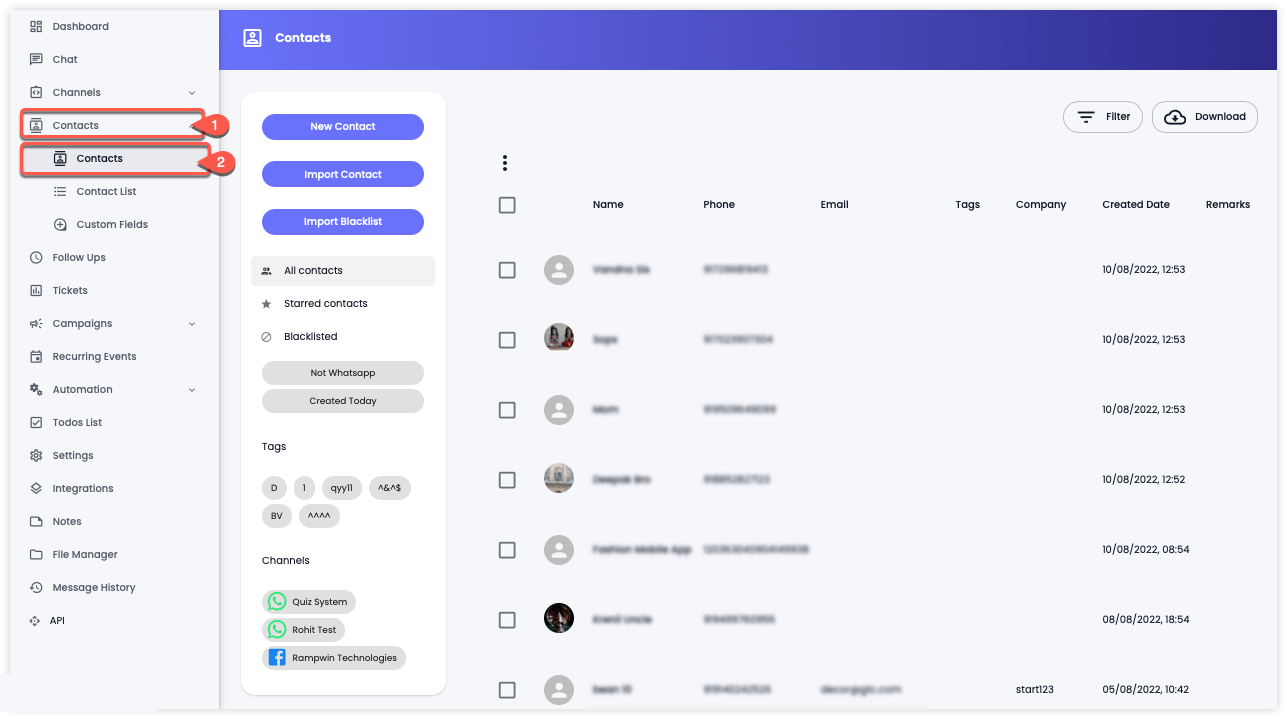
To access the Contacts from your Dashboard, go to the left sidebar → **Contacts** → **Contacts**. &#x20;

### Add New Contact

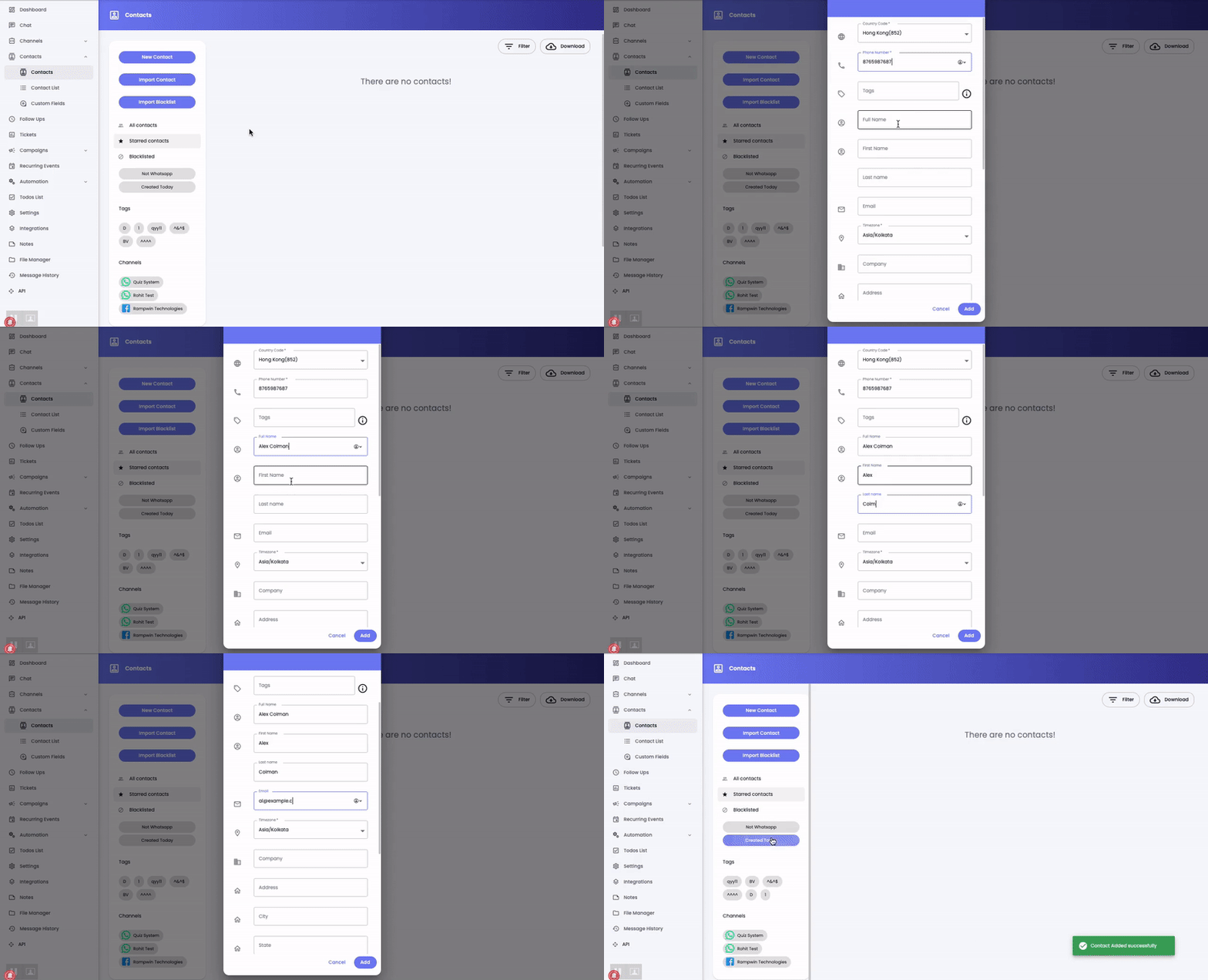
To add a new contact, click **New Contact**.

<figure><img src="https://files.gitbook.com/v0/b/gitbook-x-prod.appspot.com/o/spaces%2FhElFPtMZjXYjDDMBT5q2%2Fuploads%2FzegXPXc1wWjuWh6V8poo%2FAdded%20a%20New%20Contact.gif?alt=media&#x26;token=dcf371b2-28b8-4077-b50f-cd93e42ca300" alt=""><figcaption></figcaption></figure>

Then, in the New Contact pop-up, enter the details as needed. And once done, click **Add** to save the contact.

### Import Contacts

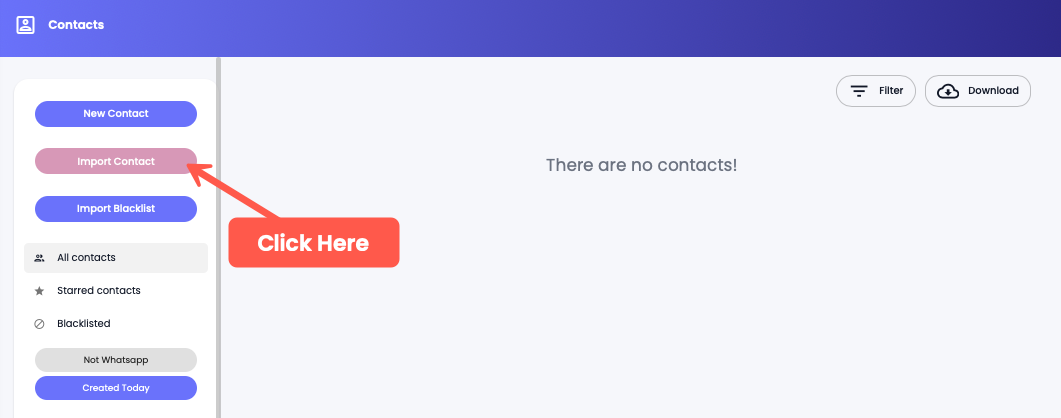
To add contacts by uploading a file, click **Import Contact.**

<figure><img src="https://files.gitbook.com/v0/b/gitbook-x-prod.appspot.com/o/spaces%2FhElFPtMZjXYjDDMBT5q2%2Fuploads%2FPvFPmXBm4MS8tNOpo6dg%2FImporting%20Contacts.png?alt=media&#x26;token=34b6634d-4492-47b0-ba75-3103266052d4" alt=""><figcaption></figcaption></figure>

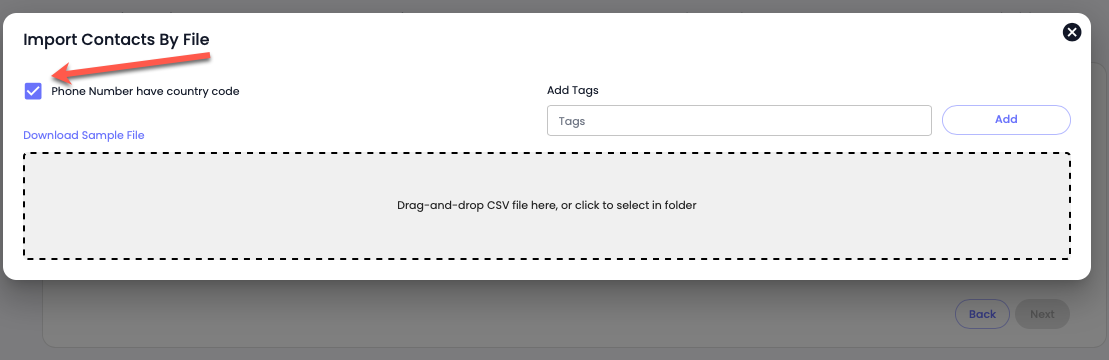
A modal will appear with the options to choose the Country Code, Add Tags, and Select the file. If the file already has a country code for the contacts, you can tick the **Phone Number have country code** checkbox.

<figure><img src="https://files.gitbook.com/v0/b/gitbook-x-prod.appspot.com/o/spaces%2FhElFPtMZjXYjDDMBT5q2%2Fuploads%2FmpuuCPfCi0LNGMA1hqlk%2FPhone%20Number%20have%20country%20code.png?alt=media&#x26;token=b5cc00ee-2410-4e46-9267-3c3572f88bf4" alt=""><figcaption></figcaption></figure>

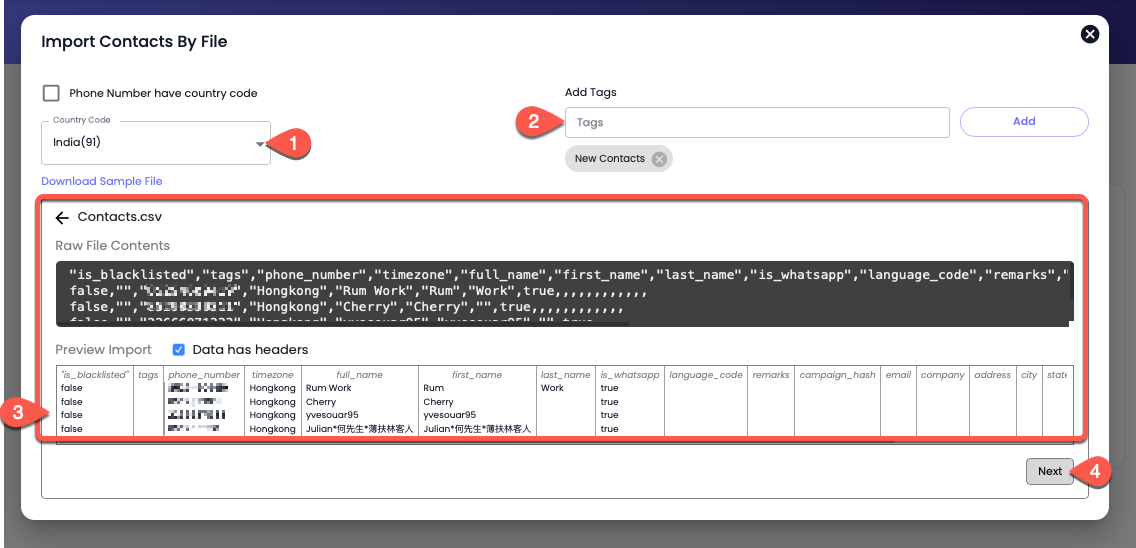
Otherwise, first, select the country code, then add tags (if required), and add the contacts' file from your local system.&#x20;

<figure><img src="https://files.gitbook.com/v0/b/gitbook-x-prod.appspot.com/o/spaces%2FhElFPtMZjXYjDDMBT5q2%2Fuploads%2Fej2Elvjm6nmvtXiYu3dp%2FUploading%20the%20file.png?alt=media&#x26;token=1eed9a25-74ee-441d-b015-acb123c2d0da" alt=""><figcaption></figcaption></figure>

As you do that, you'll see your contact numbers and other details in the modal. Once you're satisfied, click **Next**.&#x20;

<figure><img src="https://files.gitbook.com/v0/b/gitbook-x-prod.appspot.com/o/spaces%2FhElFPtMZjXYjDDMBT5q2%2Fuploads%2Fg77s5i24UwnaKoSjzsFU%2FUploading%20Contacts%20check.png?alt=media&#x26;token=b403bba6-29d7-4735-96c1-e33e72683a25" alt=""><figcaption></figcaption></figure>

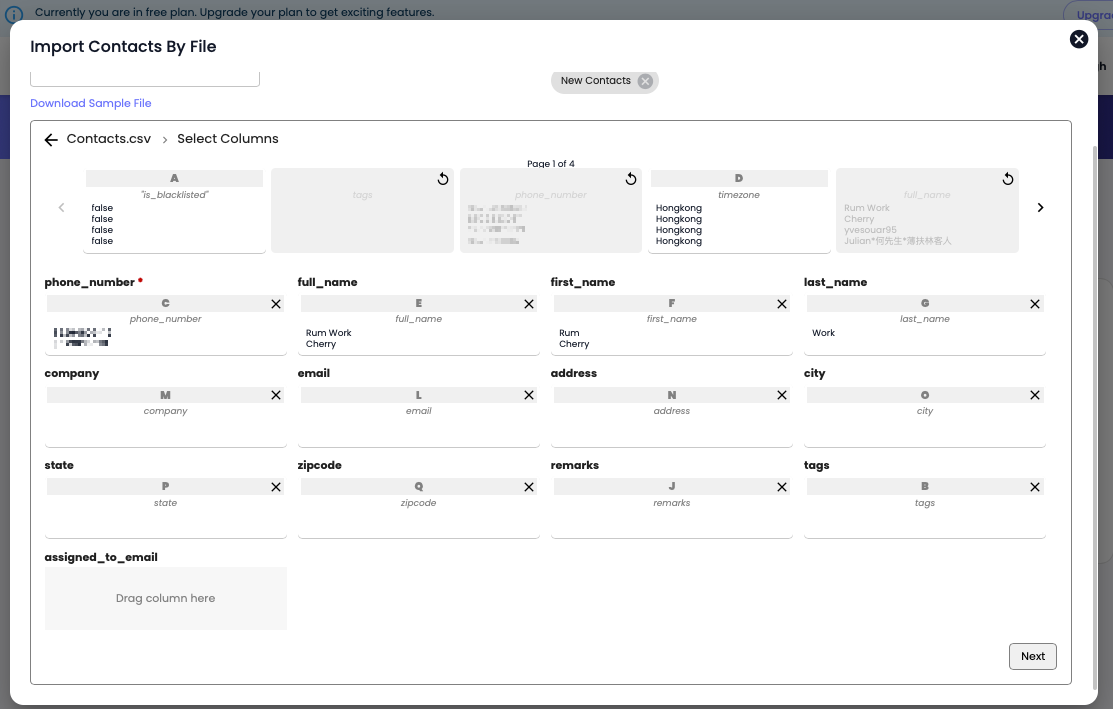
On the next screen, ensure that all the information is assigned to the right column. If everything is correct, click **Next**.

<figure><img src="https://files.gitbook.com/v0/b/gitbook-x-prod.appspot.com/o/spaces%2FhElFPtMZjXYjDDMBT5q2%2Fuploads%2FVrVfgdfMOa2dVn5ubx99%2FFinishing%20Contacts%20Upload.png?alt=media&#x26;token=f96dd74e-35b3-4fde-ba4e-f29fa13f4683" alt=""><figcaption></figcaption></figure>

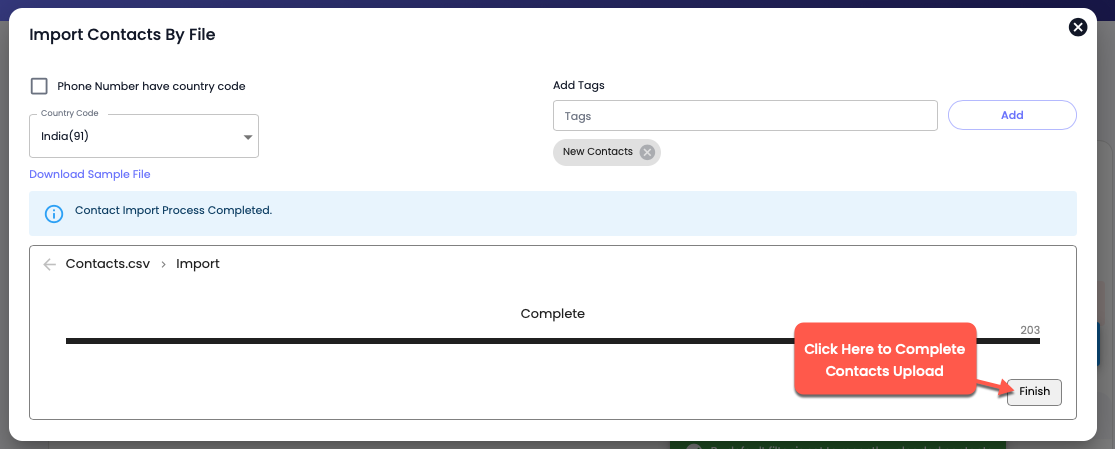
It'll take a few moments to upload the contacts, and once the process is completed, you can click **Finish**.

#### Upload Blacklisted Contacts

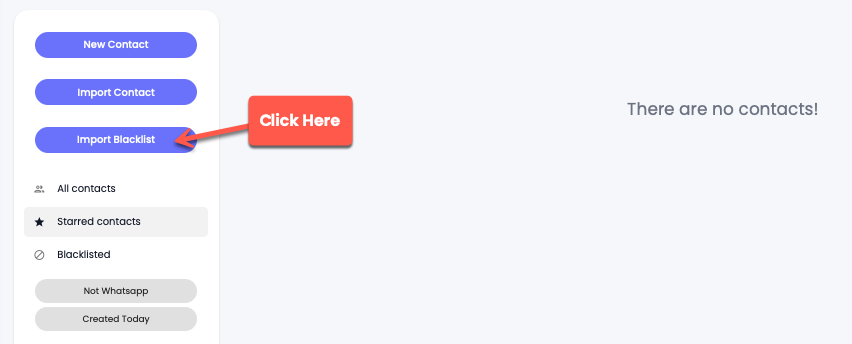
Click **Import Blacklist**.

<figure><img src="https://files.gitbook.com/v0/b/gitbook-x-prod.appspot.com/o/spaces%2FhElFPtMZjXYjDDMBT5q2%2Fuploads%2FwgUjhePc5EV1DytjsDPV%2FImport%20Blacklisted%20Contacts.png?alt=media&#x26;token=ec3826a4-0204-4126-aefb-631fa610cb82" alt=""><figcaption></figcaption></figure>

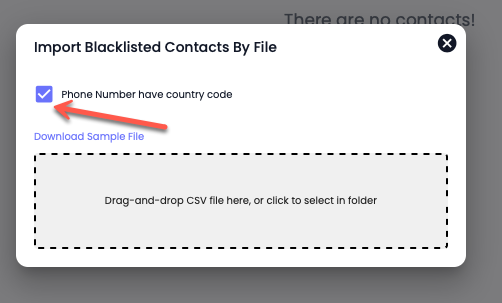
Then, tick the **Phone Number have country code** checkbox; if the file already has a country code for the contacts.

<figure><img src="https://files.gitbook.com/v0/b/gitbook-x-prod.appspot.com/o/spaces%2FhElFPtMZjXYjDDMBT5q2%2Fuploads%2Fs3l5swr5s2Uu3m9SADve%2FPhone%20Number%20have%20country%20code%20for%20blocked%20.png?alt=media&#x26;token=01299c5d-cd6c-4a91-8d85-f84624788963" alt=""><figcaption></figcaption></figure>

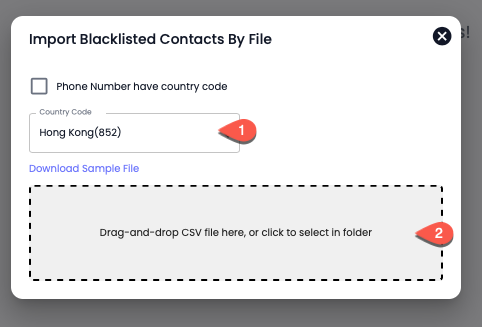
Otherwise, first, select the country code and then select the contacts' file from your local system.

<figure><img src="https://files.gitbook.com/v0/b/gitbook-x-prod.appspot.com/o/spaces%2FhElFPtMZjXYjDDMBT5q2%2Fuploads%2FbYi1ARMXzDZh0mKExJDO%2FCountry%20and%20file%20select%20for%20uploading%20blacklisted%20contacts.png?alt=media&#x26;token=8c96f191-f60e-4376-b797-cf8ce81ac2ea" alt=""><figcaption></figcaption></figure>

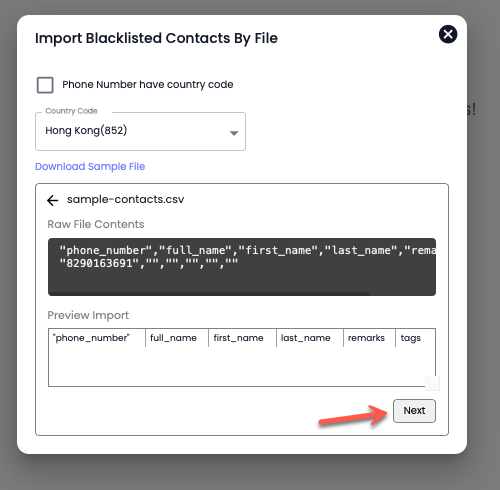
Click **Next**.

<figure><img src="https://files.gitbook.com/v0/b/gitbook-x-prod.appspot.com/o/spaces%2FhElFPtMZjXYjDDMBT5q2%2Fuploads%2FAT2zjDVe0nVgd2feI57E%2FUpload%20check.png?alt=media&#x26;token=22c49b31-9ac5-4fdd-9c03-325f49f36428" alt=""><figcaption></figcaption></figure>

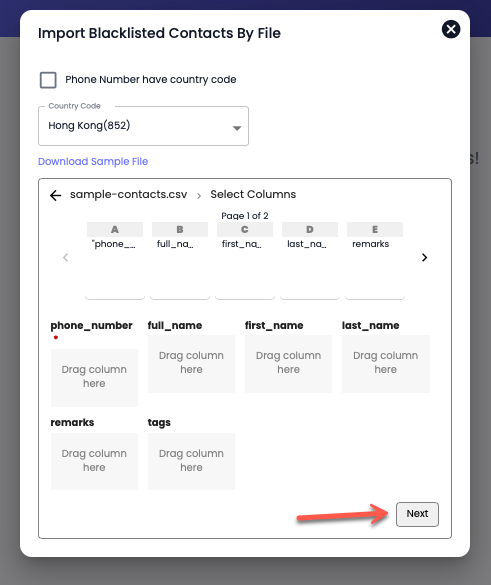
On the next screen, ensure that all the information is assigned to the right column. If everything is correct, click Next.

<figure><img src="https://files.gitbook.com/v0/b/gitbook-x-prod.appspot.com/o/spaces%2FhElFPtMZjXYjDDMBT5q2%2Fuploads%2FBFpqf8UpUi7gFVXUhDni%2FContacts%20Data%20Check.png?alt=media&#x26;token=13ed57d2-d021-4a53-b683-32f9fad9fda6" alt=""><figcaption></figcaption></figure>

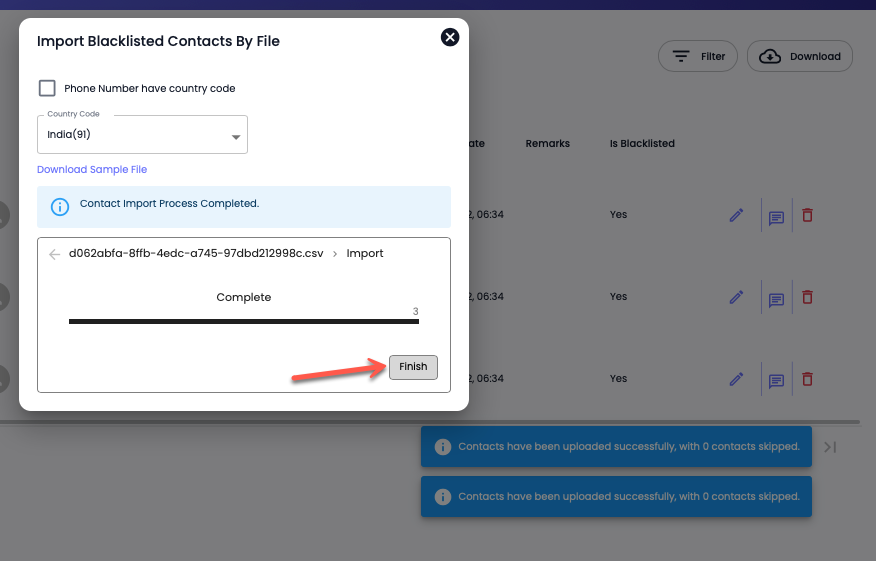
Then, click Finish to complete the import.

<figure><img src="https://files.gitbook.com/v0/b/gitbook-x-prod.appspot.com/o/spaces%2FhElFPtMZjXYjDDMBT5q2%2Fuploads%2FFckWVcFRfrOCUG0l9GjD%2FFinishing%20Blacklisted%20Contacts%20Upload.png?alt=media&#x26;token=cbd50ff0-f627-4b35-a43a-2ac7681146bb" alt=""><figcaption></figcaption></figure>

### Basic Filters

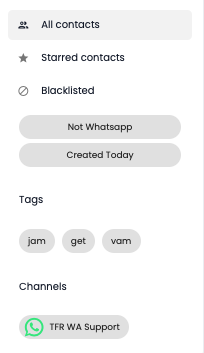
The Basic Filter options let you quickly sort contacts.

<figure><img src="https://files.gitbook.com/v0/b/gitbook-x-prod.appspot.com/o/spaces%2FhElFPtMZjXYjDDMBT5q2%2Fuploads%2F16nYaOC5DbG8HYrC27EE%2FContact%20Basic%20Filter%20options.png?alt=media&#x26;token=16fcfbed-f307-43d0-a3da-d4dfae512fb4" alt=""><figcaption></figcaption></figure>

By default, you see All Contacts; however, using the available options, you can filter contacts and,&#x20;

* View contacts that are Pinned, using the **Starred contacts** optio&#x6E;**.**
* View Contacts that are Blocked, using the **Blacklisted** option.&#x20;
* **Not WhatsApp** - View contacts that aren't in WhatsApp Channels.
* **Created Today** - View Contact(s) that's created on the current date.&#x20;
* **Tags** - Filter contacts based on Tags.
* **Channels** - Filter contacts based on Channels.&#x20;

### Advanced Filters

<figure><img src="https://files.gitbook.com/v0/b/gitbook-x-prod.appspot.com/o/spaces%2FhElFPtMZjXYjDDMBT5q2%2Fuploads%2FlKXBEwbOPfGCpyvcgKyJ%2FContacts%20Filter%20Options.png?alt=media&#x26;token=4773edf6-165a-450f-828b-0e00e49442b6" alt=""><figcaption></figcaption></figure>

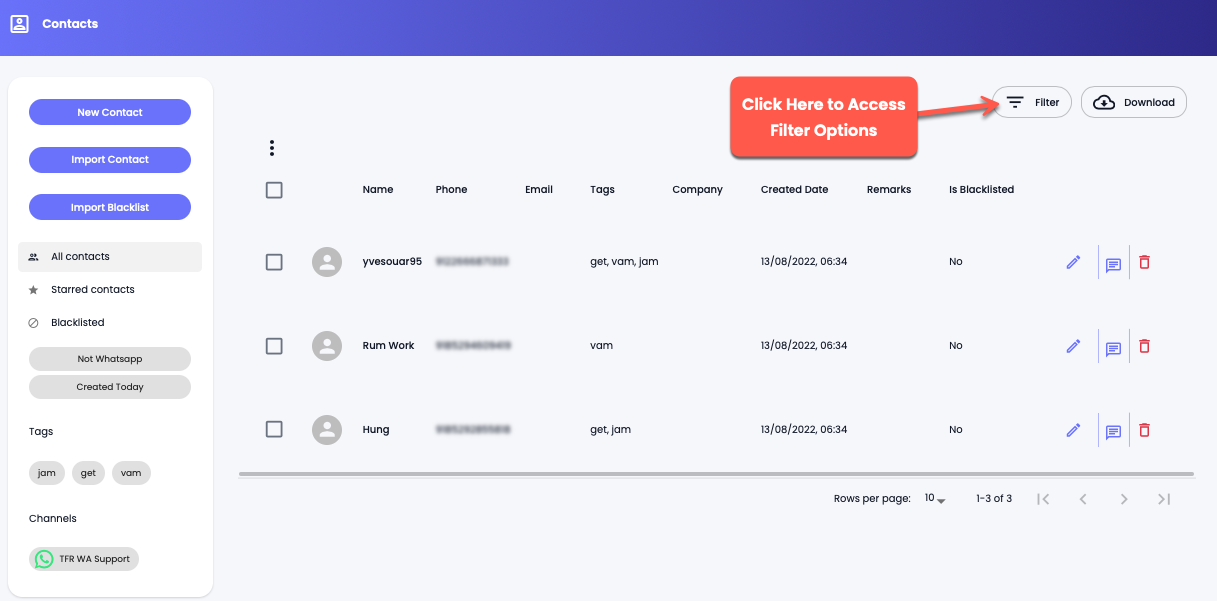
Click the **Filter** button to access the filter options.&#x20;

<figure><img src="https://files.gitbook.com/v0/b/gitbook-x-prod.appspot.com/o/spaces%2FhElFPtMZjXYjDDMBT5q2%2Fuploads%2Fi6aWez8RnRfqMbHjMlWh%2FFilter%20Options%20in%20the%20Contacts%20Module.png?alt=media&#x26;token=ab5bd0bb-f2dc-4130-ad46-62c51b3d7a26" alt=""><figcaption></figcaption></figure>

The filter options available are,

* **Columns**
* **Operator**
* **Value**

First, you need to select the column on the basis you want to filter the contacts. There are 10 options from which you can select the column.

<figure><img src="https://1685557723-files.gitbook.io/~/files/v0/b/gitbook-x-prod.appspot.com/o/spaces%2FhElFPtMZjXYjDDMBT5q2%2Fuploads%2F2OFFl8A9JvpVmb9wMmKM%2FFilter%20Column%20Options.png?alt=media&#x26;token=53eaabb1-cd81-4fe2-bc37-dd6e5bff9079" alt=""><figcaption></figcaption></figure>

After selecting the column, select the Operator that will verify the Value in the column. There are 9 operator types from which you can select one.

<figure><img src="https://1685557723-files.gitbook.io/~/files/v0/b/gitbook-x-prod.appspot.com/o/spaces%2FhElFPtMZjXYjDDMBT5q2%2Fuploads%2FaqWPJQShFsOaqUU4Yaoo%2FFitler%20Operator%20Types.png?alt=media&#x26;token=6d9bb59d-c2ab-47aa-a2b8-75ea5f672226" alt=""><figcaption></figcaption></figure>

* IS - The Column and Value should exactly match to apply the filter.
* STARTSWITH - The value in the Column should start with the value in the Value field to run the filter.
* CONTAINS - If the value in the Column includes the value in the Value field, the filter will run.
* IS NOT - To apply the filter, the Column field should not match with the Value field.
* DOES NOT CONTAIN - To apply the filter, the Column field doesn't include the instances of the Value field.
* IN - The Contact(s) **In** the particular Tag(s).
* NOT IN - The Contact(s) **Not In** a particular Tag(s)&#x20;
* MATCHES - The Channel Name Should Match the Value.
* BETWEEN - The Contact(s) Created or Updated **Between** the Date Range.

Once selected the operator, enter the value or select the option available in the Value field. The value field based on Column provides you with different options that are,

* Tag list for the Tag column.
* User / Group for the Contact Type column.
* Channel names for the Channel Name column.
* Date Range (Today, Yesterday, This Week, This Month, and Custom) for Created At and Updated At column.

<figure><img src="https://files.gitbook.com/v0/b/gitbook-x-prod.appspot.com/o/spaces%2FhElFPtMZjXYjDDMBT5q2%2Fuploads%2FCIBANZ6AaQKSqs3cPWT3%2FUsing%20Filter%20in%20Contacts.png?alt=media&#x26;token=17d7e3da-7467-4142-b849-3a8da15b3535" alt=""><figcaption></figcaption></figure>

After adding the values in the fields, click **Submit**. And this will show the filtered contacts.

<figure><img src="https://files.gitbook.com/v0/b/gitbook-x-prod.appspot.com/o/spaces%2FhElFPtMZjXYjDDMBT5q2%2Fuploads%2FwmUxjpIOo0IaWqTvbmPh%2FAdding%20a%20New%20Filter%20Group%20in%20Contacts.png?alt=media&#x26;token=f71da95c-c814-4d40-b82f-784e60938a84" alt=""><figcaption></figcaption></figure>

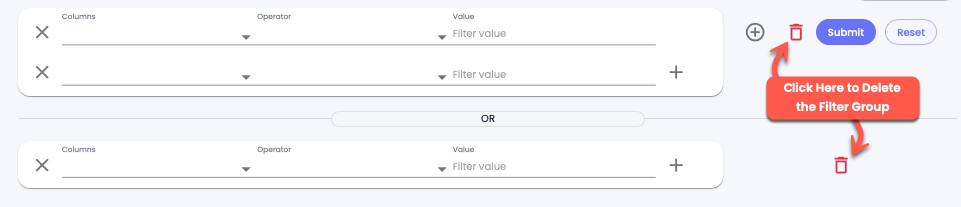
If you want to add more filter groups, you can click the Plus button icon<img src="https://files.gitbook.com/v0/b/gitbook-x-prod.appspot.com/o/spaces%2FhElFPtMZjXYjDDMBT5q2%2Fuploads%2FoE2EyOVPDpc66qENDOoB%2FPlus%20Button%20Icon%20for%20Contacts%20Filter.png?alt=media&#x26;token=08d0c77d-5907-4c10-8f11-269ce5ddf9b6" alt="" data-size="line">next to the delete button.&#x20;

<figure><img src="https://files.gitbook.com/v0/b/gitbook-x-prod.appspot.com/o/spaces%2FhElFPtMZjXYjDDMBT5q2%2Fuploads%2FgbwUP02xtJiLR5L3QdI5%2FFilter%20in%20the%20same%20group.png?alt=media&#x26;token=9f0d0a75-c868-4c18-93a0-07831fc103db" alt=""><figcaption></figcaption></figure>

Or, if you want to add another filter in the same group, click the Plus button![](https://files.gitbook.com/v0/b/gitbook-x-prod.appspot.com/o/spaces%2FhElFPtMZjXYjDDMBT5q2%2Fuploads%2F1WNM2opBmG6WLkD1GbcH%2FPlus%20button%20for%20Filters.png?alt=media\&token=fc82bbfa-b811-4196-941e-a41568050bee)inside the filter group.

<figure><img src="https://files.gitbook.com/v0/b/gitbook-x-prod.appspot.com/o/spaces%2FhElFPtMZjXYjDDMBT5q2%2Fuploads%2FIZlbPIwgnyW9oxKLNGMJ%2FDeleting%20a%20Filter%20Group%20in%20the%20Contacts.png?alt=media&#x26;token=e8ae0a15-5dcf-4980-b529-5093b46fcc49" alt=""><figcaption></figcaption></figure>

To delete a Filter Group, you can click the Delete button<img src="https://files.gitbook.com/v0/b/gitbook-x-prod.appspot.com/o/spaces%2FhElFPtMZjXYjDDMBT5q2%2Fuploads%2F3Of4IVOBkTD6Yfey20F7%2FDelete%20Button.png?alt=media&#x26;token=82c696d8-8f39-4ebd-82c3-f74f28e61d38" alt="" data-size="line">associated with that group.

<figure><img src="https://files.gitbook.com/v0/b/gitbook-x-prod.appspot.com/o/spaces%2FhElFPtMZjXYjDDMBT5q2%2Fuploads%2FlVflzKTIWjsNp6HuOWX8%2FRemoving%20a%20Filter%20in%20the%20Contacts%20Module.png?alt=media&#x26;token=89463ed8-bbdc-4d9b-be28-f8b68c30e353" alt=""><figcaption></figcaption></figure>

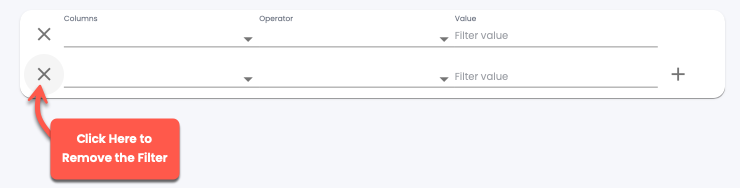
And to delete a filter, you can simply click the Cross button<img src="https://files.gitbook.com/v0/b/gitbook-x-prod.appspot.com/o/spaces%2FhElFPtMZjXYjDDMBT5q2%2Fuploads%2FotRwcc0rSB4ldHidAbt1%2FCross%20Button%20in%20Contacts.png?alt=media&#x26;token=2799167e-e652-4196-8e77-41ea32347084" alt="" data-size="line">associated with the particular filter rule.

<figure><img src="https://files.gitbook.com/v0/b/gitbook-x-prod.appspot.com/o/spaces%2FhElFPtMZjXYjDDMBT5q2%2Fuploads%2FT4Xdwq4qkJ1OY8rh2NiH%2FReset%20Filters%20in%20Contacts.png?alt=media&#x26;token=0ec48e13-a593-41ea-9b80-51cb979ac754" alt=""><figcaption></figcaption></figure>

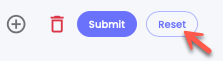
And to reset all the filters, simply click **Reset**.

### Download Contacts

<figure><img src="https://files.gitbook.com/v0/b/gitbook-x-prod.appspot.com/o/spaces%2FhElFPtMZjXYjDDMBT5q2%2Fuploads%2FDWgbtzOD883fPhEIiutE%2FDownload%20Contacts.png?alt=media&#x26;token=642d2471-ec41-46eb-9497-bcd32f549b59" alt=""><figcaption></figcaption></figure>

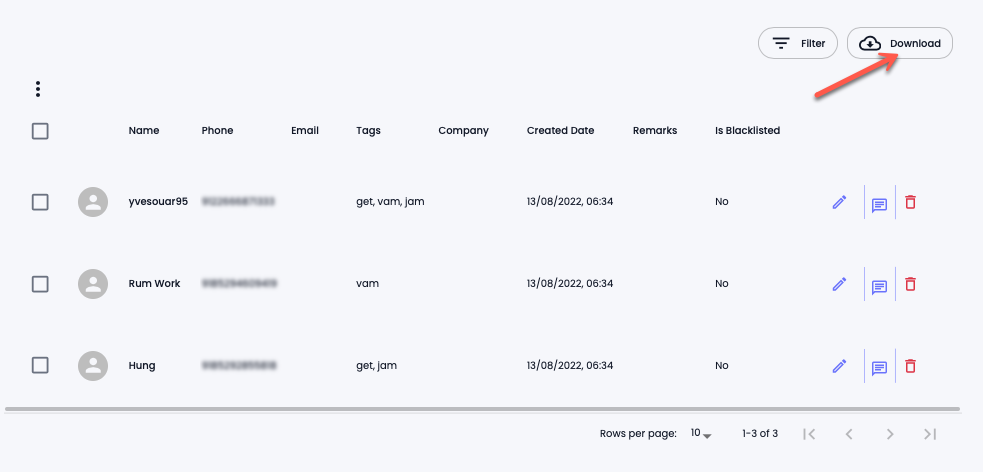
To download contacts, click the **Download** button.&#x20;

### Hide/Show Columns

<figure><img src="https://files.gitbook.com/v0/b/gitbook-x-prod.appspot.com/o/spaces%2FhElFPtMZjXYjDDMBT5q2%2Fuploads%2FRrxHeA69XzuG9V19v2TN%2FContacts%20Column%20Hide%20and%20Show.gif?alt=media&#x26;token=7490f9bf-1e2d-4399-8f50-e1471c7334f9" alt=""><figcaption></figcaption></figure>

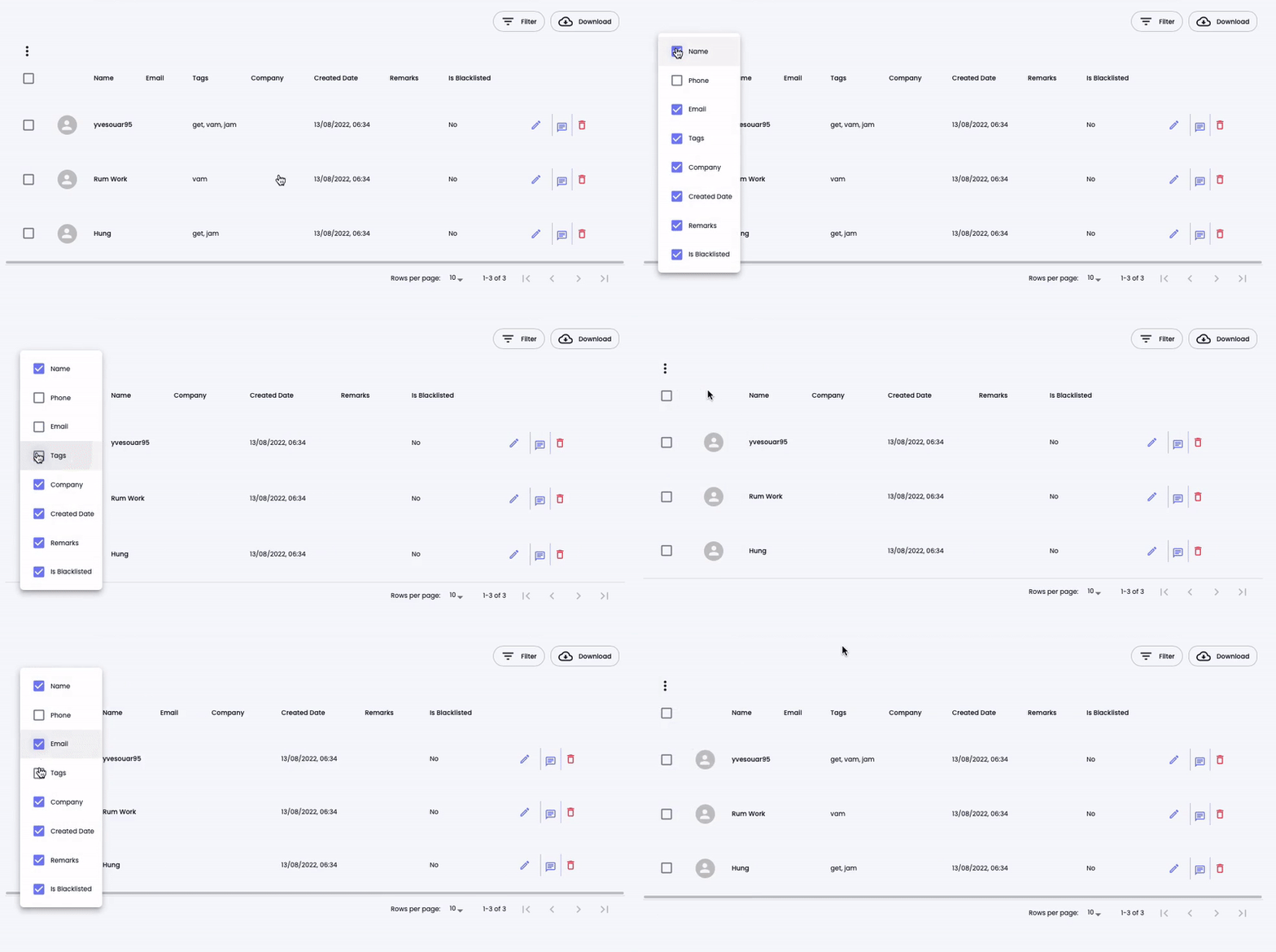
Click the Menu button<img src="https://files.gitbook.com/v0/b/gitbook-x-prod.appspot.com/o/spaces%2FhElFPtMZjXYjDDMBT5q2%2Fuploads%2FmdFmWLY4ZJ2b4UiCxunX%2FMenu%20Icon%20in%20the%20Chat.png?alt=media&#x26;token=b4c2cdf5-342f-4004-b333-e30c0d47ca1c" alt="" data-size="line">then check/uncheck which column you want to view and which doesn't.

### Edit a Contact

<figure><img src="https://files.gitbook.com/v0/b/gitbook-x-prod.appspot.com/o/spaces%2FhElFPtMZjXYjDDMBT5q2%2Fuploads%2F6oxp5qsbQj4Y25tdpZA4%2FEditing%20a%20Contact.png?alt=media&#x26;token=09e2f551-c593-41b2-b3e0-22e68d782bdf" alt=""><figcaption></figcaption></figure>

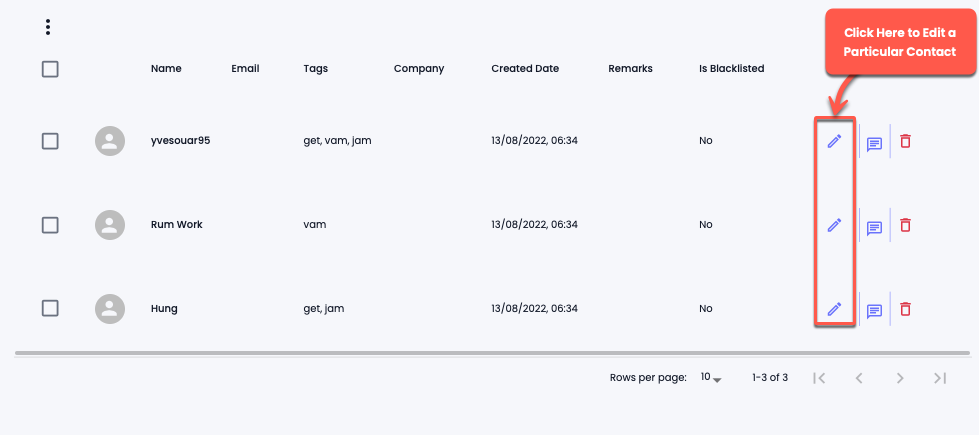
Click the Edit Button Icon<img src="https://files.gitbook.com/v0/b/gitbook-x-prod.appspot.com/o/spaces%2FhElFPtMZjXYjDDMBT5q2%2Fuploads%2FtM0TpJ2uFQAN4Ck2pMsa%2FEdit%20Button%20Blue.png?alt=media&#x26;token=e5fd4863-2e0e-4e4c-9854-bca693646d06" alt="" data-size="line">&#x20;

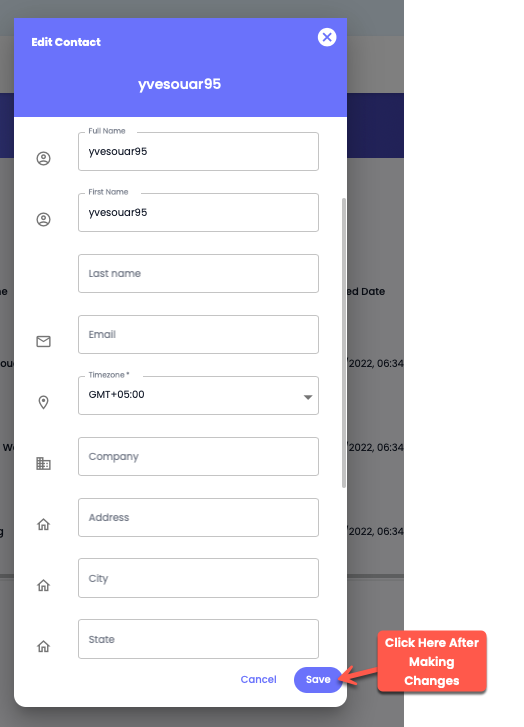
<figure><img src="https://files.gitbook.com/v0/b/gitbook-x-prod.appspot.com/o/spaces%2FhElFPtMZjXYjDDMBT5q2%2Fuploads%2Fwz3eAsWZaNf85SHNAc1E%2FSaving%20Contact%20Changes.png?alt=media&#x26;token=b1378f1f-3994-4c56-af44-0e62a8cb1e5b" alt=""><figcaption></figcaption></figure>

Make changes to the details, and once done, click **Save**.

### Bulk Update

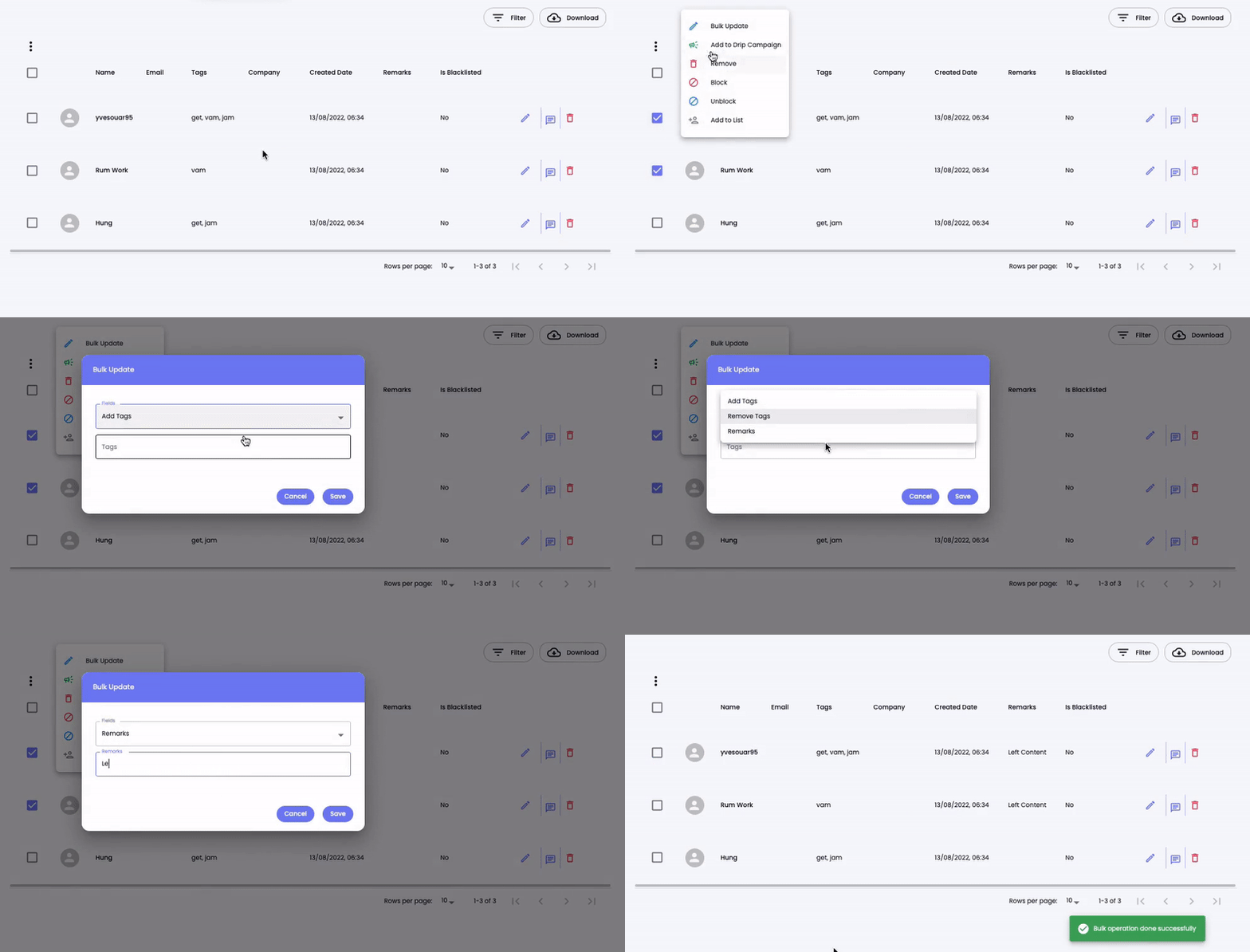
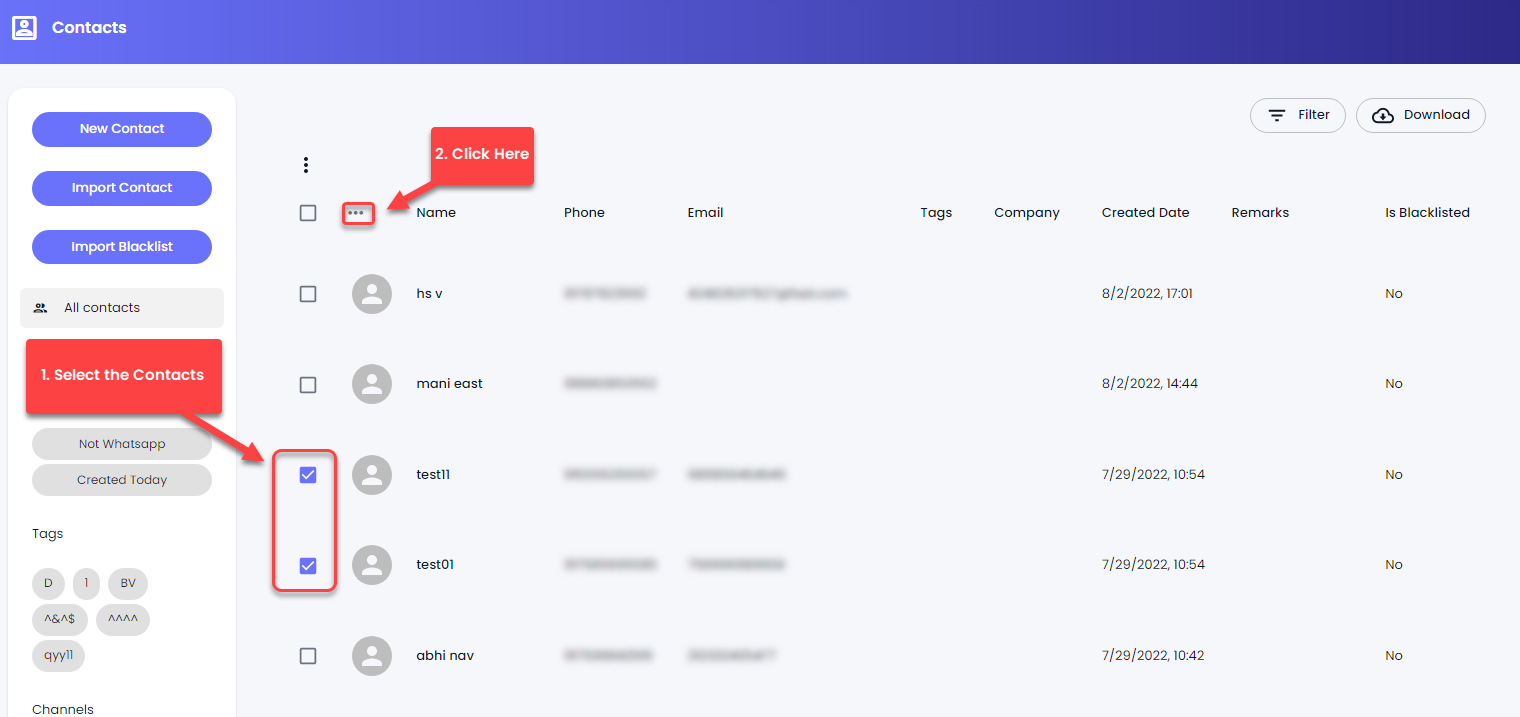
First, select the contacts to which you want to make changes.

<figure><img src="https://files.gitbook.com/v0/b/gitbook-x-prod.appspot.com/o/spaces%2FhElFPtMZjXYjDDMBT5q2%2Fuploads%2Fb5AUv0IOkfbpYIoARCWw%2FBulk%20Update.gif?alt=media&#x26;token=c666a0eb-a20a-4b6f-af95-247e2e81ab79" alt=""><figcaption></figcaption></figure>

Then click the More Options button![](/files/mmxbD1DkkHFRMWE9rJyC)next to Bulk Select, and then select **Bulk Update**.

<figure><img src="https://files.gitbook.com/v0/b/gitbook-x-prod.appspot.com/o/spaces%2FhElFPtMZjXYjDDMBT5q2%2Fuploads%2Fk6FdgGsz6snxSipHhsLP%2FBulk%20Update%20Options.png?alt=media&#x26;token=625df82d-ac04-4871-94d0-cd347be423f0" alt=""><figcaption></figcaption></figure>

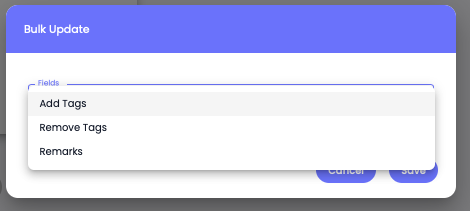
A popup will come with the options to

* Add Tags
* Remove Tags
* Remarks

Select one from the above and make changes as required.

### Add to Drip Campaign

<figure><img src="https://files.gitbook.com/v0/b/gitbook-x-prod.appspot.com/o/spaces%2FhElFPtMZjXYjDDMBT5q2%2Fuploads%2FKF2KaTMll4kD9jPkyb9x%2FSelecting%20Contacts%20from%20Contacts%20for%20Drip%20Campaign.png?alt=media&#x26;token=152567c1-0ceb-40ee-afdc-90836720472a" alt=""><figcaption></figcaption></figure>

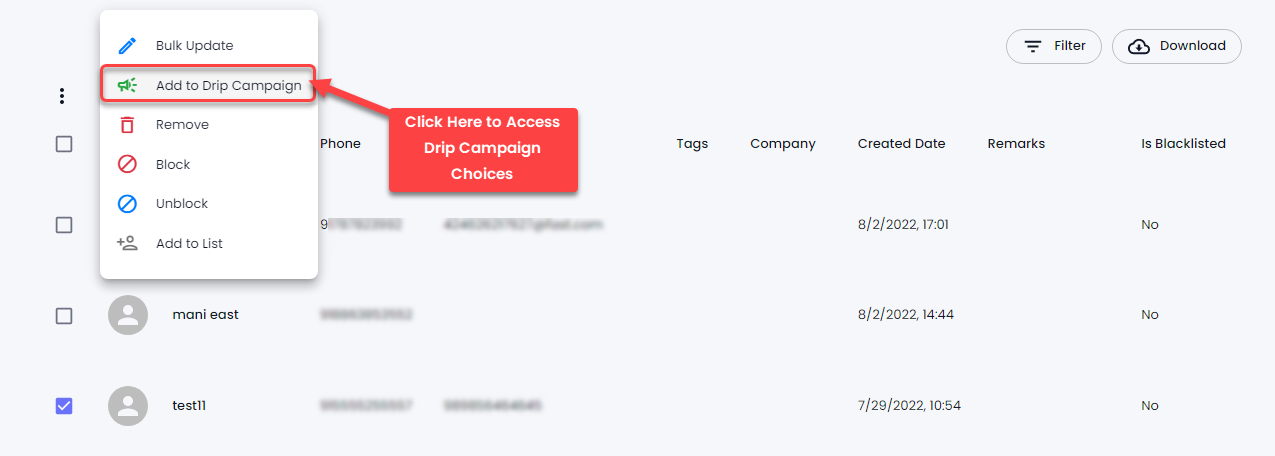
Select the contacts you want to add to the Drip Campaign. Once selected, click the![](/files/mmxbD1DkkHFRMWE9rJyC)Menu button next to bulk select, and then click **Add to Drip Campaign**.

<figure><img src="https://files.gitbook.com/v0/b/gitbook-x-prod.appspot.com/o/spaces%2FhElFPtMZjXYjDDMBT5q2%2Fuploads%2FuLI24PKCWnbrCk7Ufd3M%2FAdd%20to%20Drip%20Campaign%20Button%20in%20Contacts.png?alt=media&#x26;token=d4313a5a-884d-45a1-87cb-712b5c0e500b" alt=""><figcaption></figcaption></figure>

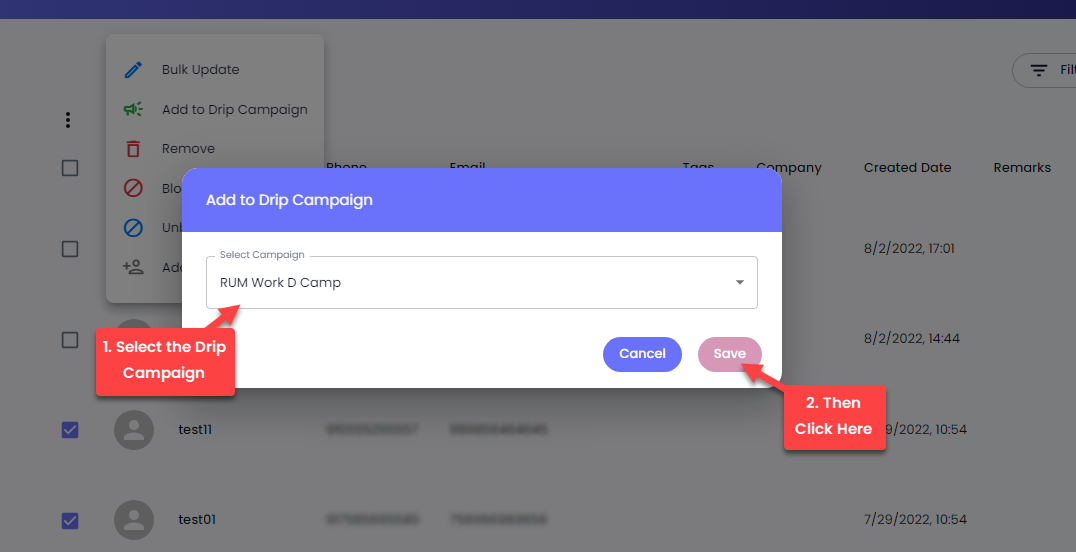
Select the campaign to which you want to add the contacts, and then click **Save**.&#x20;

<figure><img src="https://files.gitbook.com/v0/b/gitbook-x-prod.appspot.com/o/spaces%2FhElFPtMZjXYjDDMBT5q2%2Fuploads%2FMf1eWHd67viiKA23ngV5%2FSelecting%20a%20Drip%20Campaign%20Modal%20from%20Contacts.png?alt=media&#x26;token=5c744404-8648-4873-bd67-16239b46f10d" alt=""><figcaption></figcaption></figure>

That's it; you've added the contacts to a Drip Campaign.&#x20;

### Remove a Contact

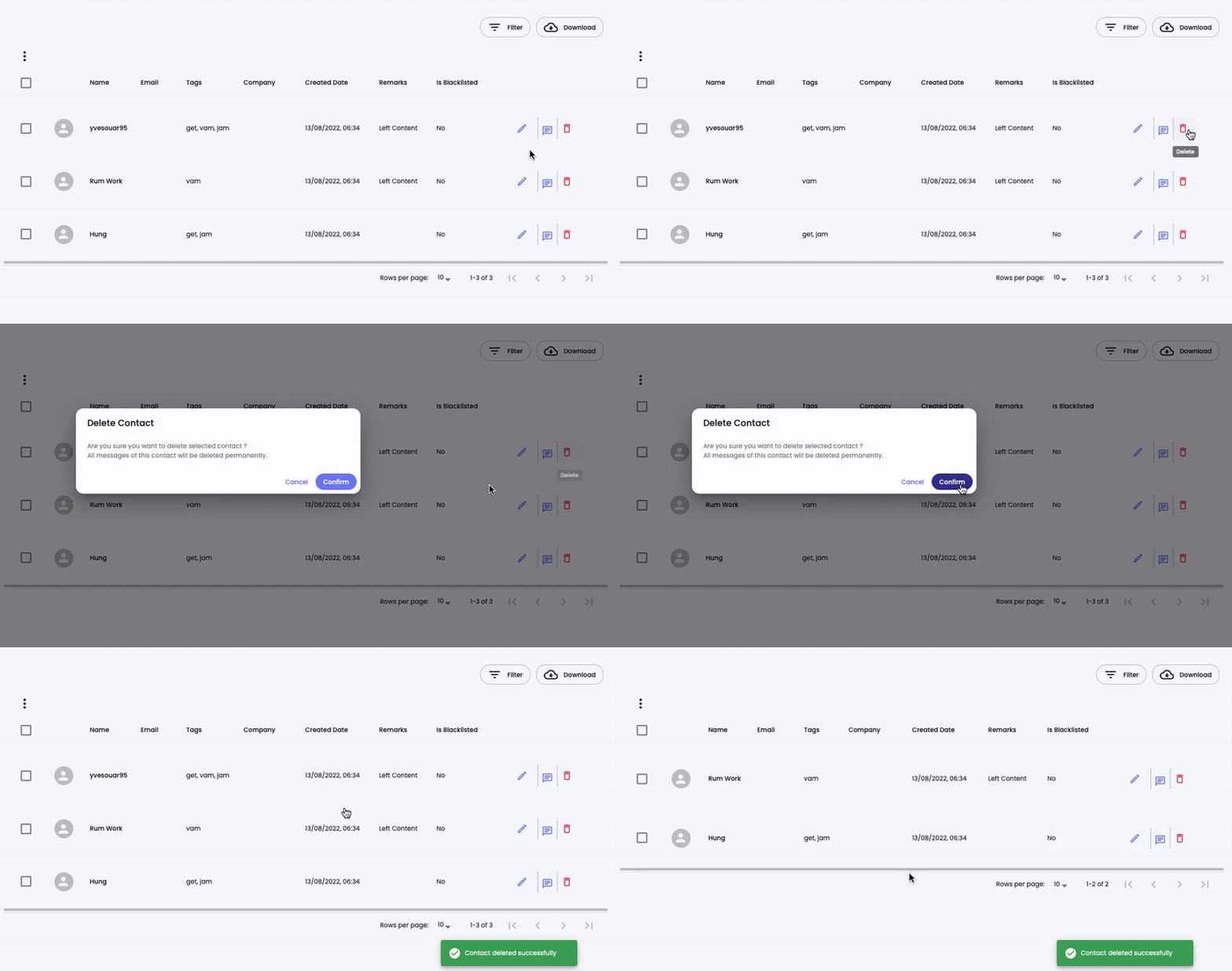
Click the Trash Button icon<img src="https://files.gitbook.com/v0/b/gitbook-x-prod.appspot.com/o/spaces%2FhElFPtMZjXYjDDMBT5q2%2Fuploads%2F3Of4IVOBkTD6Yfey20F7%2FDelete%20Button.png?alt=media&#x26;token=82c696d8-8f39-4ebd-82c3-f74f28e61d38" alt="" data-size="line">associated with contact to delete it.

<figure><img src="https://files.gitbook.com/v0/b/gitbook-x-prod.appspot.com/o/spaces%2FhElFPtMZjXYjDDMBT5q2%2Fuploads%2FXP28nyFhPxVQqnH4kYbM%2FDeleting%20a%20Contact.gif?alt=media&#x26;token=c20ad2f5-8d08-4f99-95b0-7f4980cac423" alt=""><figcaption></figcaption></figure>

Then, click the **Confirm** button to finalise deleting.

### Bulk Remove

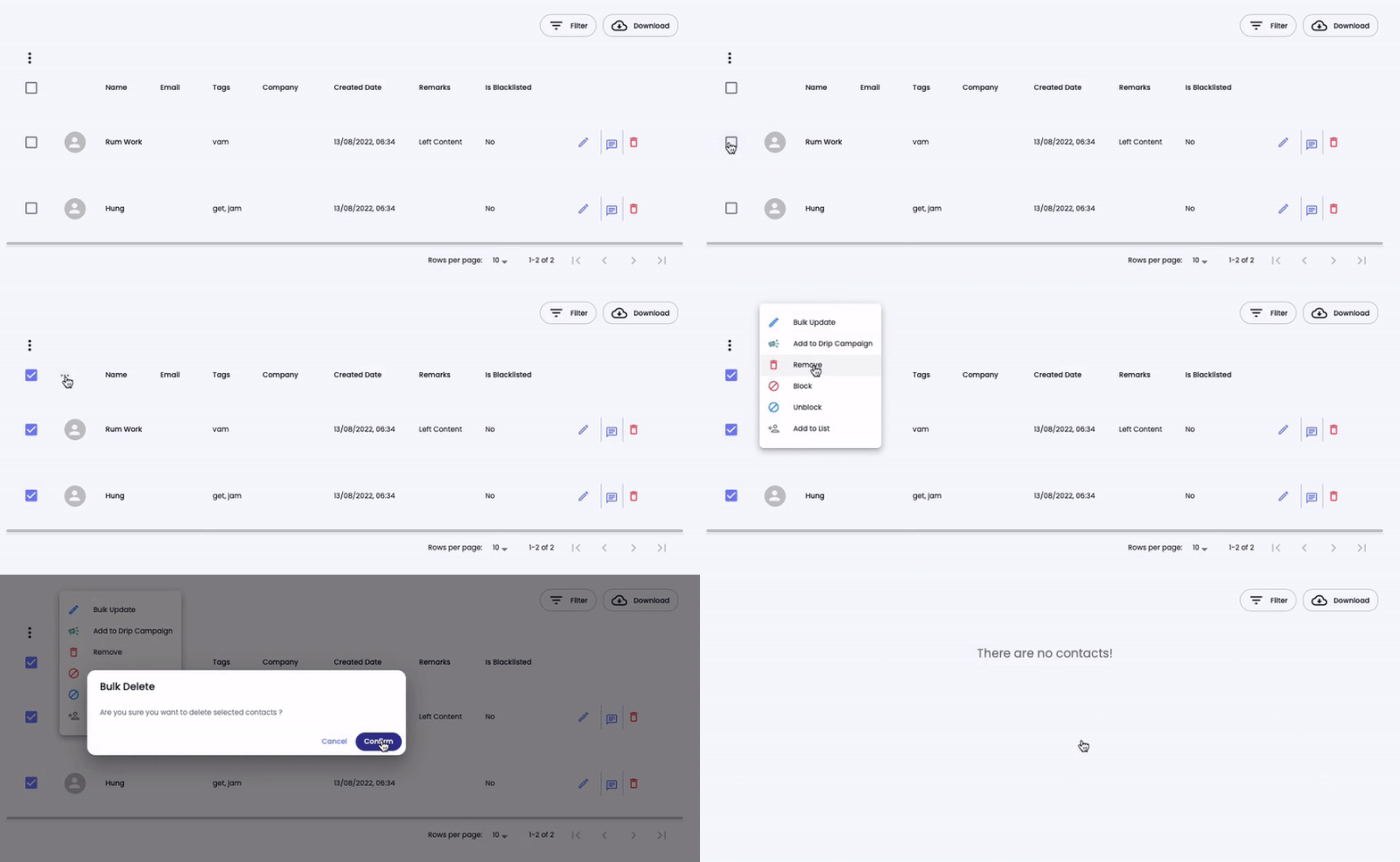
First, select the contacts you want to delete. Then click on the More options button![](/files/mmxbD1DkkHFRMWE9rJyC)and then click **Remove**.

<figure><img src="https://files.gitbook.com/v0/b/gitbook-x-prod.appspot.com/o/spaces%2FhElFPtMZjXYjDDMBT5q2%2Fuploads%2Fe13r3swDrxyUjufnq3pg%2FBulk%20Delete.gif?alt=media&#x26;token=d0f523a7-b73d-46da-9f7c-8aedc1da7b3c" alt=""><figcaption></figcaption></figure>

In the Bulk Delete popup, click the **Confirm** button.

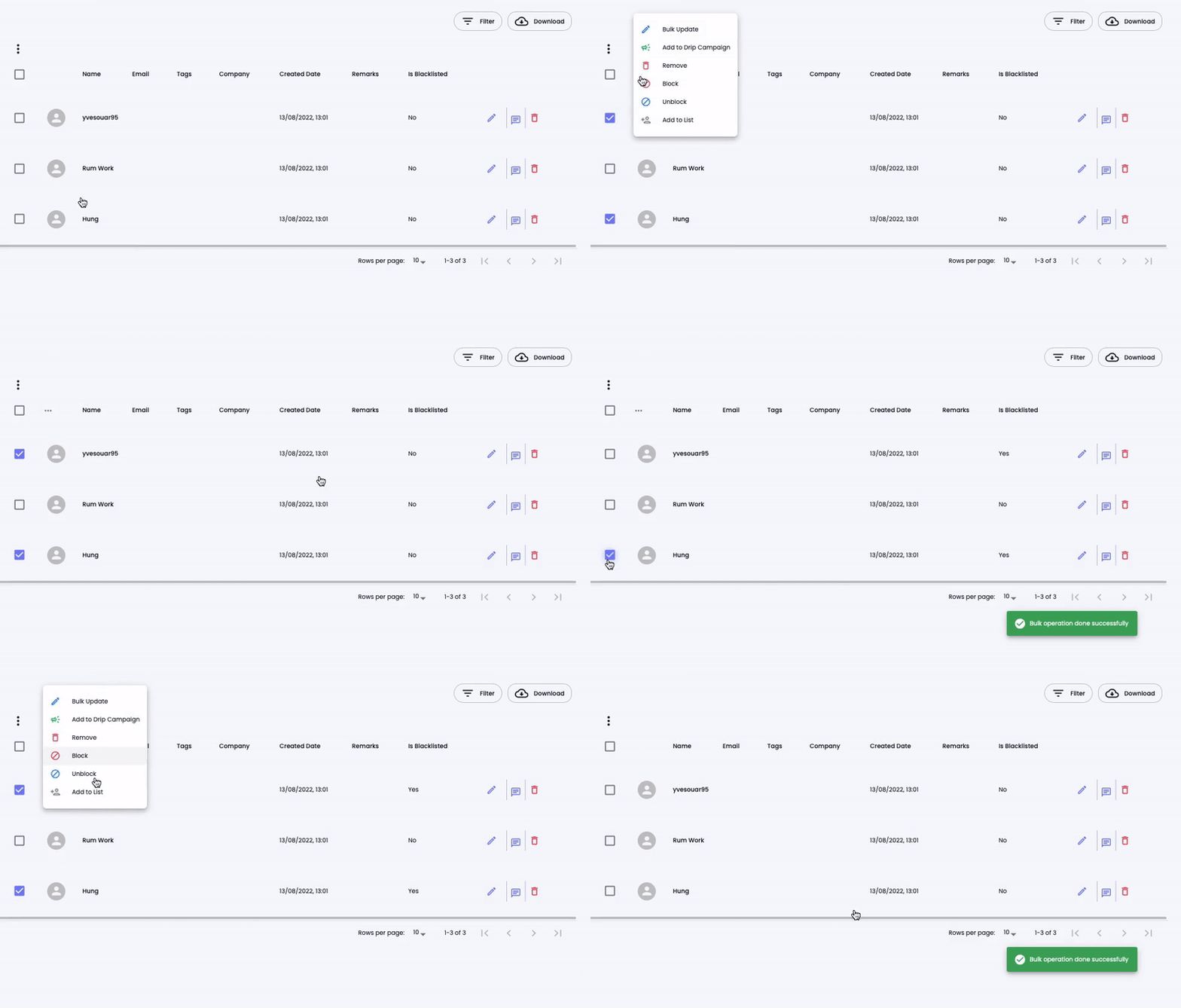
### Block/Unlock a Contact(s)

<figure><img src="https://files.gitbook.com/v0/b/gitbook-x-prod.appspot.com/o/spaces%2FhElFPtMZjXYjDDMBT5q2%2Fuploads%2Fut7ULsg1xQKUCBunKGCe%2FBlocking%20or%20Unblocking%20a%20Contact.gif?alt=media&#x26;token=3a6d96a0-9e9c-45c9-9caa-6ccd596d94d5" alt=""><figcaption></figcaption></figure>

To Block or Unblock a contact(s), first, select the contacts, then click the![](https://files.gitbook.com/v0/b/gitbook-x-prod.appspot.com/o/spaces%2FhElFPtMZjXYjDDMBT5q2%2Fuploads%2FIuURvhSfhvZU8ZTlpMYP%2FHorizontal%20Menu%20Options.png?alt=media\&token=dbc06bb8-de51-43aa-82ce-b6da06df3d6f)More Options button.

<figure><img src="https://files.gitbook.com/v0/b/gitbook-x-prod.appspot.com/o/spaces%2FhElFPtMZjXYjDDMBT5q2%2Fuploads%2FdDaMqwCXpHKjcrrReUkO%2FBlock%20or%20Unblock%20Option.png?alt=media&#x26;token=1c748516-9846-428a-80ad-4e777b663777" alt=""><figcaption></figcaption></figure>

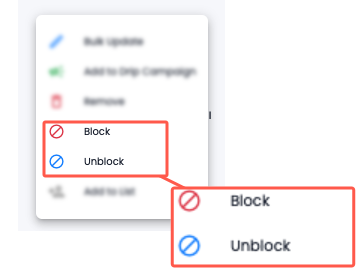
From the available options, either select

* **Block**
* Or **Unblock**.

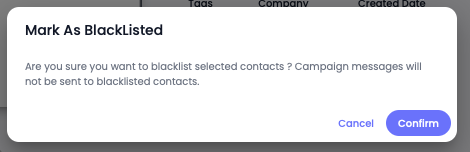
<figure><img src="https://files.gitbook.com/v0/b/gitbook-x-prod.appspot.com/o/spaces%2FhElFPtMZjXYjDDMBT5q2%2Fuploads%2FKTAz6ntowxnNHvG2BIgw%2FConfirm%20Block.png?alt=media&#x26;token=1fb1b724-e425-4b2b-853f-e77466046a6b" alt=""><figcaption></figcaption></figure>

Then click the **Confirm** button to finish the action.

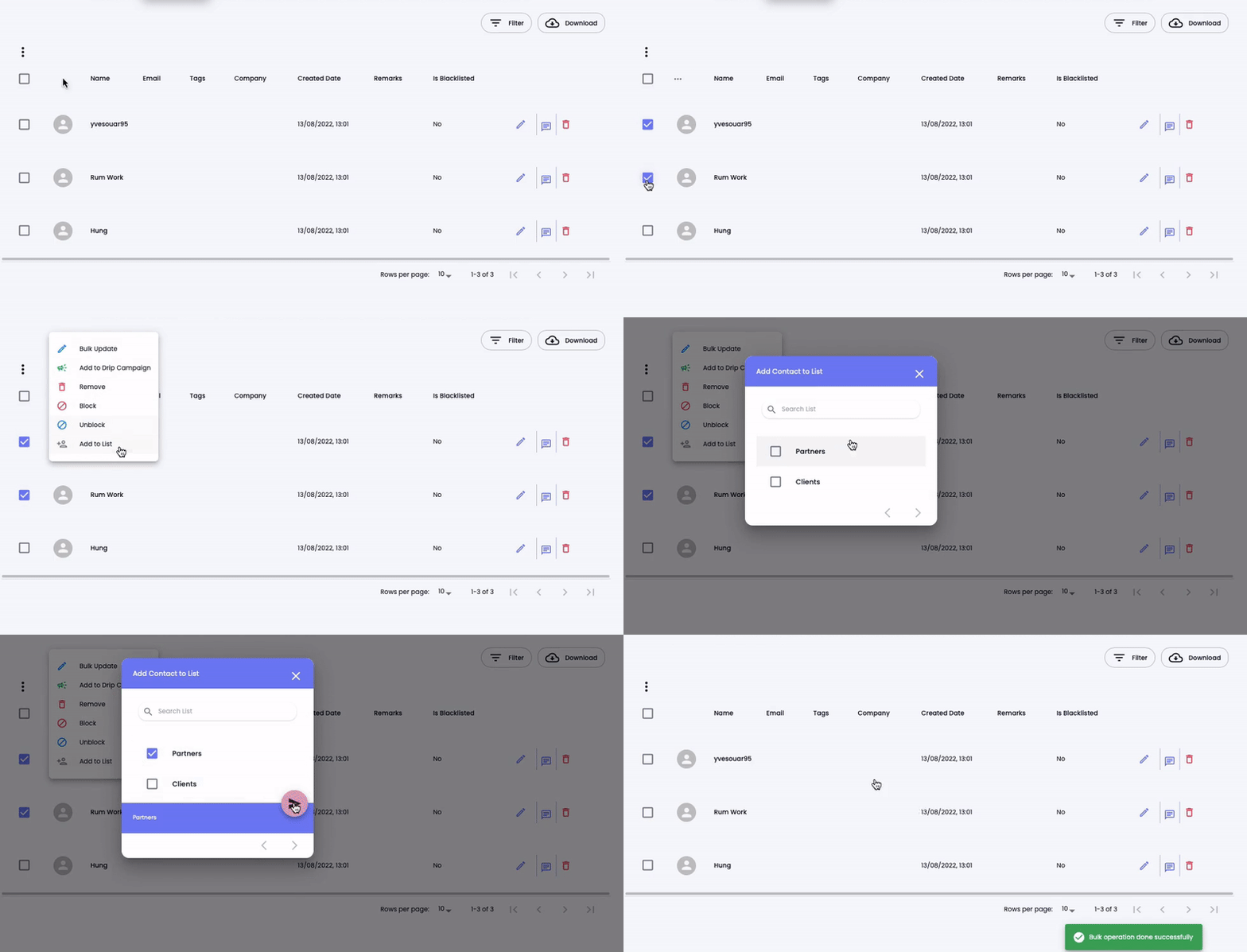
### Add to List

<figure><img src="https://files.gitbook.com/v0/b/gitbook-x-prod.appspot.com/o/spaces%2FhElFPtMZjXYjDDMBT5q2%2Fuploads%2FsV3lokiNv6Yy458Hmlvp%2FAdding%20Contacts%20to%20a%20List.gif?alt=media&#x26;token=cfd9cfd6-4a84-4055-bcc1-4c7d3fc96ff5" alt=""><figcaption></figcaption></figure>

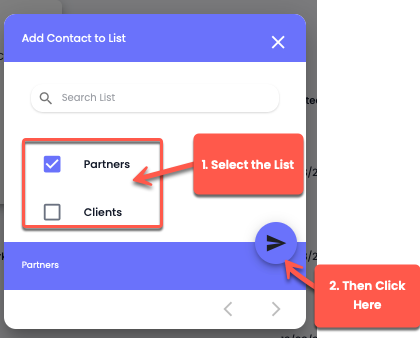
To add contacts to a contacts group, first, select the contacts. Then, click the![](https://files.gitbook.com/v0/b/gitbook-x-prod.appspot.com/o/spaces%2FhElFPtMZjXYjDDMBT5q2%2Fuploads%2FIuURvhSfhvZU8ZTlpMYP%2FHorizontal%20Menu%20Options.png?alt=media\&token=dbc06bb8-de51-43aa-82ce-b6da06df3d6f)More Options button, and then click **Add to List**.

<figure><img src="https://files.gitbook.com/v0/b/gitbook-x-prod.appspot.com/o/spaces%2FhElFPtMZjXYjDDMBT5q2%2Fuploads%2FTFFSnYTqrEU0VY3rxFaS%2FAdding%20to%20a%20List.png?alt=media&#x26;token=2d2c291a-5f34-4933-ad32-3681f601173d" alt=""><figcaption></figcaption></figure>

From the available lists, select the ones to which you want to add the contacts, and then click the submit button.

### Chat From Contacts

<figure><img src="https://files.gitbook.com/v0/b/gitbook-x-prod.appspot.com/o/spaces%2FhElFPtMZjXYjDDMBT5q2%2Fuploads%2FCKWfk6atojjtrKJgKpqj%2FOpen%20Chat%20Using%20Contacts.png?alt=media&#x26;token=34ba27fd-4f45-4a80-a407-8958e0677713" alt=""><figcaption></figcaption></figure>

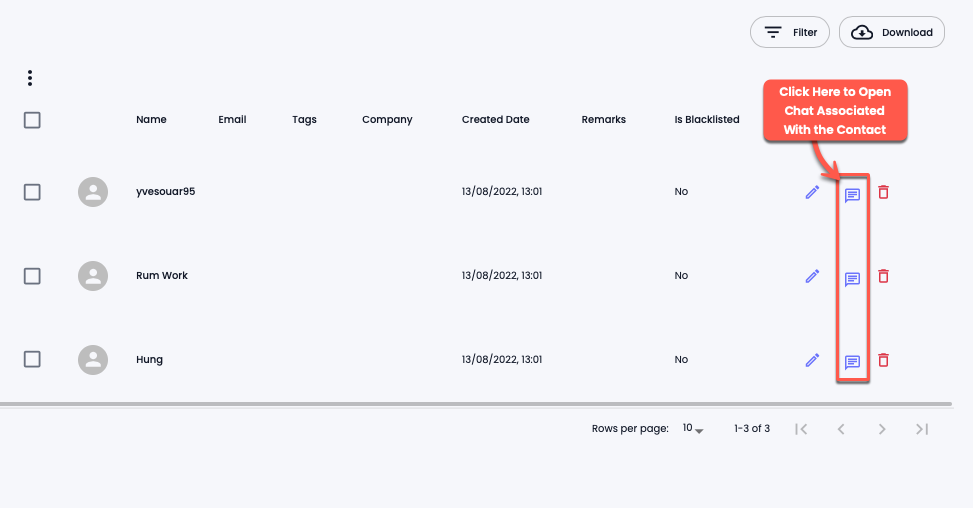
To access Chat directly from the Contacts module, click the<img src="https://files.gitbook.com/v0/b/gitbook-x-prod.appspot.com/o/spaces%2FhElFPtMZjXYjDDMBT5q2%2Fuploads%2FKK6pZfyu0raziI98xUTE%2FChat%20Button%20Campaign.png?alt=media&#x26;token=0e6e95e2-ecad-481d-a80c-4330c28ceb7e" alt="" data-size="line">Chat Icon Button. It will open the chat with the associate contact.

---

# Agent Instructions: Querying This Documentation

If you need additional information that is not directly available in this page, you can query the documentation dynamically by asking a question.

Perform an HTTP GET request on the current page URL with the `ask` query parameter:

```
GET https://docs.rampwin.com/english/contacts.md?ask=<question>
```

The question should be specific, self-contained, and written in natural language.
The response will contain a direct answer to the question and relevant excerpts and sources from the documentation.

Use this mechanism when the answer is not explicitly present in the current page, you need clarification or additional context, or you want to retrieve related documentation sections.